Overview :
Journal Posting sends the day’s POS sales and refunds to N3 AI Accounting as one journal per day. Postings run by themselves on the schedule set in Settings > Accounting, and you can also post a date range yourself at any time. Each synced posting becomes a Journal Voucher in N3 AI Accounting (n3.qne.cloud), in the database that N3 AI POS is linked to. This article guides you through posting to journal and checking the journal entry in N3 AI Accounting.
At the end of this article, you will be able to:
Post the sales of a date range to journal
Check the journal posting and its accounting reference
View the journal entry in N3 AI Accounting
Scenario :
Today’s three cash sales at Sri Kembangan (SK012611/00028 to 00030, RM 12.85 after rounding) are not posted yet. The accountant posts them to journal now instead of waiting for tonight’s scheduled posting, then checks the journal entry in N3 AI Accounting, in the POS Sdn. Bhd. Live database.
Solution :
Post to Journal
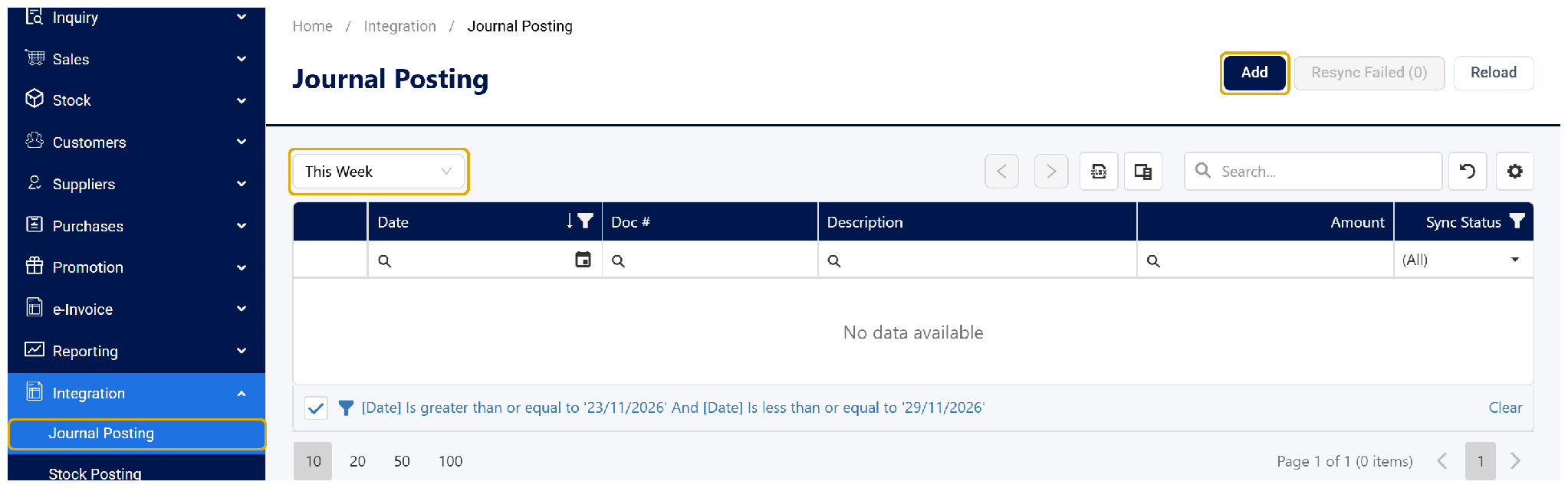
Navigate to Integration > Journal Posting. The list shows the postings of the chosen period, e.g. This Week. Click Add.
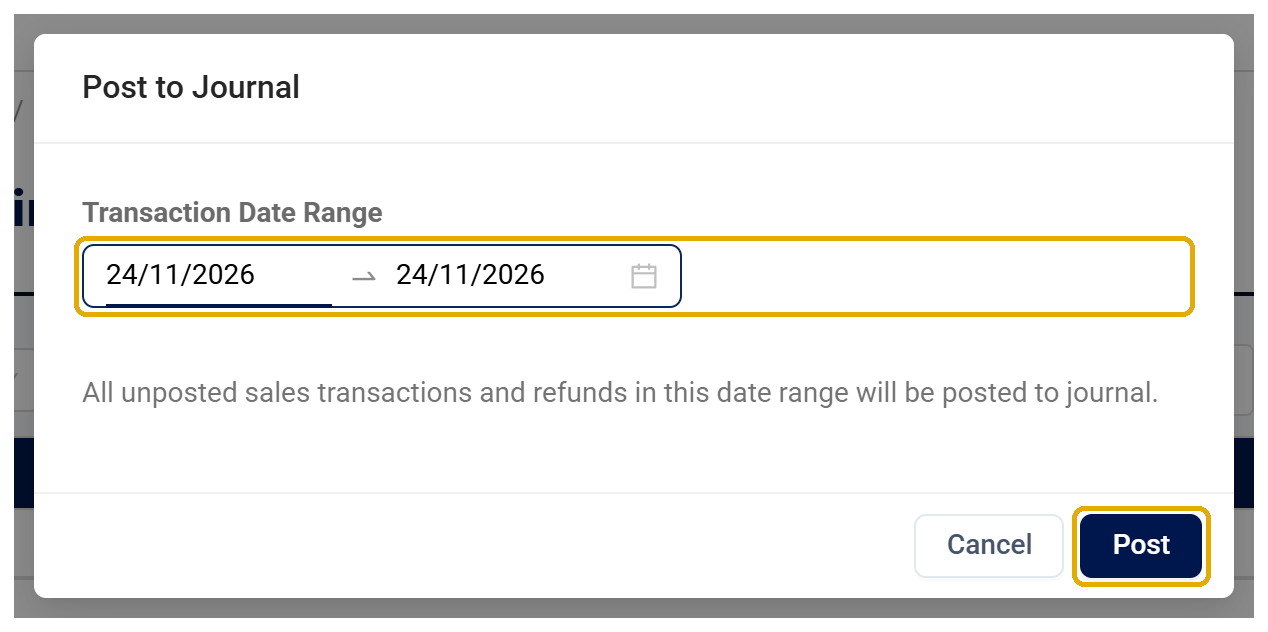
In Post to Journal, choose the Transaction Date Range. It starts at today, e.g. 24/11/2026 to 24/11/2026. Click Post.
All unposted sales and refunds in the date range are posted to journal, one posting per day.
Note: If the sales have a rounding adjustment, N3 AI Accounting needs a default interface account for Rounding Adjustment first.
Result: The new posting, e.g. JP2611/012 – Journal Posting for 24/11/2026, 12.86, shows Synced under Sync Status. Click Doc # to open it.

Check the Journal Posting
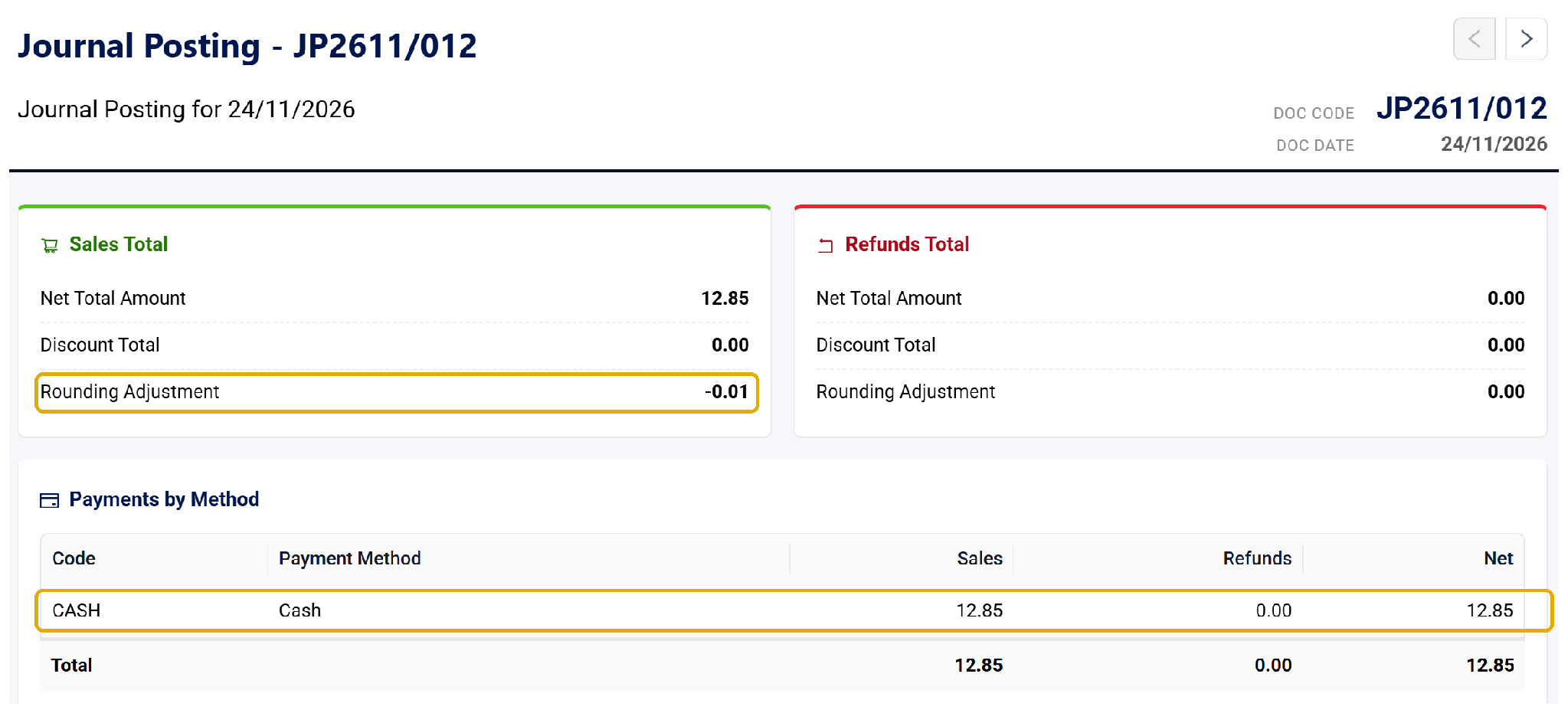
The posting shows the Sales Total and Refunds Total with any Rounding Adjustment, e.g. -0.01, and the amount by payment method, e.g. CASH 12.85.
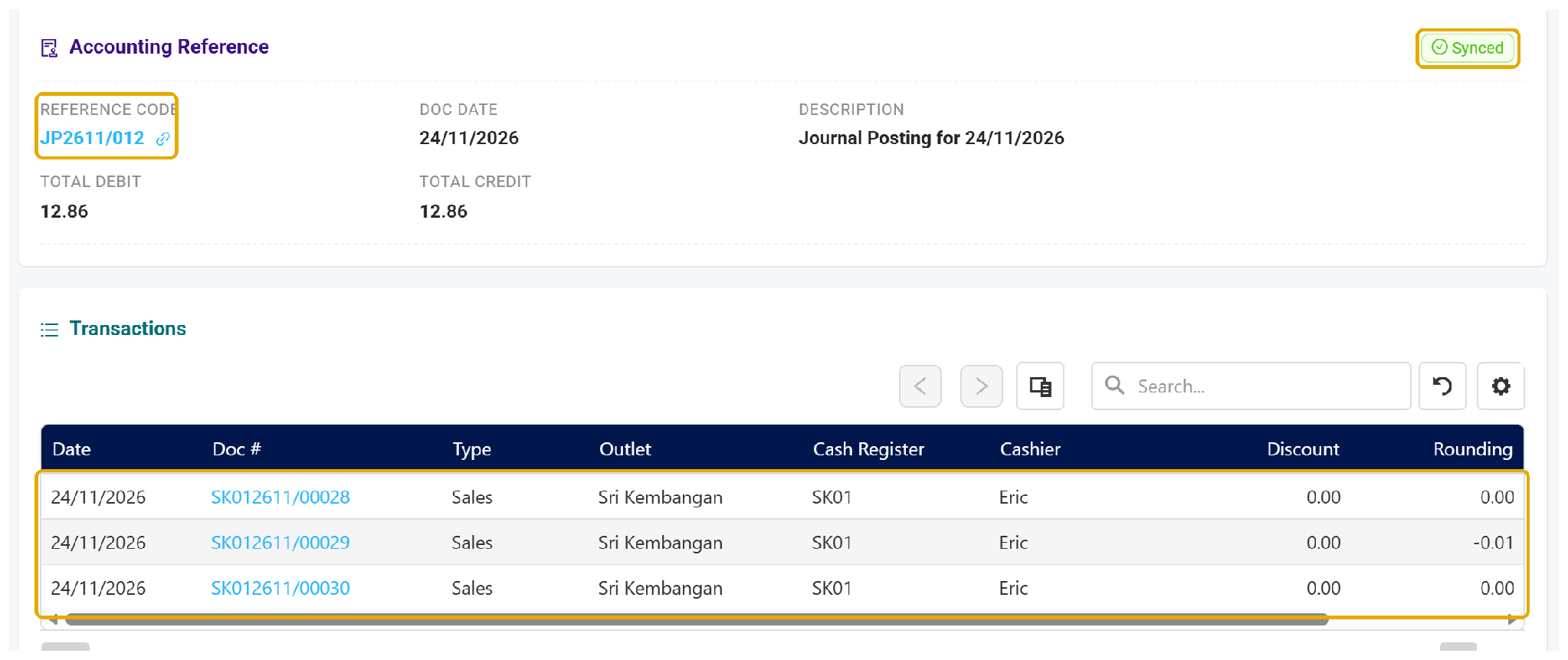
Under Accounting Reference, Synced shows the journal is in N3 AI Accounting. The Reference Code, e.g. JP2611/012, is the journal voucher number there, with its Total Debit and Total Credit. Transactions lists the sales in the posting.
View the Journal Entry in N3 AI Accounting
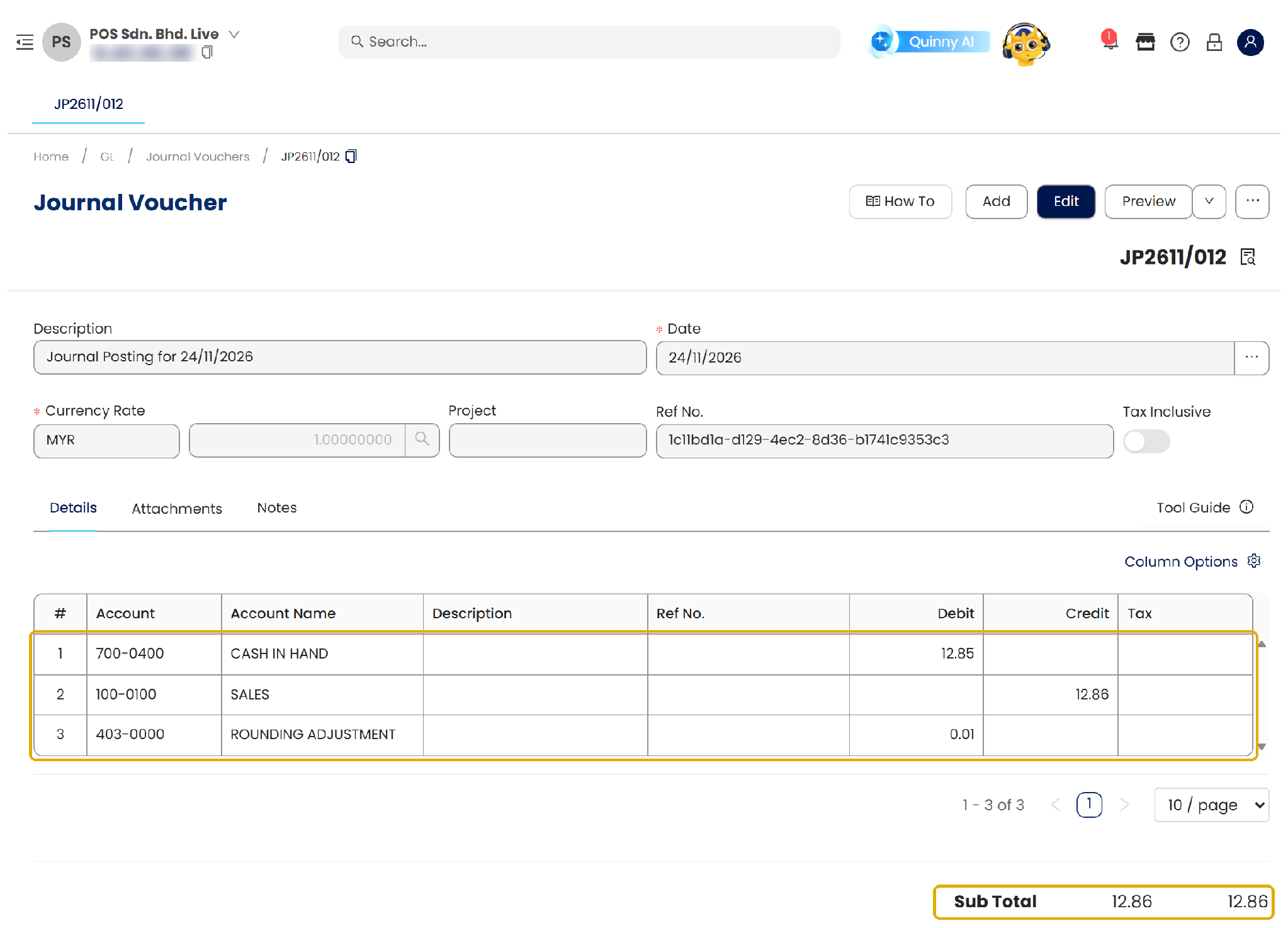
In the journal posting, click the Reference Code, e.g. JP2611/012. The system goes straight to the Journal Voucher in N3 AI Accounting (n3.qne.cloud), in the database N3 AI POS is linked to, e.g. POS Sdn. Bhd. Live. It shows the journal entry, e.g.:
CASH IN HAND – Debit 12.85, the cash received.
ROUNDING ADJUSTMENT – Debit 0.01, the rounding of the sales.
SALES – Credit 12.86, the sales before rounding.
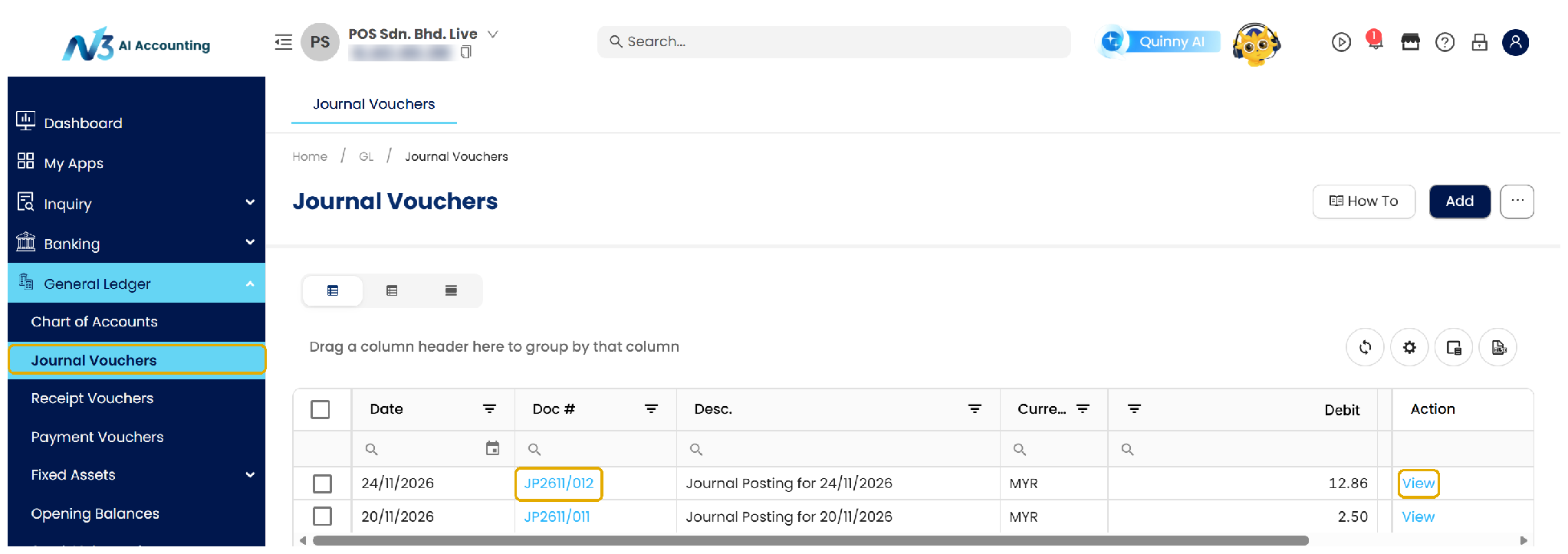
To find it manually, navigate to General Ledger > Journal Vouchers in N3 AI Accounting. The journal posting is listed with the same Doc #, e.g. JP2611/012 – Journal Posting for 24/11/2026, 12.86. Click View to open it.
What's Next :
Set when the journal postings run by themselves in Settings > Accounting > Scheduled Posting, and check the documents not posted yet in Integration > Posting Status.
** Learn more about Azure Cloud
** Learn more about QNE Hybrid Cloud Software
Was this article helpful?
That’s Great!
Thank you for your feedback
Sorry! We couldn't be helpful
Thank you for your feedback
Feedback sent
We appreciate your effort and will try to fix the article
