Overview :
Posting Status lists the POS documents that are not in N3 AI Accounting yet. The Journal tab shows the sales and refunds still waiting to be posted as journals, and the Stock tab shows the stock postings. For each document you can see whether something holds it back, open it, and sync it to N3 AI Accounting straight away instead of waiting for the next scheduled posting. This article guides you through checking the posting status and syncing documents in the N3 AI POS Portal.
At the end of this article, you will be able to:
Open Posting Status and filter the documents
Read the status and Waiting For of each document
Sync the journal documents and check the journal posting
Sync the stock documents and check the stock posting
Scenario :
A sale on 20/11/2026 (SK012611/00026, RM 2.50) is not in N3 AI Accounting yet. The accountant wants it posted now, without waiting for tonight's scheduled posting, so they sync it from the Journal tab. The stock of today's three sales (SK012611/00028 to 00030) is synced from the Stock tab in the same way.
Solution :
Open Posting Status
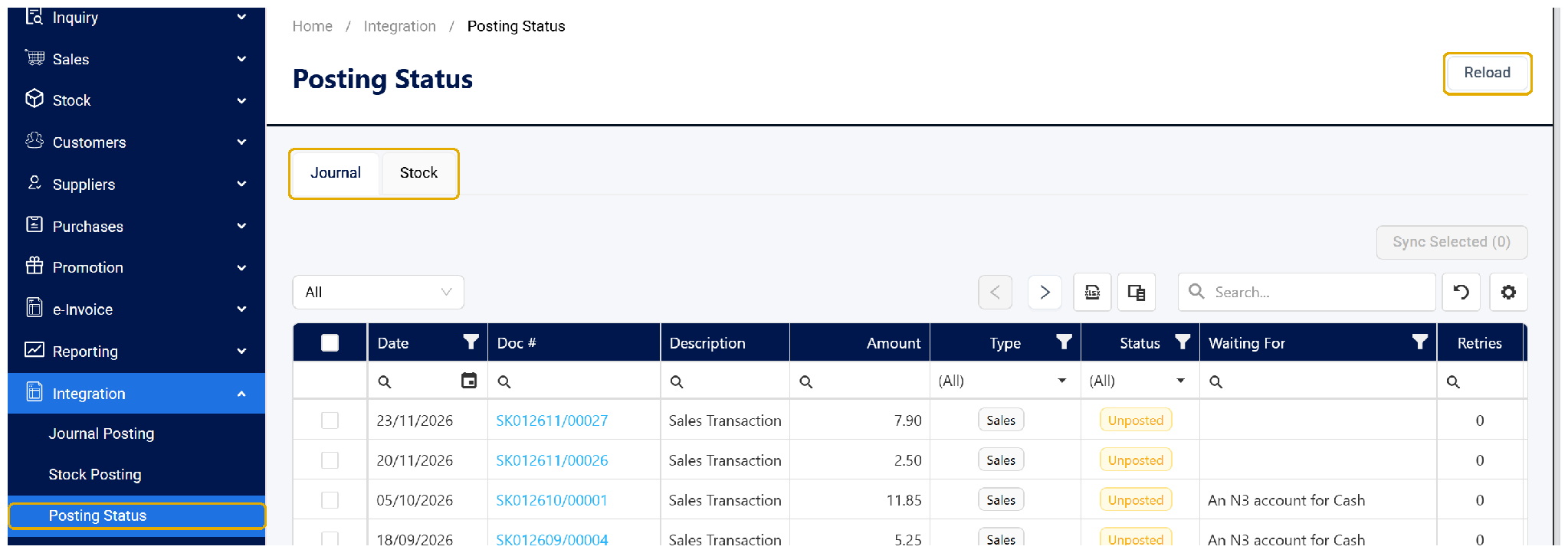
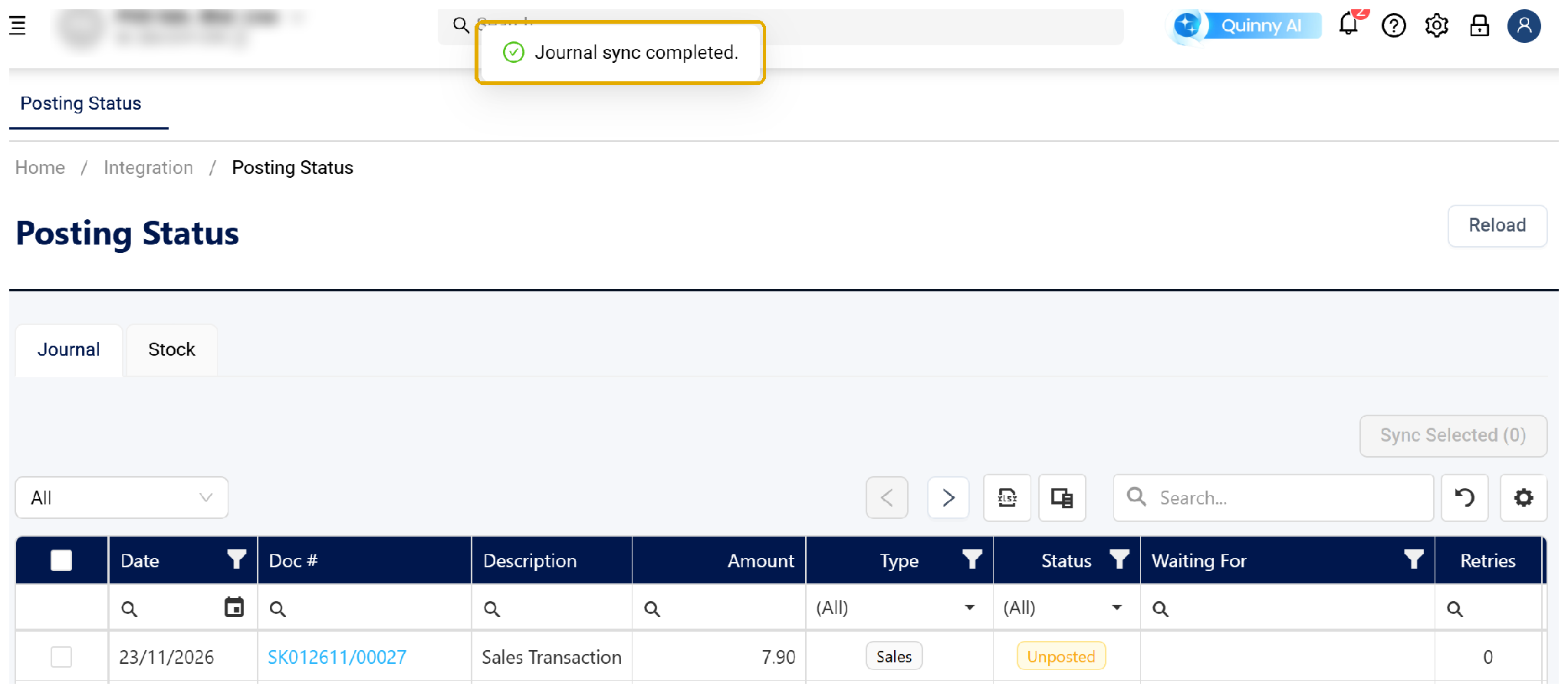
Navigate to Integration > Posting Status. The page has two tabs, Journal and Stock. Click Reload to read the list again.
Note: N3 AI Accounting must be connected (Settings > Accounting), or the list stays empty.
Check the Documents
The Journal tab lists the documents not yet posted as journals. The Stock tab lists the stock postings in the same way. Each row shows:
Date / Doc # / Description / Amount – The document. Click Doc # to open it.
Type – Sales, Refund, Deposit, Voucher or Posting.
Status – Unposted: not sent to N3 AI Accounting yet. It goes with the next scheduled posting, or when you sync it.
Waiting For – What holds the document back, e.g. An N3 account for Cash: the payment method has no account in N3 AI Accounting yet. Empty means the document is ready to sync.
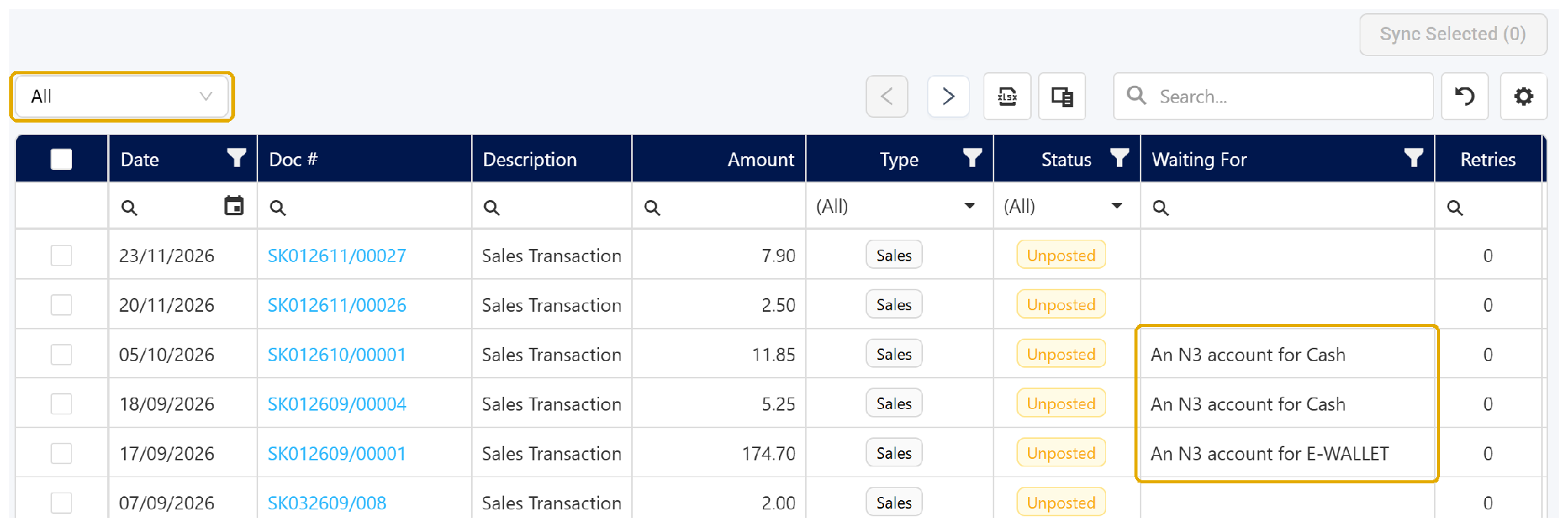
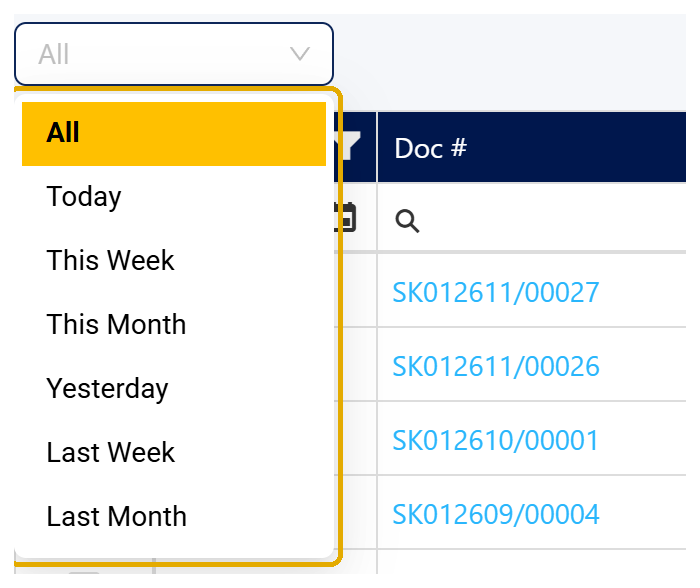
Click All to show only the documents of a period: Today, This Week, This Month, Yesterday, Last Week or Last Month.
Sync the Journal Documents
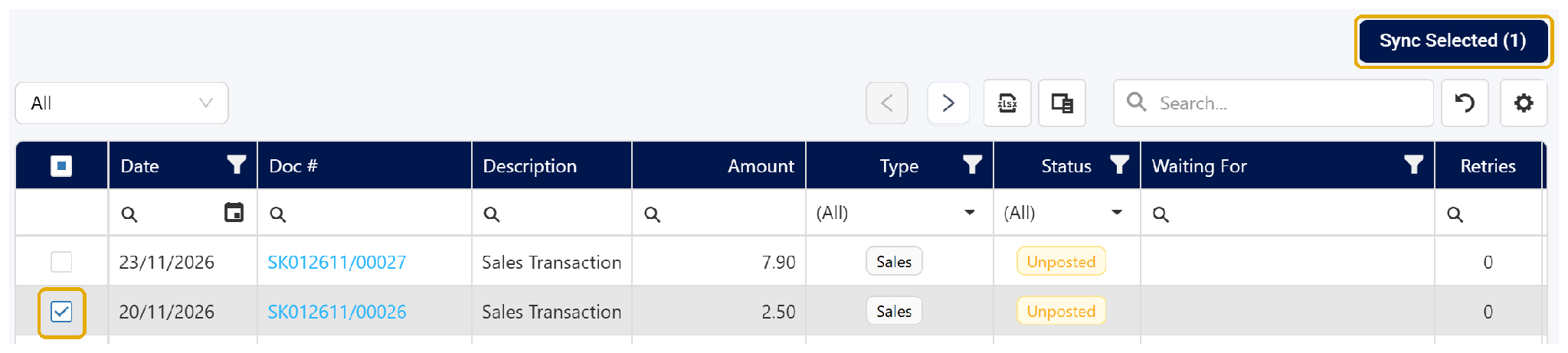
Tick the documents to send, e.g. SK012611/00026, then click Sync Selected. The button shows how many are ticked, e.g. Sync Selected (1).
Note: Tick only documents with an empty Waiting For. A document waiting for an N3 account is not synced.
Result: Journal sync completed. appears, and the synced document leaves the list.
Check the Synced Journal Posting
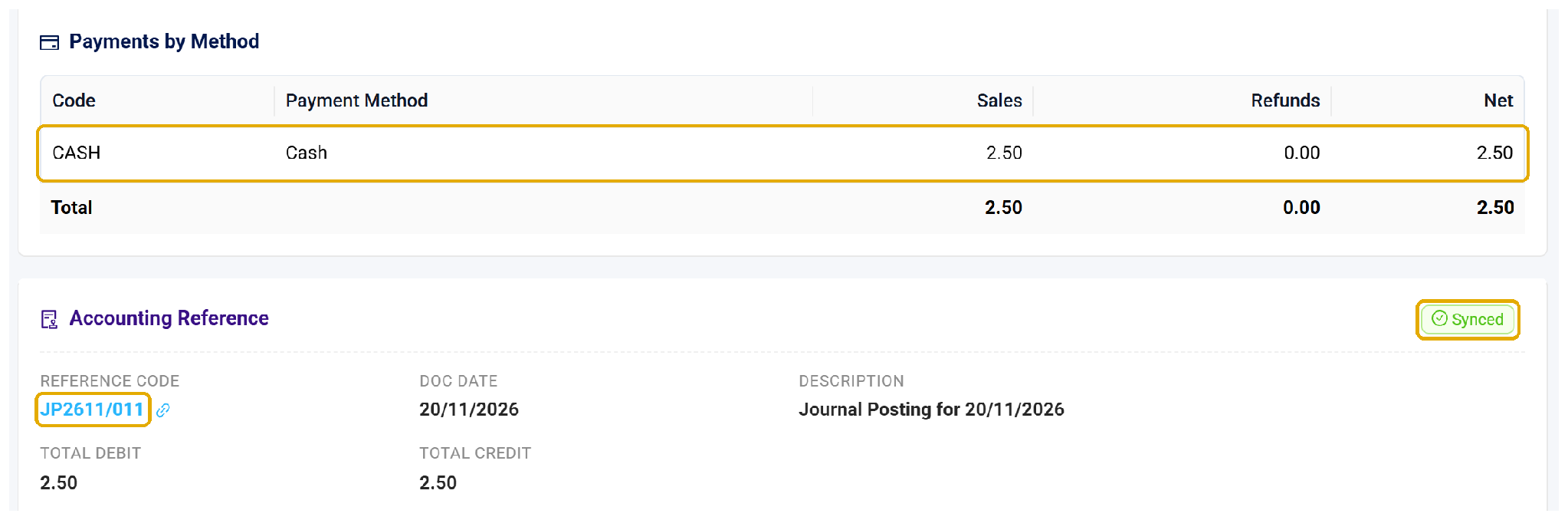
Navigate to Integration > Journal Posting and choose the period, e.g. Last Week. The new posting, e.g. JP2611/011 – Journal Posting for 20/11/2026, shows Synced. Click Doc # to open it.

The posting shows the amount by payment method, and under Accounting Reference the Reference Code in N3 AI Accounting, with Synced.
Sync the Stock Documents
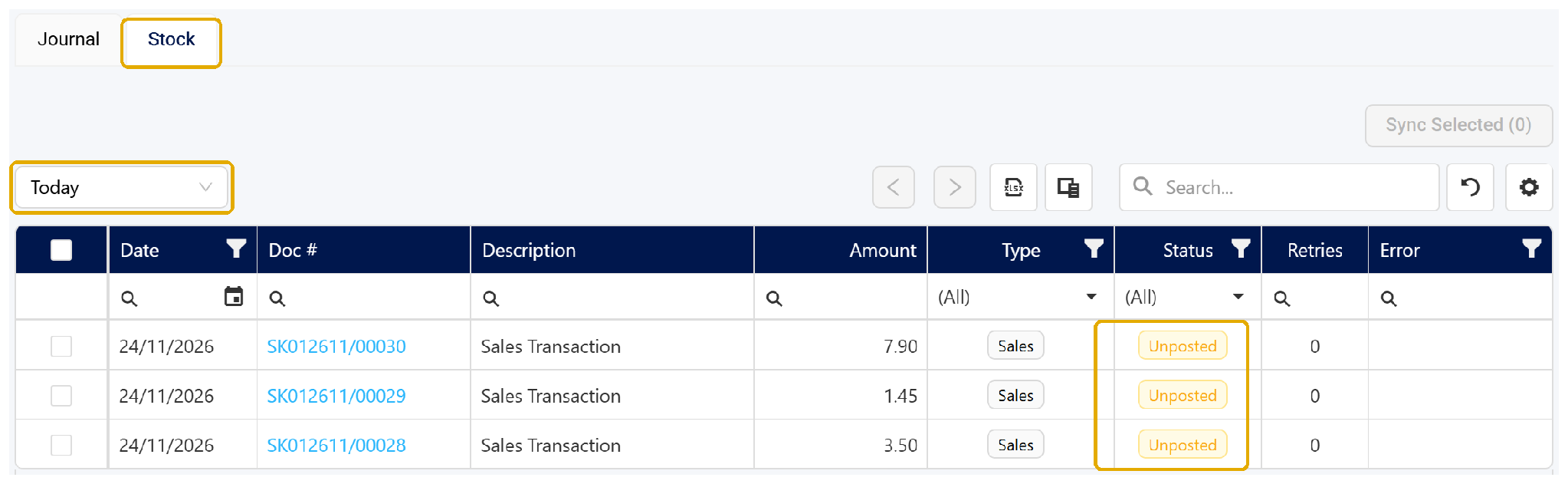
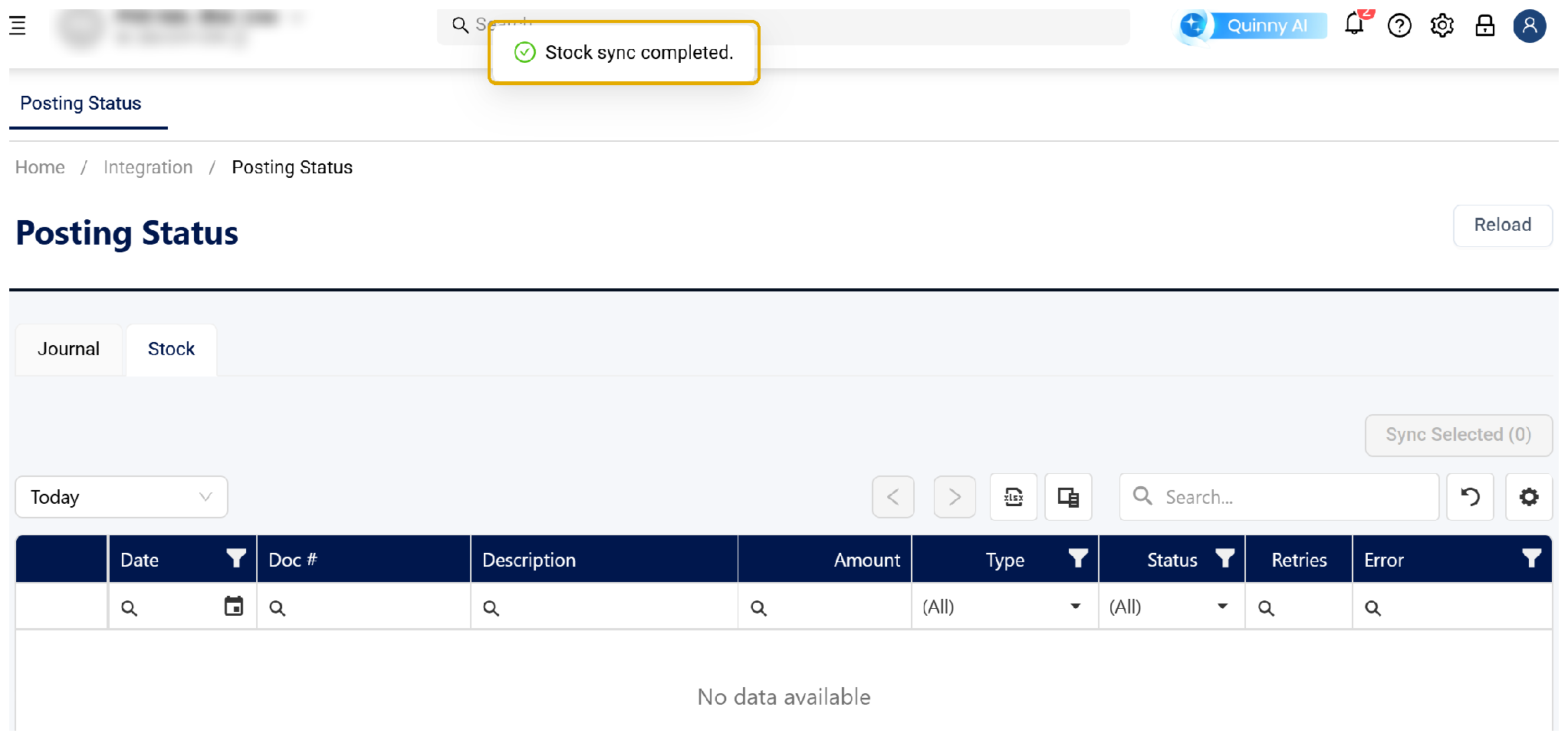
Click the Stock tab and choose the period, e.g. Today. The day’s sales whose stock is not posted yet show Unposted, e.g. SK012611/00028, 00029 and 00030.
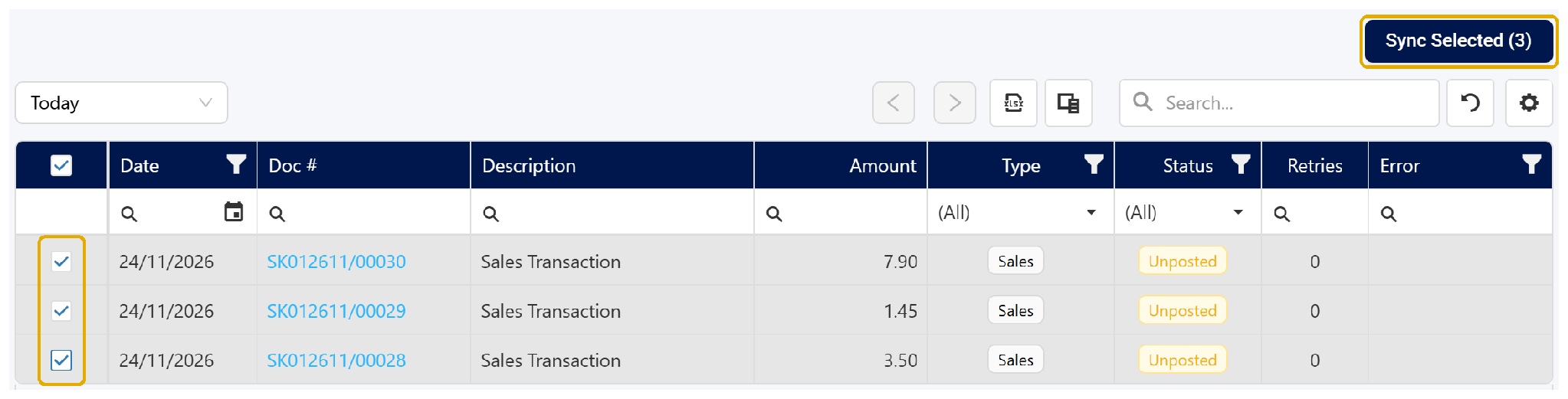
Tick the documents, or tick the box in the header to tick all, then click Sync Selected, e.g. Sync Selected (3).
Result: Stock sync completed. appears, and the synced documents leave the list.
Check the Synced Stock Posting
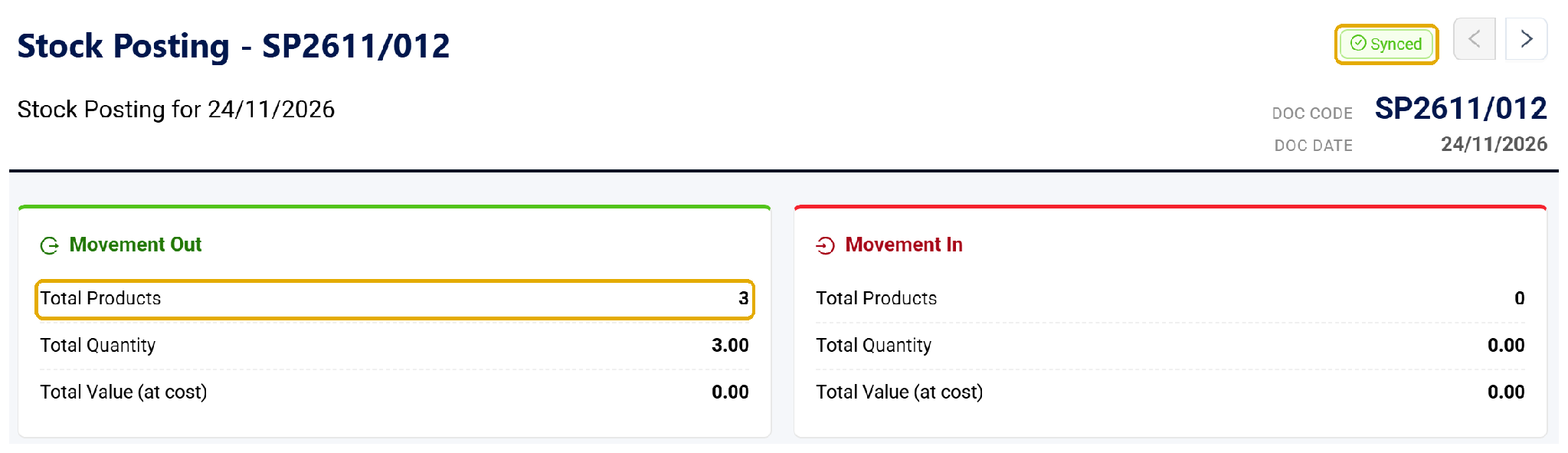
Navigate to Integration > Stock Posting. The new posting, e.g. SP2611/012 – Stock Posting for 24/11/2026, shows Synced. Click Doc # to open it.

The posting shows Synced and the stock movement it sent to N3 AI Accounting, e.g. Movement Out with 3 products.
What's Next :
Set when the postings run by themselves in Settings > Accounting > Scheduled Posting, and review all postings in Integration > Journal Posting and Stock Posting.
** Learn more about Azure Cloud
** Learn more about QNE Hybrid Cloud Software
Was this article helpful?
That’s Great!
Thank you for your feedback
Sorry! We couldn't be helpful
Thank you for your feedback
Feedback sent
We appreciate your effort and will try to fix the article
