Overview :
A Stock Bundle is a stock item that is sold as a set of other stock items, e.g. a party pack of soft drinks. You create it in the N3 AI POS Portal with its own price and list the items inside it. At the cash register (Win App), the cashier sells the bundle as one item.
At the end of this article, you will be able to:
Create a stock bundle and add its items in the Portal
Set a barcode and turn on Quick Menu for the bundle
Sync the bundle to the Win App
Sell the bundle in the Win App and see its items on the receipt
Scenario :
The store sells a Soft Drink Party Pack of 6 Coca-Cola 325ml and 6 7UP 325ml for RM 20.00. The store manager creates the bundle in the Portal, and the cashier at SK Counter01 (Sri Kembangan) sells it in the Win App, in the POS Sdn. Bhd. Live database.
Solution :
Create the Stock Bundle in the Portal
Navigate to Stock > Stock Items and click Add stock item.

Fill in the Details:
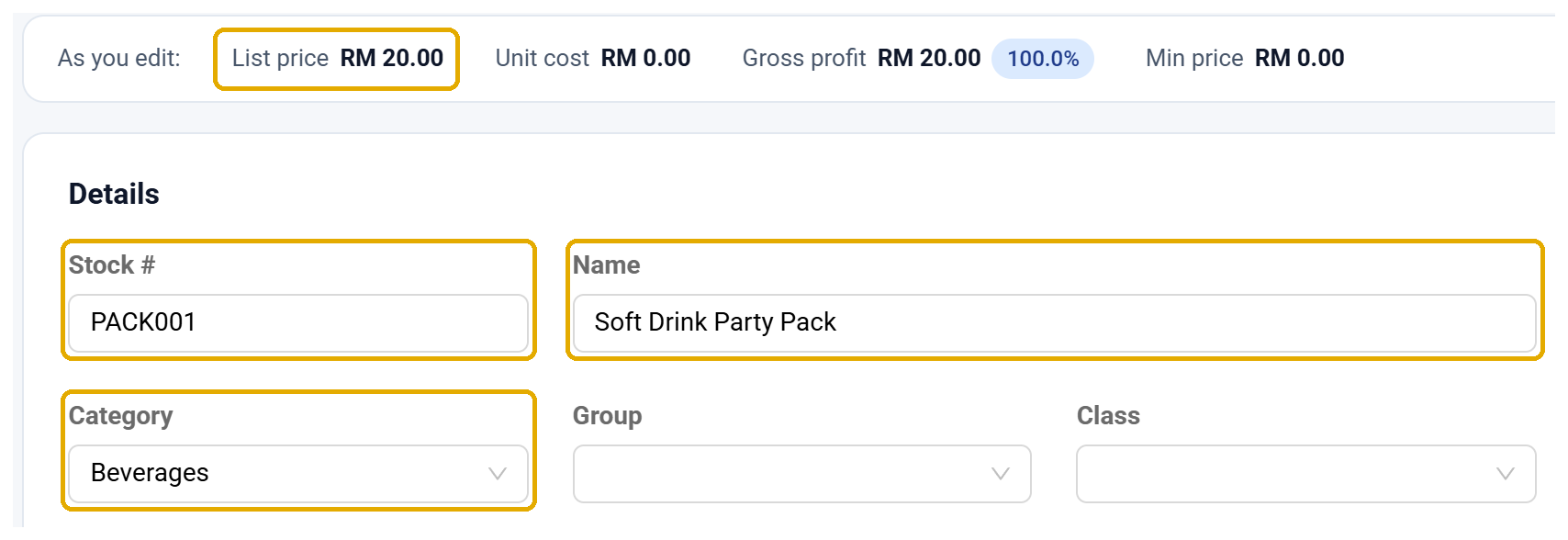
Stock # – The code of the bundle, e.g. PACK001.
Name – e.g. Soft Drink Party Pack.
Category – Optional, e.g. Beverages.
Unit Price – In the UOM tab, the selling price of the bundle, e.g. 20.00. It shows as the List price.
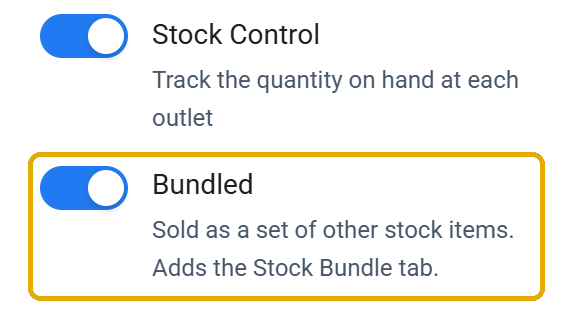
In Settings, turn on Bundled. The Stock Bundle tab appears.
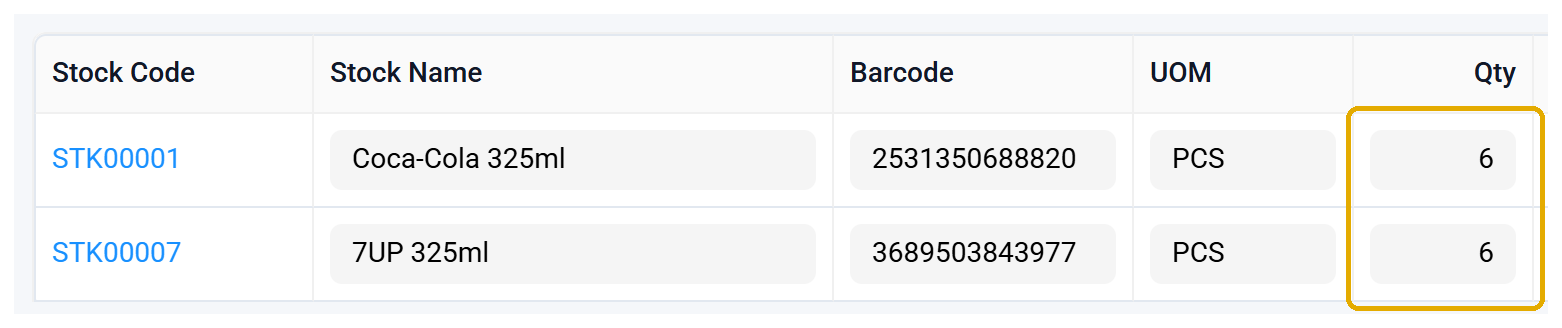
Click the Stock Bundle tab and click Add Lines for each item in the bundle:
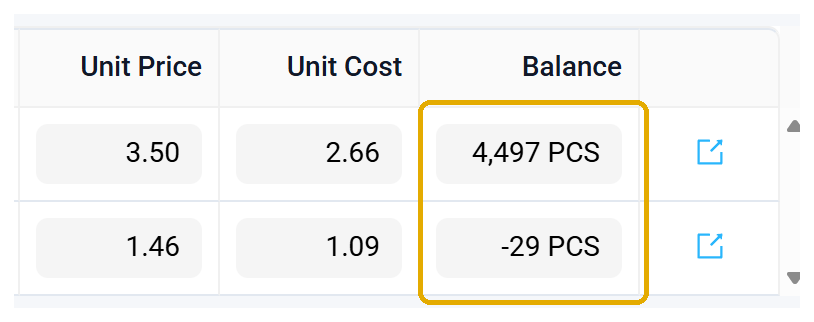
Stock Code – Choose the item, e.g. STK00001 Coca-Cola 325ml. Its Barcode, UOM, Unit Price, Unit Cost and Balance fill in.
Qty – How many of the item are in one bundle, e.g. 6.
Show Sub-Items – Lists the items of the bundle under it on the receipt, with their quantity.
Show Sub-Item Price – Also prints the Price and Amount on each item line. It can be turned on only when Show Sub-Items is on.
Note: Balance is the stock on hand of each item, e.g. 4,497 PCS and -29 PCS. A bundle cannot contain another bundle.
Click Save.
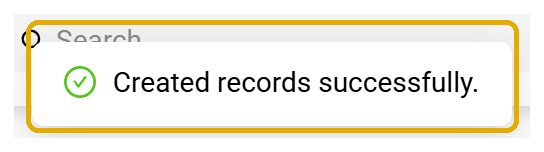
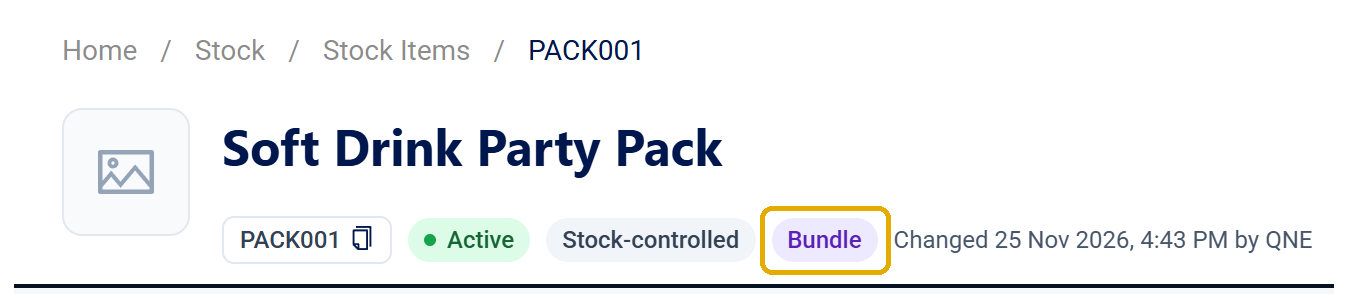
Result: Created records successfully. appears. The stock item is marked Bundle.
Set the Barcode and Quick Menu
Open the bundle, e.g. PACK001, click Edit and click the UOM tab. On the UOM, e.g. UNIT(S), fill in:
Barcode – The barcode on the bundle, e.g. 9550000000017. The cashier scans it to add the bundle.
Quick Menu – Turn it on to show the bundle as a tile in the Quick Menu of the Win App.

Click Save.
Sync the Bundle to the Win App
In the Win App, click the cloud icon on the left to open Data Synchronization. On Stocks, click Quick Sync.
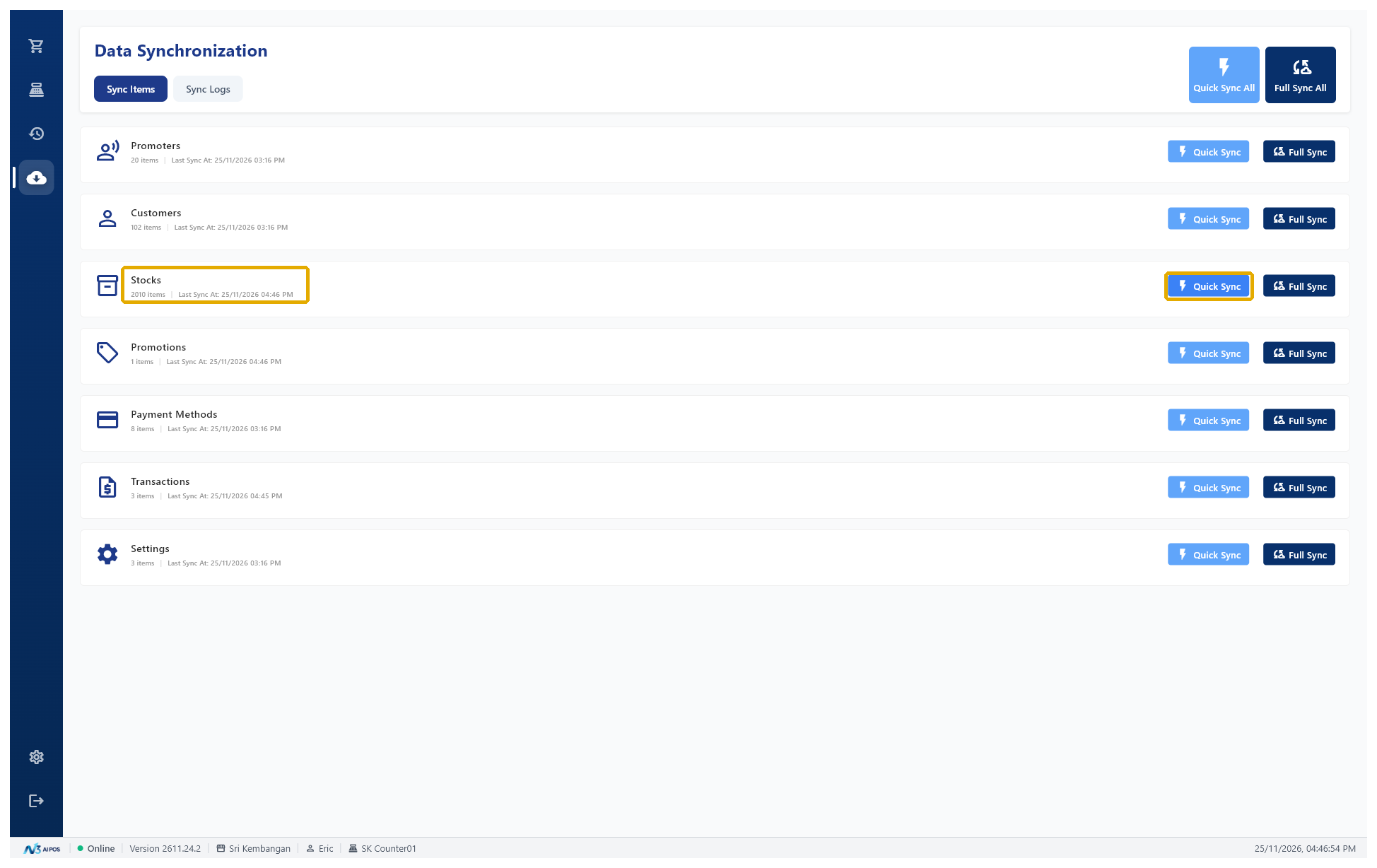
Result: Sync complete appears, and Stocks shows the new Last Sync At time and one more item.
Sell the Bundle in the Win App
Add the bundle to the cart in one of these ways:
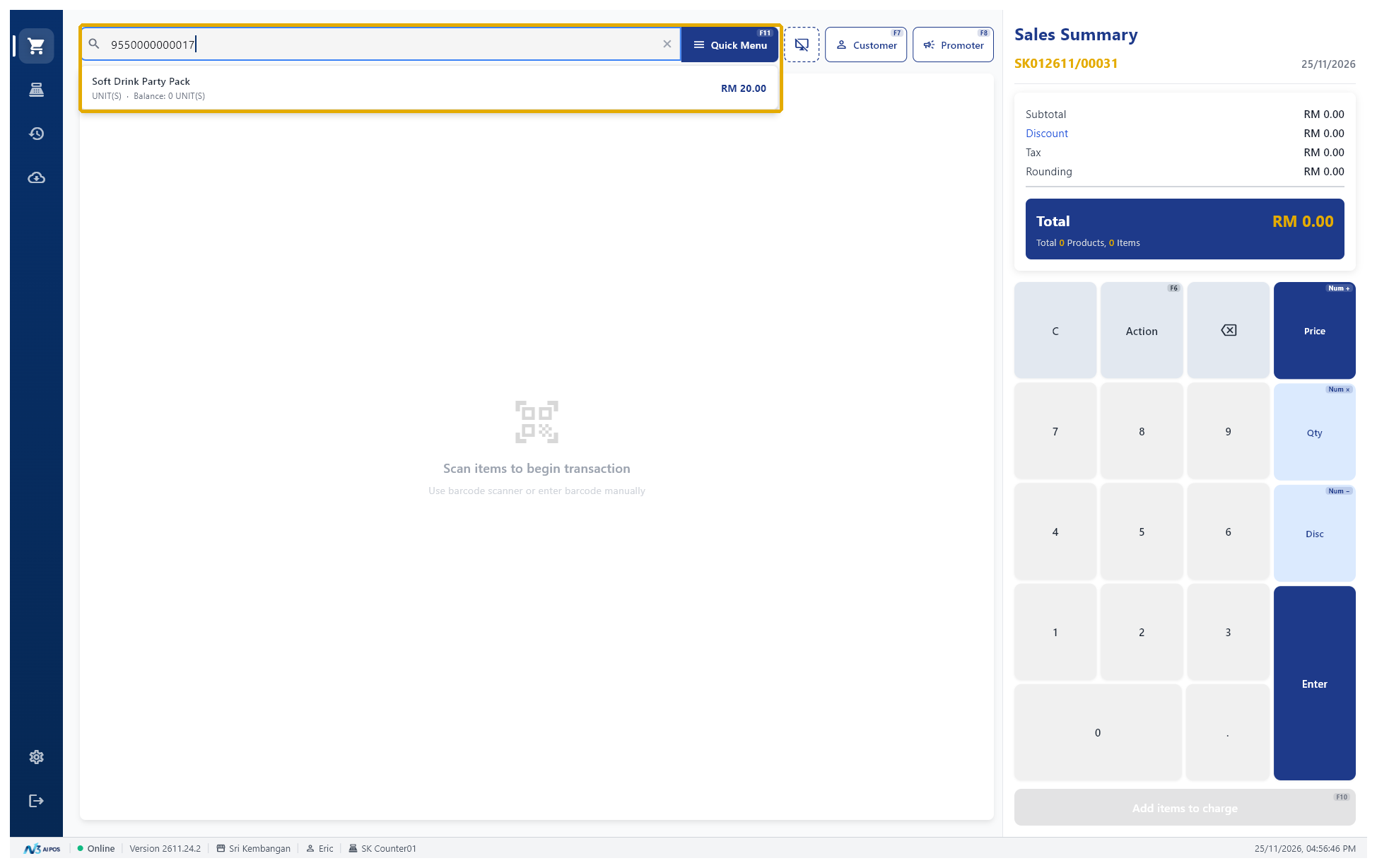
Scan the barcode – Scan or type the barcode, e.g. 9550000000017, or type the code PACK001 in the search box. Click Soft Drink Party Pack.

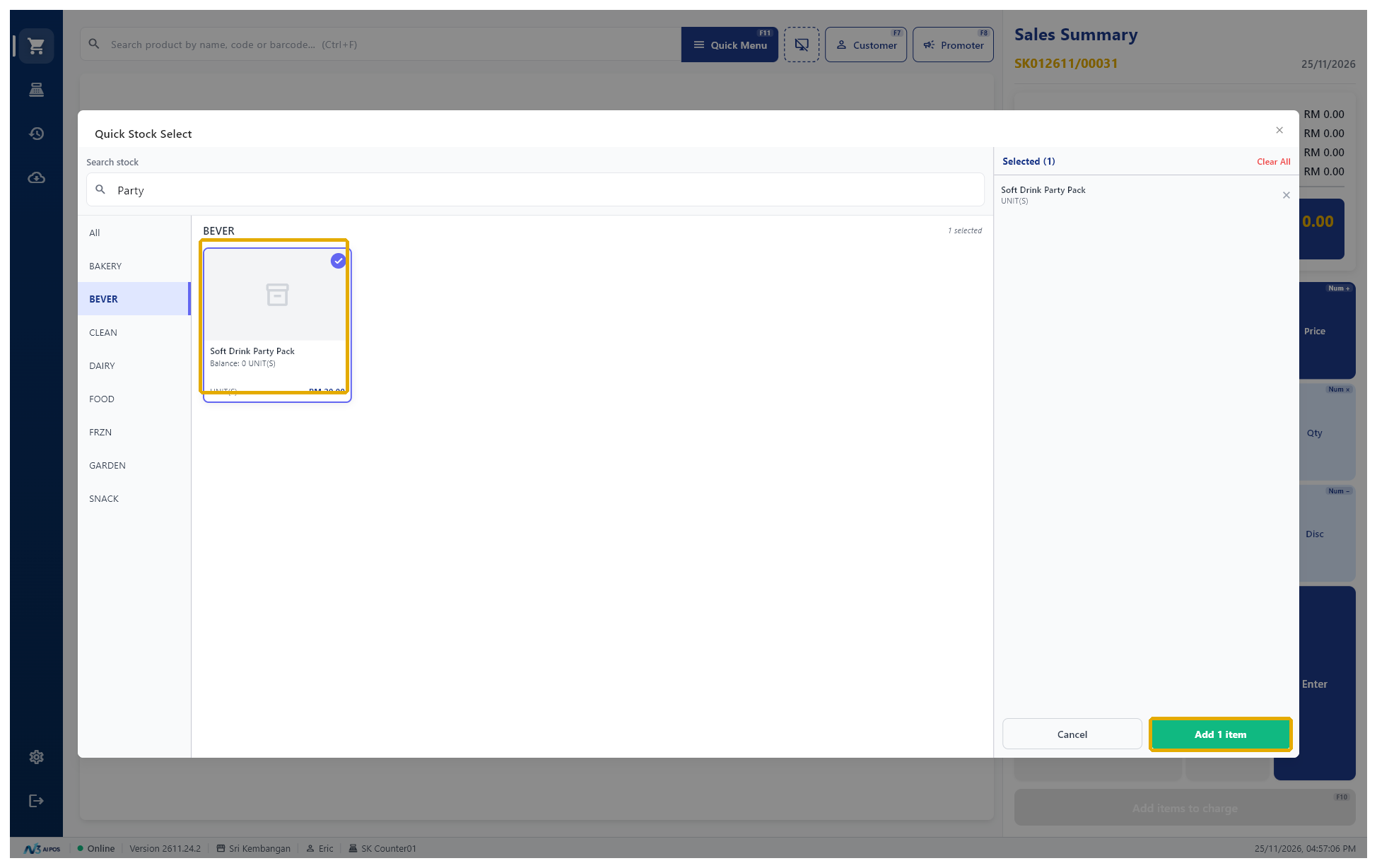
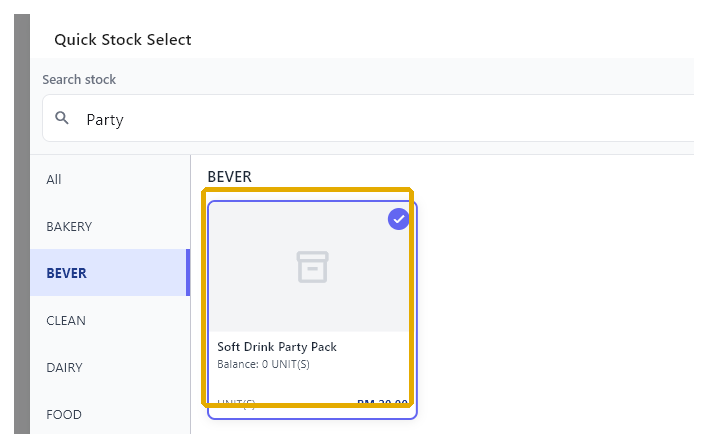
Quick Menu – Click Quick Menu, choose the category, e.g. BEVER, click the Soft Drink Party Pack tile and click Add 1 item.
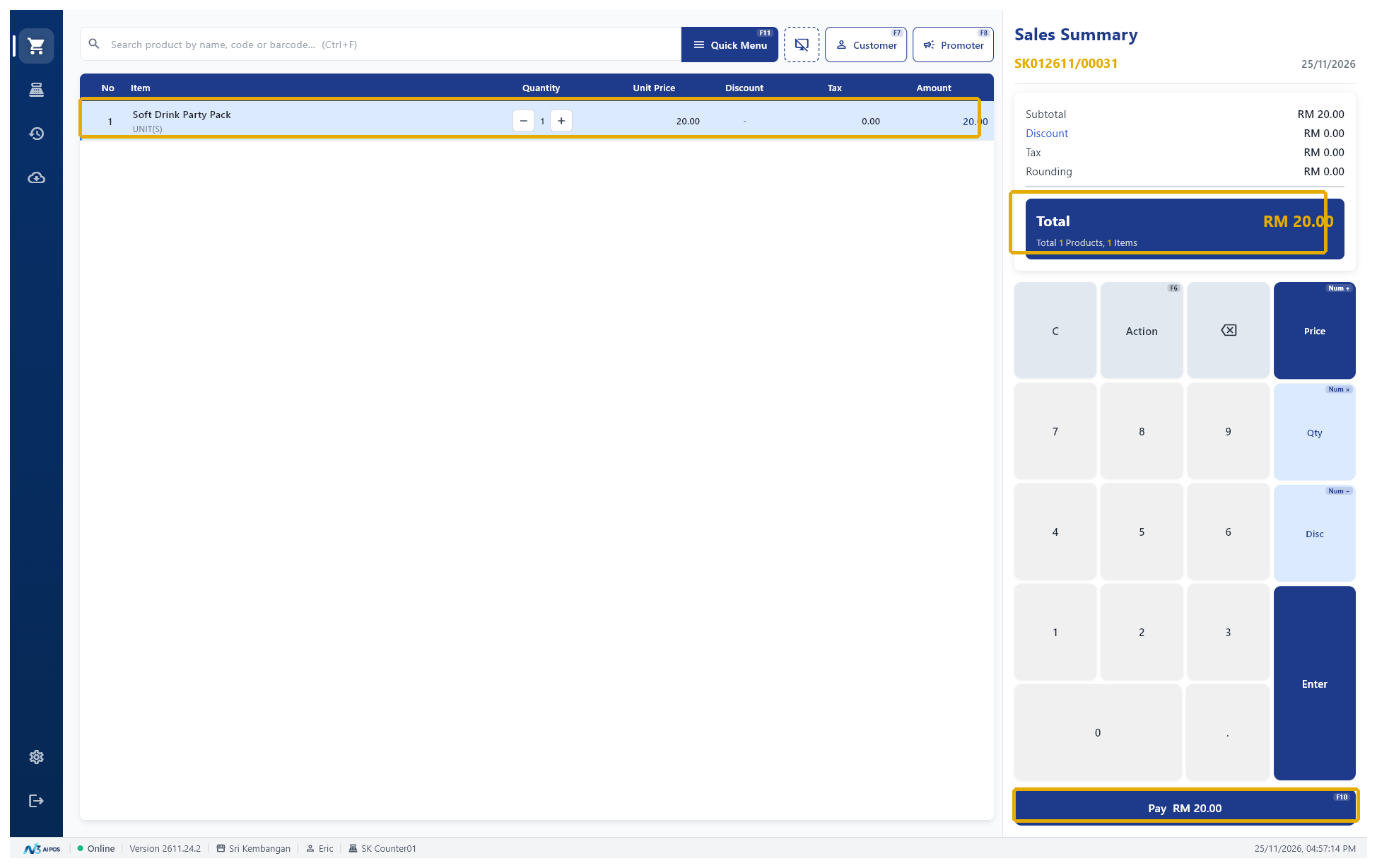
The bundle is one line in the cart, e.g. Soft Drink Party Pack, Quantity 1, Total RM 20.00. Click Pay.
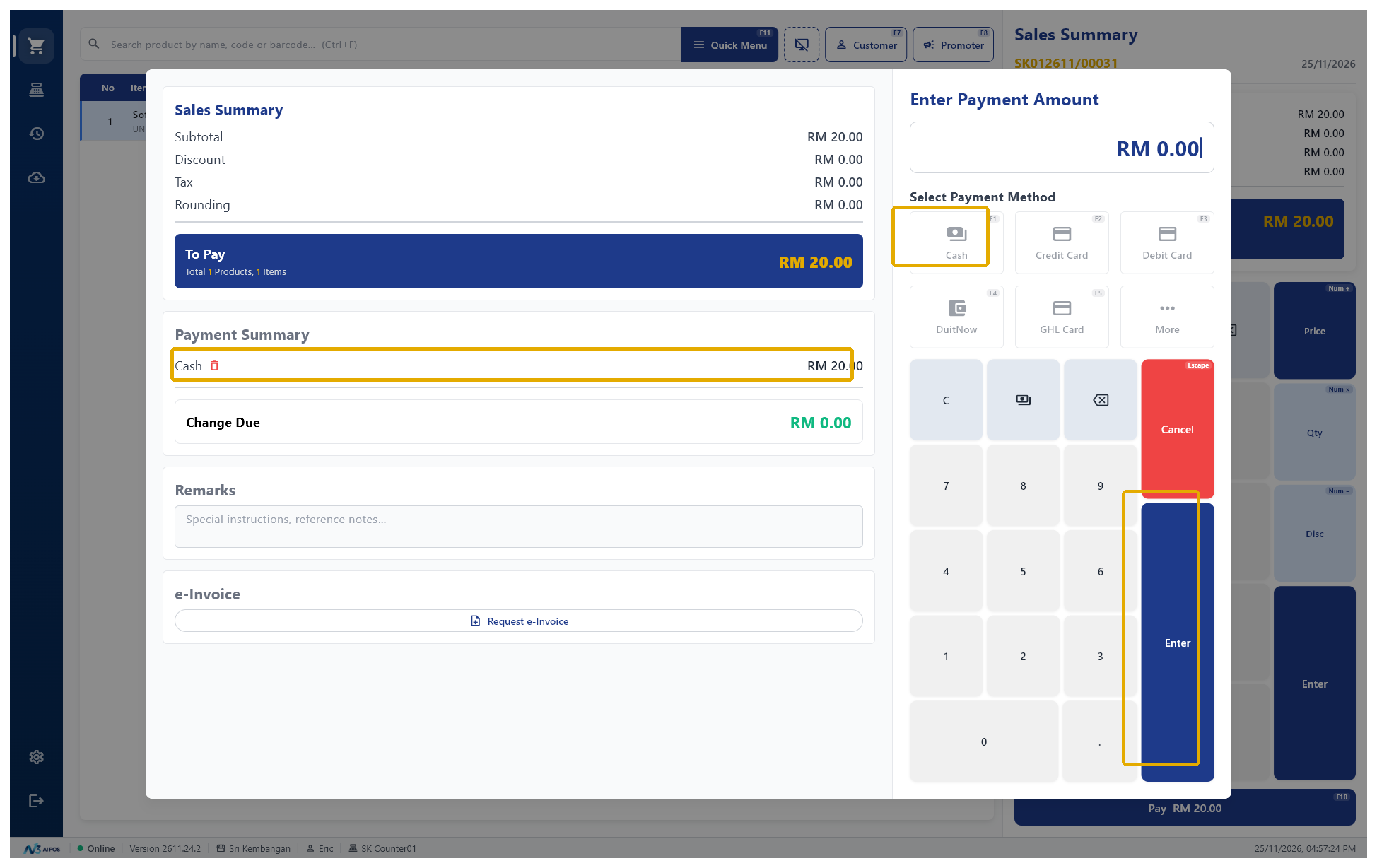
Choose the payment method, e.g. Cash RM 20.00, and click Enter.
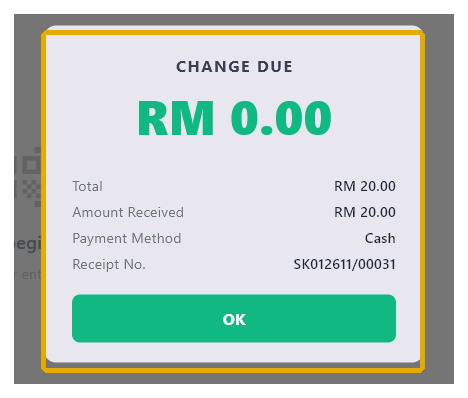
Result: Change Due shows the Total, Amount Received, Payment Method and Receipt No., e.g. SK012611/00031. Click OK.
Check the Sub-Items on the Receipt
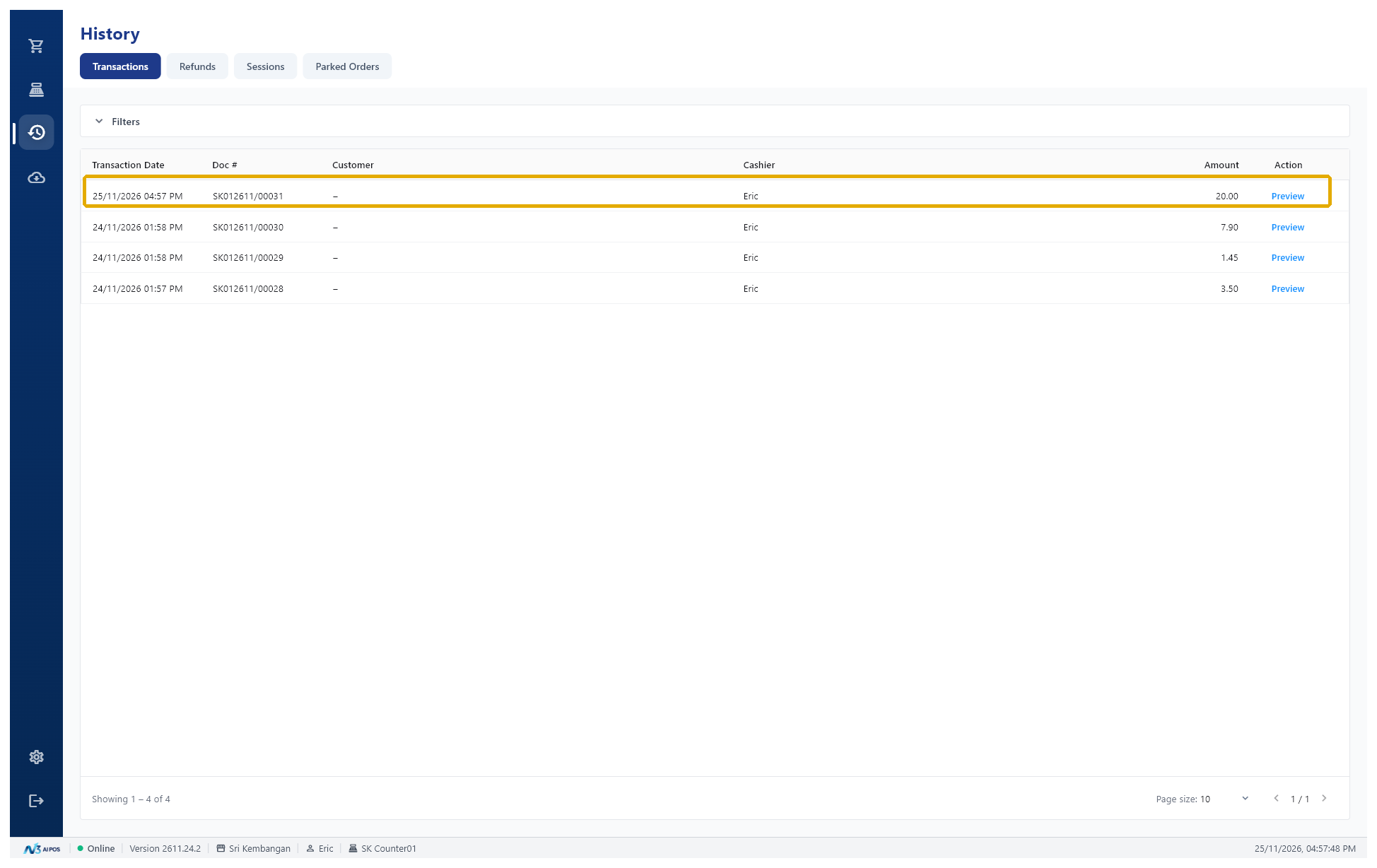
Click the History icon on the left. In Transactions, find the sale, e.g. SK012611/00031, and click Preview.
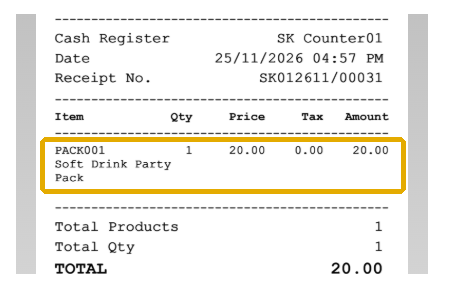
The receipt shows the bundle. Its items are listed according to Show Sub-Items and Show Sub-Item Price, as shown below.
Result: Show Sub-Items and Show Sub-Item Price
The receipt follows the Show Sub-Items and Show Sub-Item Price settings in the Stock Bundle tab. After you change them, click Save and sync Stocks in the Win App. For example, the receipt of SK012611/00031:
1. Show Sub-Items off and Show Sub-Item Price off

Only the bundle is printed, e.g. PACK001 Soft Drink Party Pack, 1 × 20.00.
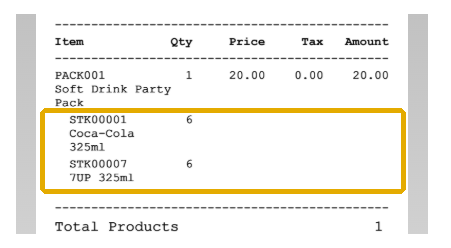
2. Show Sub-Items on and Show Sub-Item Price off

The items are listed under the bundle as contents only: item name and Qty, e.g. STK00001 Coca-Cola 325ml 6 and STK00007 7UP 325ml 6, with no price and no amount.
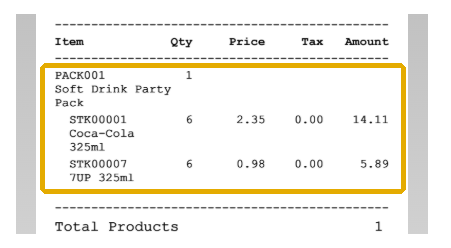
3. Show Sub-Items on and Show Sub-Item Price on

The bundle line shows only its name and Qty, e.g. PACK001 Soft Drink Party Pack 1. Each item line shows its Qty, Price and Amount, e.g. 6 × 2.35 = 14.11 and 6 × 0.98 = 5.89, which add up to the bundle price 20.00.
What's Next :
When the bundle is sold, the stock of each item in it goes down by its Qty, e.g. 6 Coca-Cola 325ml and 6 7UP 325ml.
Was this article helpful?
That’s Great!
Thank you for your feedback
Sorry! We couldn't be helpful
Thank you for your feedback
Feedback sent
We appreciate your effort and will try to fix the article
