Overview :
A Stock In brings stock into an outlet without a purchase, e.g. free samples from a supplier, or stock sent from another outlet. Each line adds its quantity to the stock of its outlet. When the company has more than one outlet, you can also transfer from a Stock Out of another outlet, so the receiving outlet does not key in the items again. Stock ins are sent to N3 AI Accounting (n3.qne.cloud), in the database that N3 AI POS is linked to.
At the end of this article, you will be able to:
Create a stock in for an outlet
Optional: Transfer a stock out of another outlet into a stock in
Check the stock in in N3 AI Accounting
Scenario :
Sri Kembangan receives 12 Coca-Cola 325ml as free samples from a supplier. It also receives the drinks that Kuala Lumpur took out with stock out SOUT2611/001 (6 Coca-Cola 325ml and 4 7UP 325ml). The store manager records both with stock ins, in the POS Sdn. Bhd. Live database.
Solution :
Create a Stock In
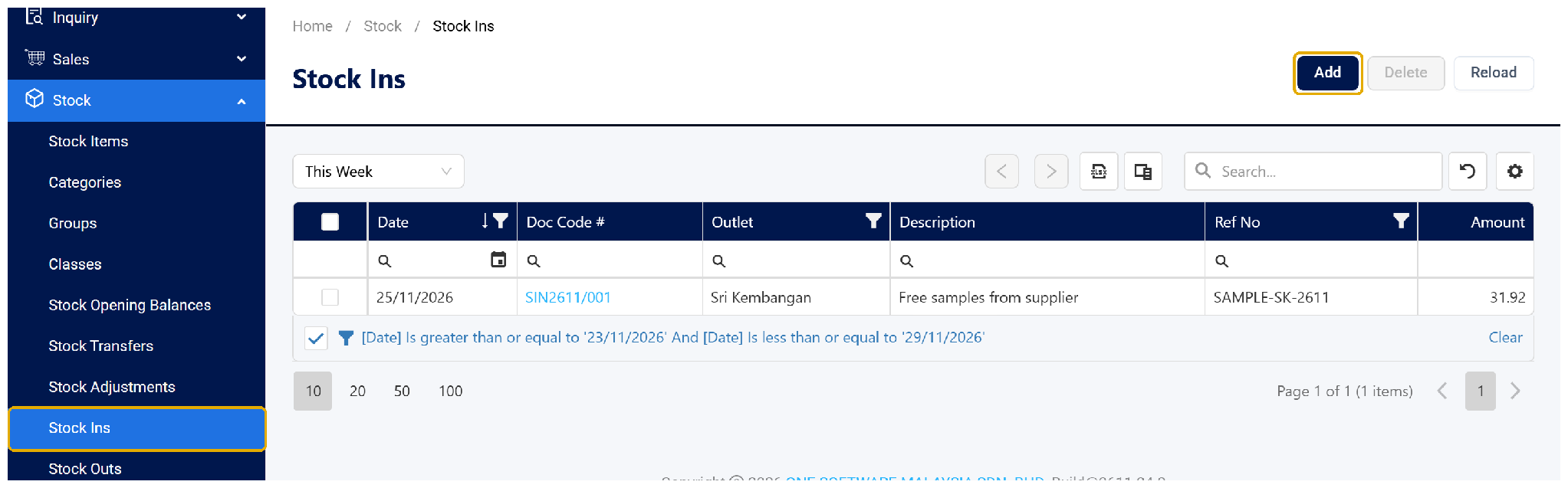
Navigate to Stock > Stock Ins and click Add.
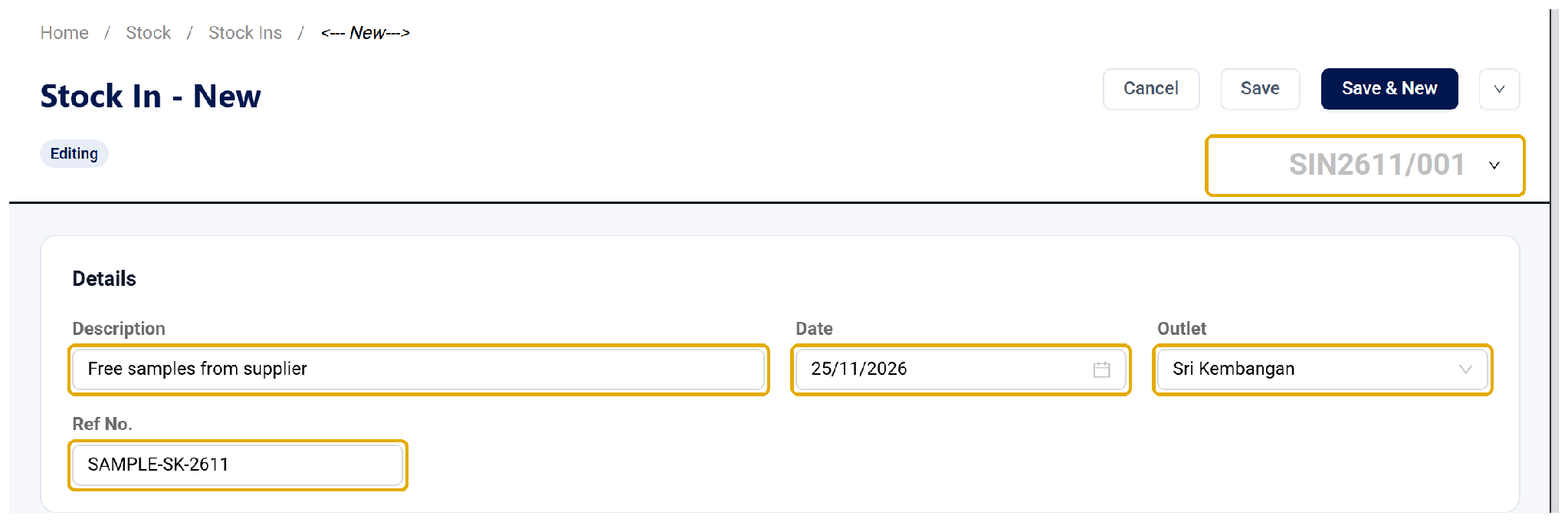
Fill in the Details. The document number, e.g. SIN2611/001, is given by the running number.
Description – The reason, e.g. Free samples from supplier.
Date – The date the stock comes in. Today is filled in.
Outlet – The outlet that receives the stock, e.g. Sri Kembangan. Every line uses this outlet.
Ref No. – Optional, e.g. SAMPLE-SK-2611.
In the Lines tab, add each stock item:
Stock – Choose the item, e.g. STK00001. The Description, UOM and Unit Price (the purchase price of the item) fill in, and Qty becomes 1.
Qty – The quantity that comes in, e.g. 12.
Outlet – Filled in from the Details, e.g. Sri Kembangan.
Total – The sum of the Amount of all lines, e.g. 31.92.
Tip: Scan an item barcode into Scan barcode item to add the item. Click Add Detail for a new line, or the bin icon at the end of a line, then OK, to remove it. The Others tab has Reference 1, Remark 1, Reference 2 and Remark 2 for extra details.

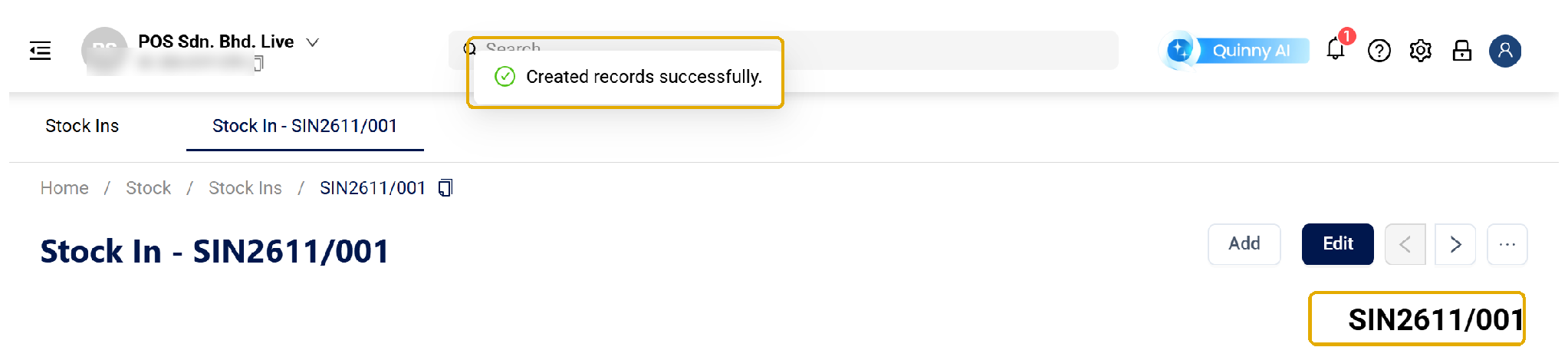
Click Save.
Result: Created records successfully. appears and the stock in opens, e.g. SIN2611/001.
Optional: Transfer from a Stock Out
Use this when one outlet sends stock to another. The sending outlet records a Stock Out, e.g. SOUT2611/001 at Kuala Lumpur, and the receiving outlet brings it in here.
Note: Transfer From shows only when the company has more than one outlet. After you add a second outlet, reload the Portal to see it.
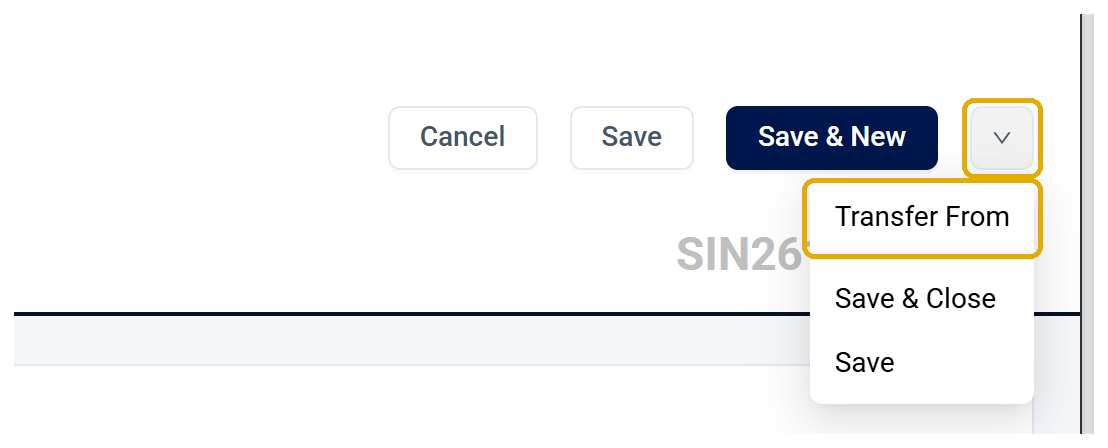
In Stock > Stock Ins, click Add. Click the arrow next to Save & New and choose Transfer From.
The Transfer from window lists the stock outs of the Date range, e.g. this month. Click the stock out, e.g. SOUT2611/001, and click Transfer. You can also double-click the row.
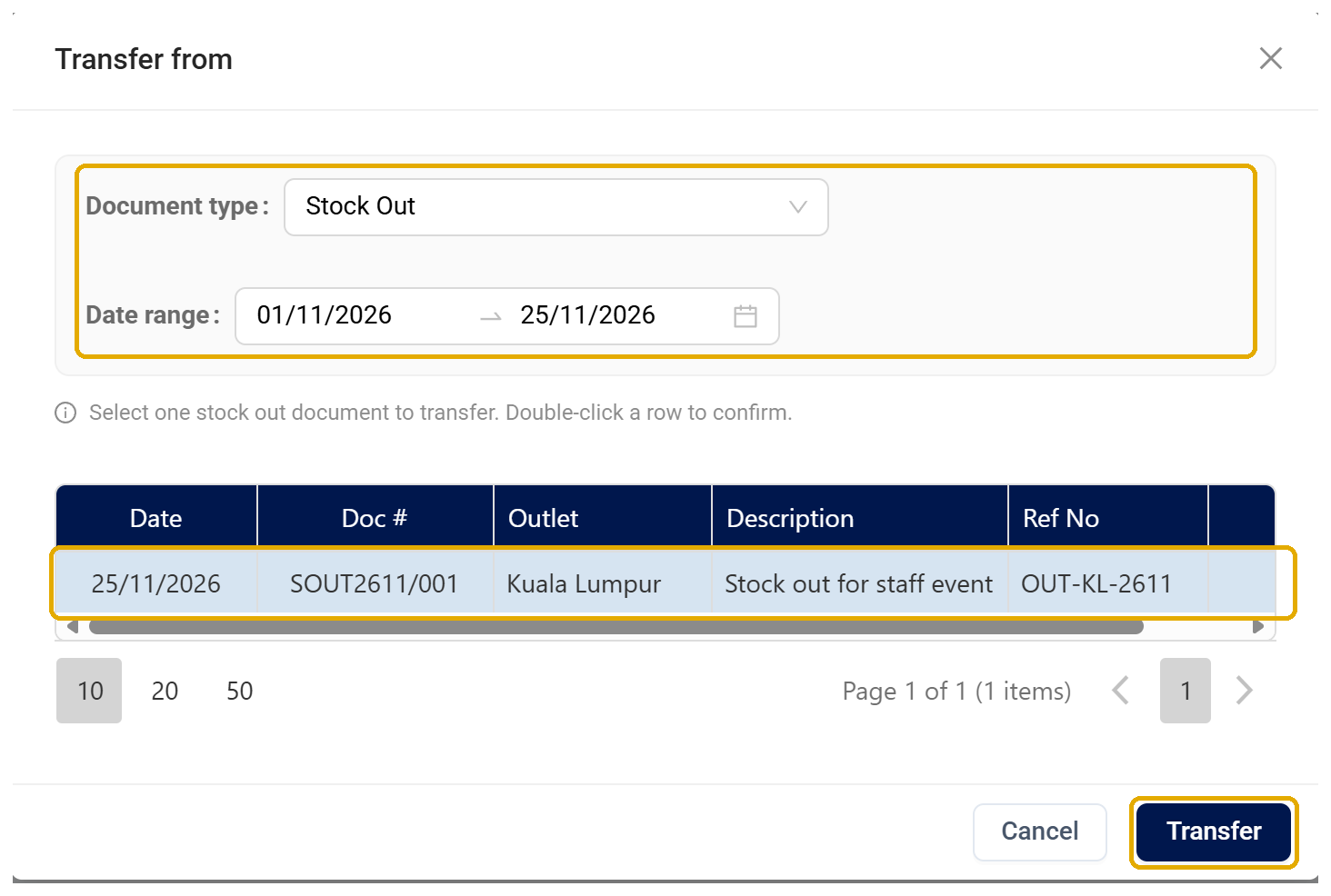
The lines of the stock out are brought in, with its Qty, UOM and Unit Price. The Ref No. becomes the stock out number, e.g. SOUT2611/001. Then fill in:
Outlet – The Outlet of the stock out, e.g. Kuala Lumpur, is brought in too. Change it to the outlet that receives the stock, e.g. Sri Kembangan.
Description – Type your own, e.g. Drinks received from Kuala Lumpur.
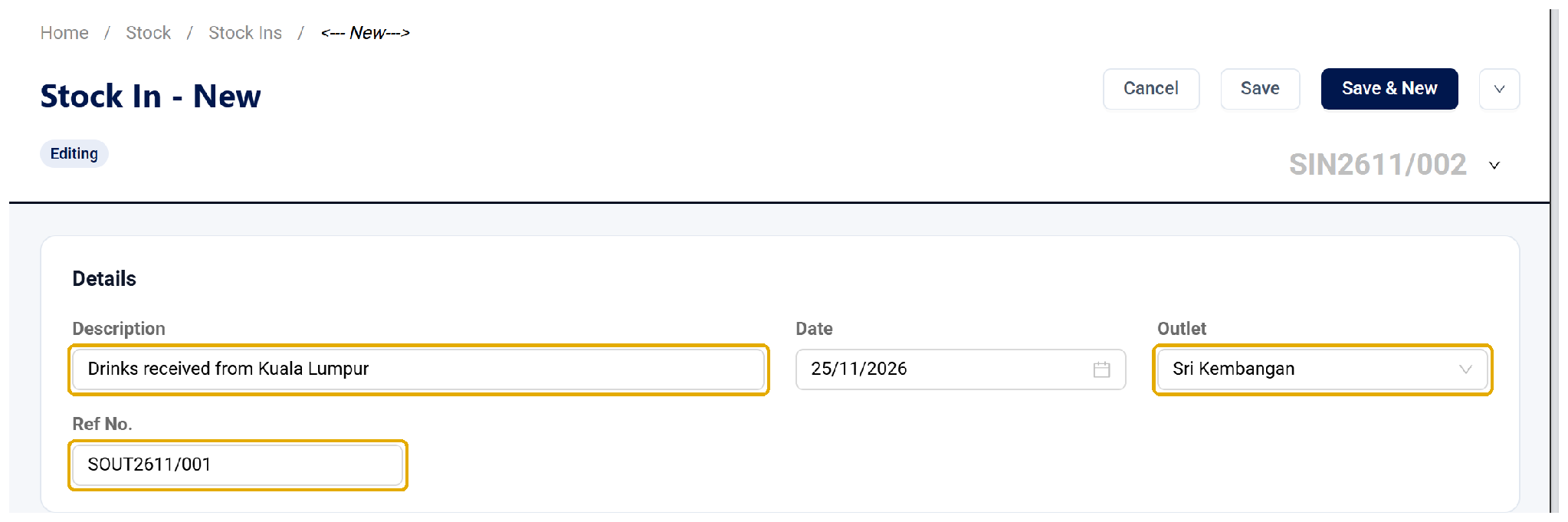
Tip: Click the x in the Outlet box to clear it first, then choose the receiving outlet. Check that the Outlet of every line shows the receiving outlet before you save.
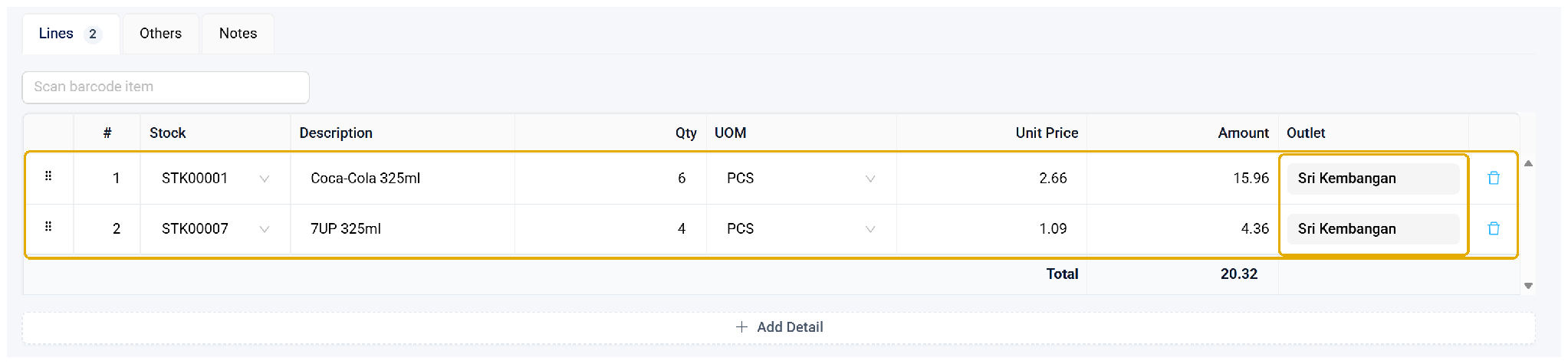
Click Save.
Result: The stock in opens, e.g. SIN2611/002, marked Transferred from a Stock Out. Both stock ins are listed in Stock > Stock Ins.


Check the Stock In in N3 AI Accounting
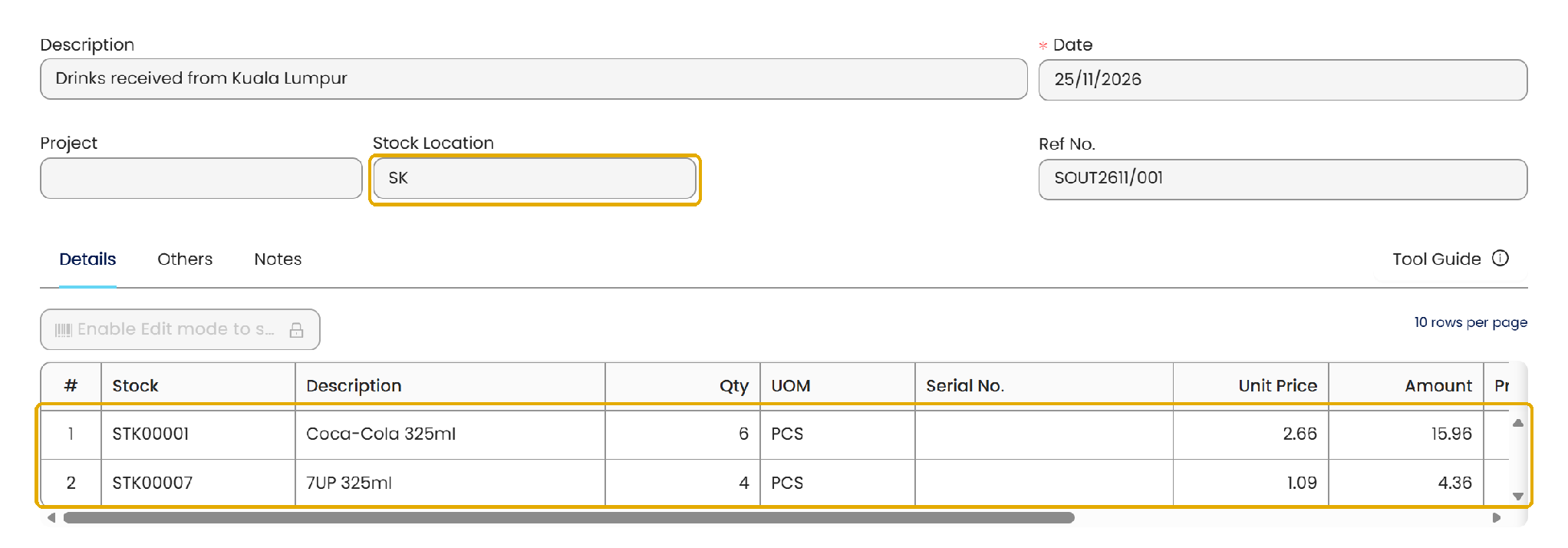
In N3 AI Accounting, navigate to Stock > Stock Ins. The stock in is listed with the same Doc #, e.g. SIN2611/002. Click the Doc # to open it.
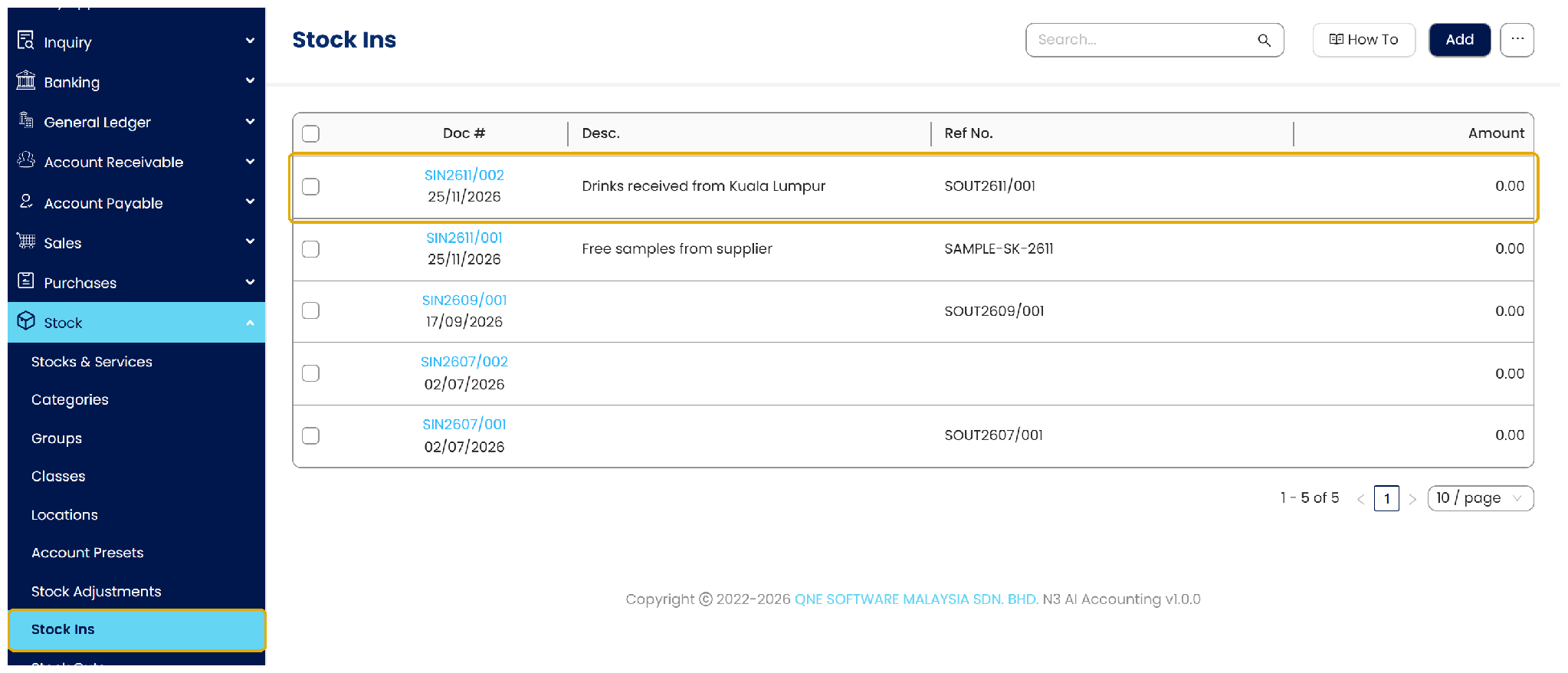
The lines are the same as in N3 AI POS. The Stock Location is the receiving outlet, e.g. SK.
What's Next :
Check the new stock balance of the outlet in Stock > Stock Items.
** Learn more about Azure Cloud
** Learn more about QNE Hybrid Cloud Software
Was this article helpful?
That’s Great!
Thank you for your feedback
Sorry! We couldn't be helpful
Thank you for your feedback
Feedback sent
We appreciate your effort and will try to fix the article
