Overview :
An Item Discount (called Line Item Discount in the Cashier Role) takes a discount off one item line in the cart, not the whole bill. The cashier can give it in three ways: %, Amount per line or Amount per qty. This article guides you through allowing it for a Cashier Role and setting the default type in the N3 AI POS Portal, and applying it on the N3 AI POS Win App and Android App.
At the end of this article, you will be able to:
Allow Line Item Discount for a Cashier Role
Know the difference between %, Amount per line and Amount per qty
Apply an item discount on the Win App
Apply an item discount on the Android App
Scenario :
A mini market gives item discounts at the counter, in the POS Sdn. Bhd. Live database: Pepsi 325ml RM 3.50 at 10% off, Rolled Oats 500g RM 7.90 at RM 1.00 off the line, and 2 × Sprite 325ml RM 3.20 at RM 0.20 off each bottle. The cashiers at SK Counter01 (Win App) and KL02 (Android) apply them.
Solution :
Allow Line Item Discount for a Cashier Role
Navigate to Company > Point of Sale > Cashier Roles and click the role name, e.g. Supervisor.
Under Permission Access, click Sales and turn on Line Item Discount (Discount one item in the cart.), then click Save.

Note: Bill Discount is a separate permission, for a discount on the whole bill. If the cashier's role does not have Line Item Discount, the cash registers shows You do not have permission to discount line items. Run Quick Sync on the cash register after changing a Cashier Role.
Choose the Default Item Discount
Navigate to Company > Maintenance > Settings, click Sales Setting and scroll to Default Item Discount. With Multiple Discount off, each item takes one discount.

Default Item Discount sets what a number keyed in Disc means. The cashier can still change it for each line at the cash register:
% – A percentage off the item, e.g. 10 = 10% off Pepsi RM 3.50 = RM 0.35 off.
Amount per line – An amount off the whole line, e.g. 1 = RM 1.00 off Rolled Oats RM 7.90, whatever the quantity.
Amount per qty – An amount off each unit, e.g. 0.20 = RM 0.20 off each Sprite, so 2 bottles = RM 0.40 off.
Not set – The Win App starts on Amount per line, and Android on %.
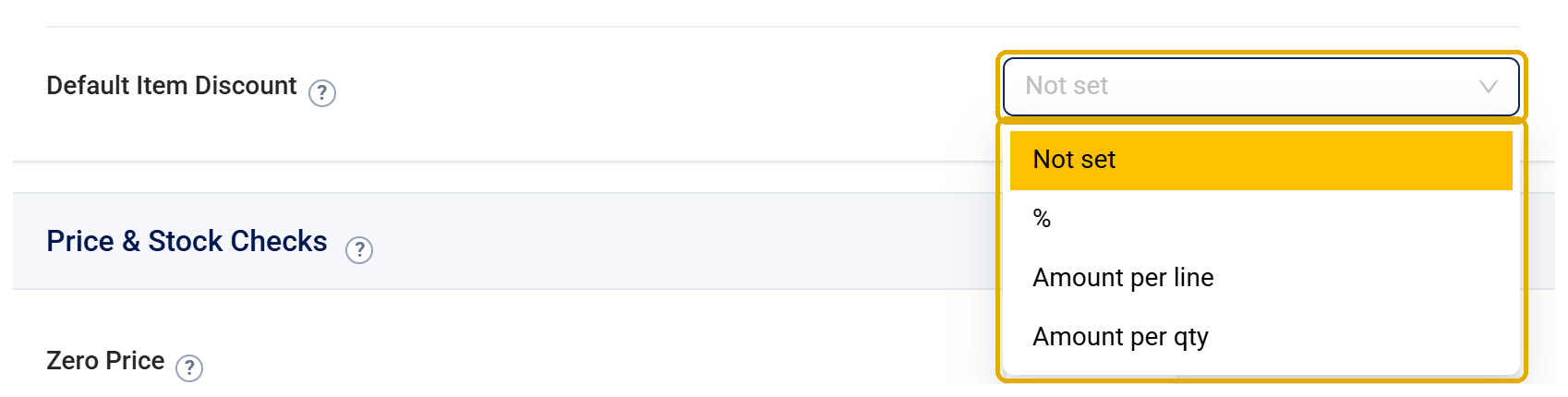
To change it, click Review and save and Confirm and save, then run Quick Sync on Settings at the cash registers.
Apply an Item Discount in N3 AI POS Win App
Add the items to the cart, e.g. Pepsi 325ml, Rolled Oats 500g and 2 × Sprite 325ml. Click the line and click Disc (Num –). The keypad shows % and /, and the Enter key shows the discount before you apply it.
%: On Pepsi 325ml, key in 10 and click %. The Discount cell shows 10 % and Enter shows - 10%. Click Enter.

Amount per line: On Rolled Oats 500g, key in 1. The Discount cell shows RM 1 and Enter shows - RM 1. Click Enter.

Amount per qty: On 2 × Sprite 325ml, key in 0.20 and click /. The Discount cell shows RM 0.20/unit and Enter shows - RM 0.20/unit. Click Enter.

Result: The Discount column shows 10.00%, 1.00 and RM 0.20/unit 0.40, and the Amount drops to 3.15, 6.90 and 6.00. The Total is RM 16.05.

Apply an Item Discount in N3 AI POS Android App
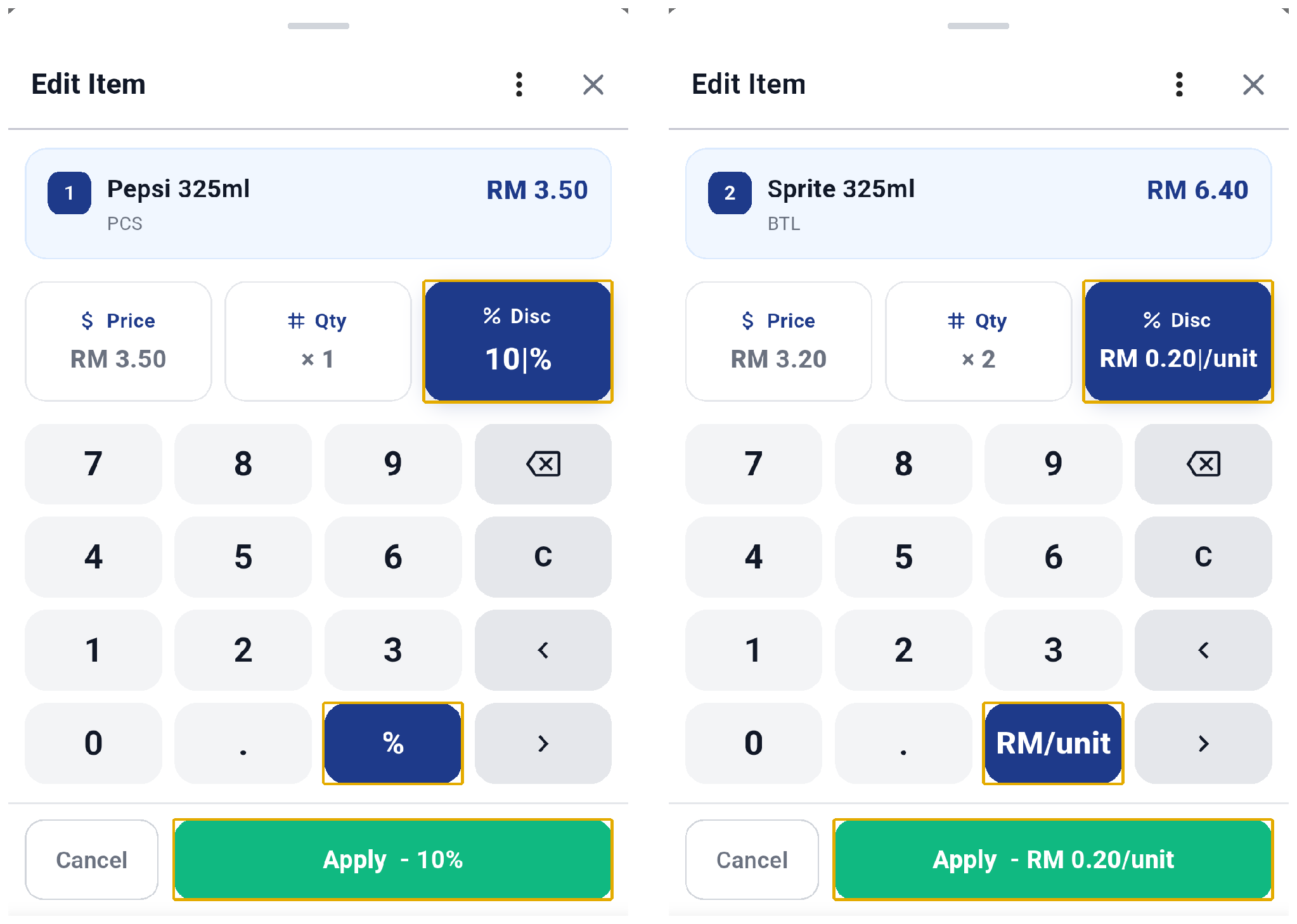
Add the items to the cart, e.g. Pepsi 325ml and 2 × Sprite 325ml. Tap the line and, in Edit Item, tap Disc.
Key in the discount. The key next to . sets the type; tap it to switch between %, RM (Amount per line) and RM/unit (Amount per qty). The Apply button shows the discount, e.g. Apply - 10% on Pepsi or Apply - RM 0.20/unit on Sprite. Tap Apply.
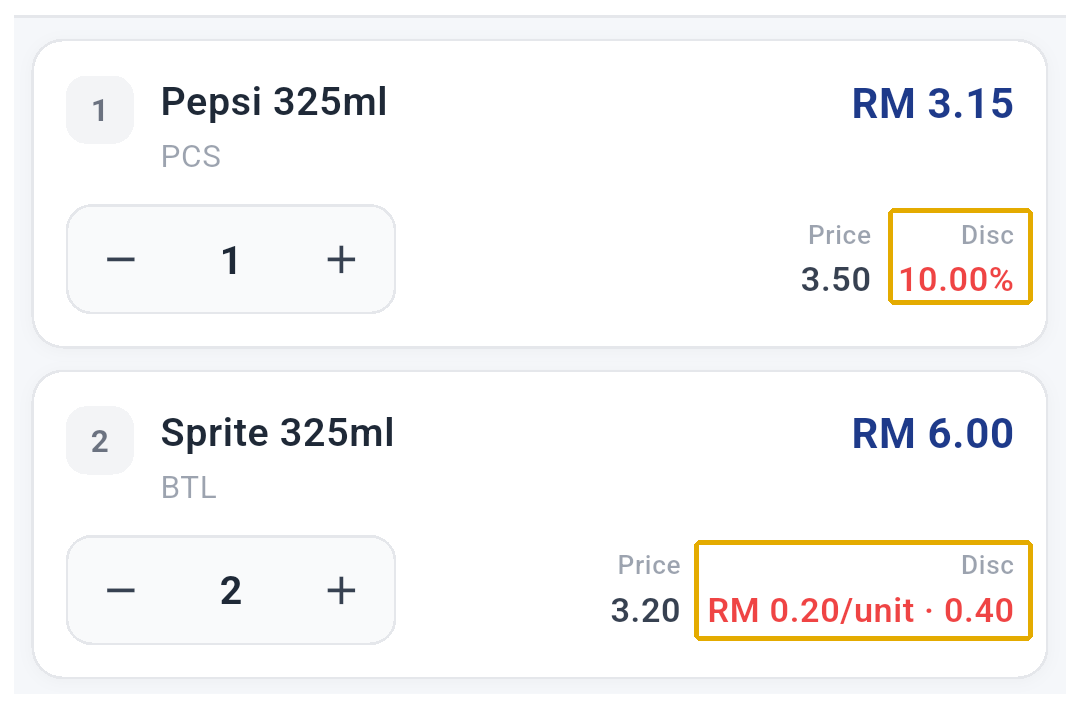
Result: Each line shows its Disc, e.g. 10.00% and RM 0.20/unit · 0.40, and its new amount, e.g. RM 3.15 and RM 6.00. Tap Charge.
What's Next :
To take an item discount off, select the line, key in 0 in Disc and press Enter (Win App) or Apply (Android). For a discount on the whole bill, see How to Apply a Global Discount in N3 AI POS.
** Learn more about Azure Cloud
** Learn more about QNE Hybrid Cloud Software
Was this article helpful?
That’s Great!
Thank you for your feedback
Sorry! We couldn't be helpful
Thank you for your feedback
Feedback sent
We appreciate your effort and will try to fix the article
