Overview :
With Multiple Discount turned on, the cashier can stack more than one Global Discount on the bill, e.g. 10% and then RM 2.00. Each discount comes off what the one before it left. This article guides you through turning on Multiple Discount in the N3 AI POS Portal and stacking global discounts on the N3 AI POS Win App and Android App.
At the end of this article, you will be able to:
Turn on Multiple Discount in Sales Setting
Stack global discounts on the Win App
Stack global discounts on the Android App
Remove the global discounts from the bill
Before you start, allow Bill Discount for the cashier's role, as in How to Apply a Global Discount in N3 AI POS.
Scenario :
A mini market gives 10% off the bill plus a RM 2.00 voucher, in the POS Sdn. Bhd. Live database. At SK Counter01 (Win App), a customer buys Pepsi 325ml RM 3.50 and Rolled Oats 500g RM 7.90. The bill of RM 11.40 gets 10% off (RM 1.14) and then RM 2.00 off, and the customer pays RM 8.25.
Solution :
Turn On Multiple Discount
Navigate to Company > Maintenance > Settings, click Sales Setting and scroll to Multiple Discount.
Turn on Multiple Discount. Click the ? icon to read the note: cashiers can stack discounts on an item and on the bill, and each discount comes off what the one before it left.

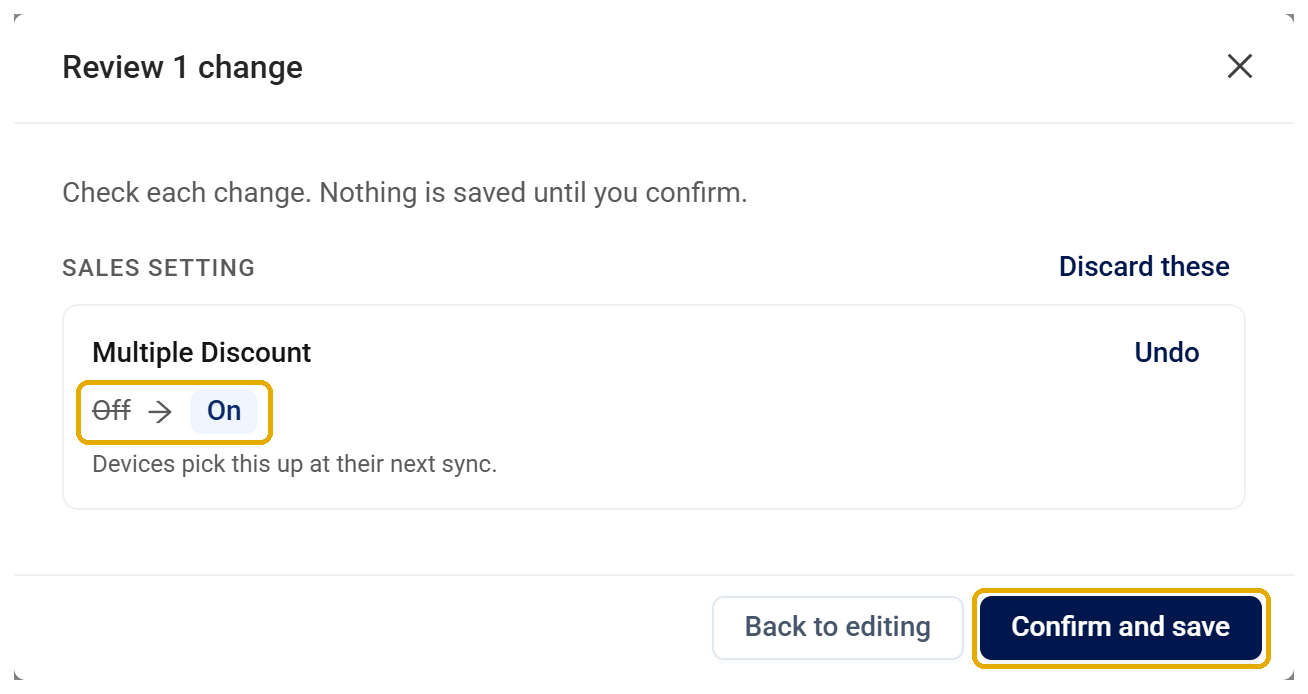
Click Review and save. Check the change, e.g. Multiple Discount Off → On, and click Confirm and save.
In the Win App or on Android, run Quick Sync on Settings, so the cash register gets the setting.
Stack Global Discounts in N3 AI POS Win App
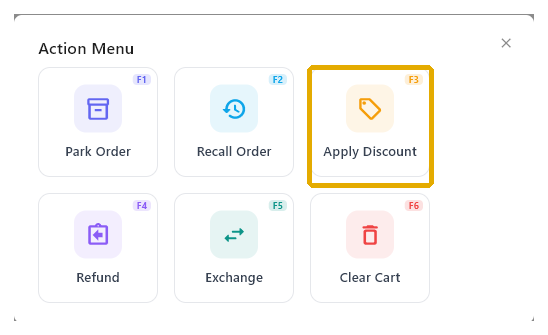
Add the items to the cart, e.g. Pepsi 325ml and Rolled Oats 500g, then click Action (F6) and click Apply Discount (F3).
Click % and key in the first discount, e.g. 10. Click Add discount for the next row, click RM and key in the amount, e.g. 2. The window (left) shows each discount, e.g. Discount 10% - RM 1.14 and Discount RM 2.00 - RM 2.00, and the New Total, e.g. RM 8.25. Click Apply. Click x on a row to drop that discount.
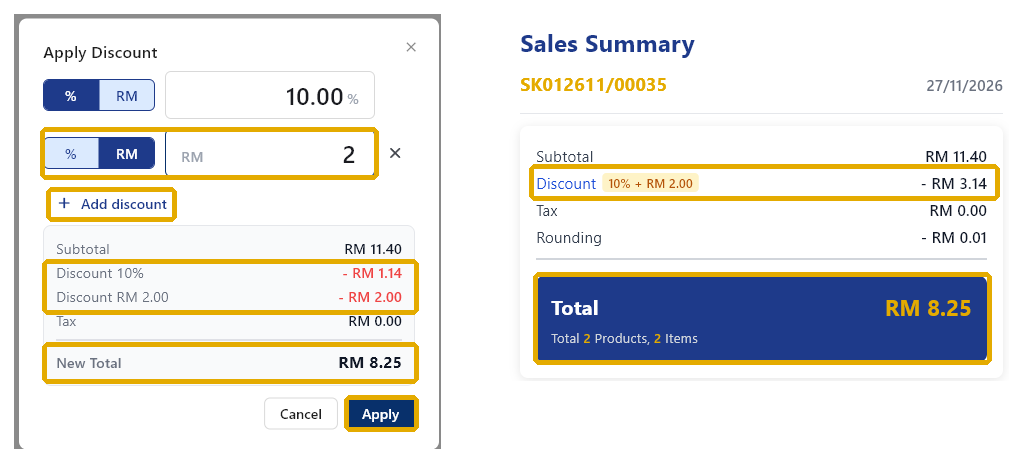
Result: Discount 10% + RM 2.00 applied appears. The Sales Summary (right) shows Discount 10% + RM 2.00 and - RM 3.14, and the Total drops from RM 11.40 to RM 8.25 after Rounding. Click Pay.
Stack Global Discounts in N3 AI POS Android App
Add the items to the cart, e.g. Pepsi 325ml and Sprite 325ml (RM 6.70). Tap the ... icon next to Charge and tap Apply Discount.
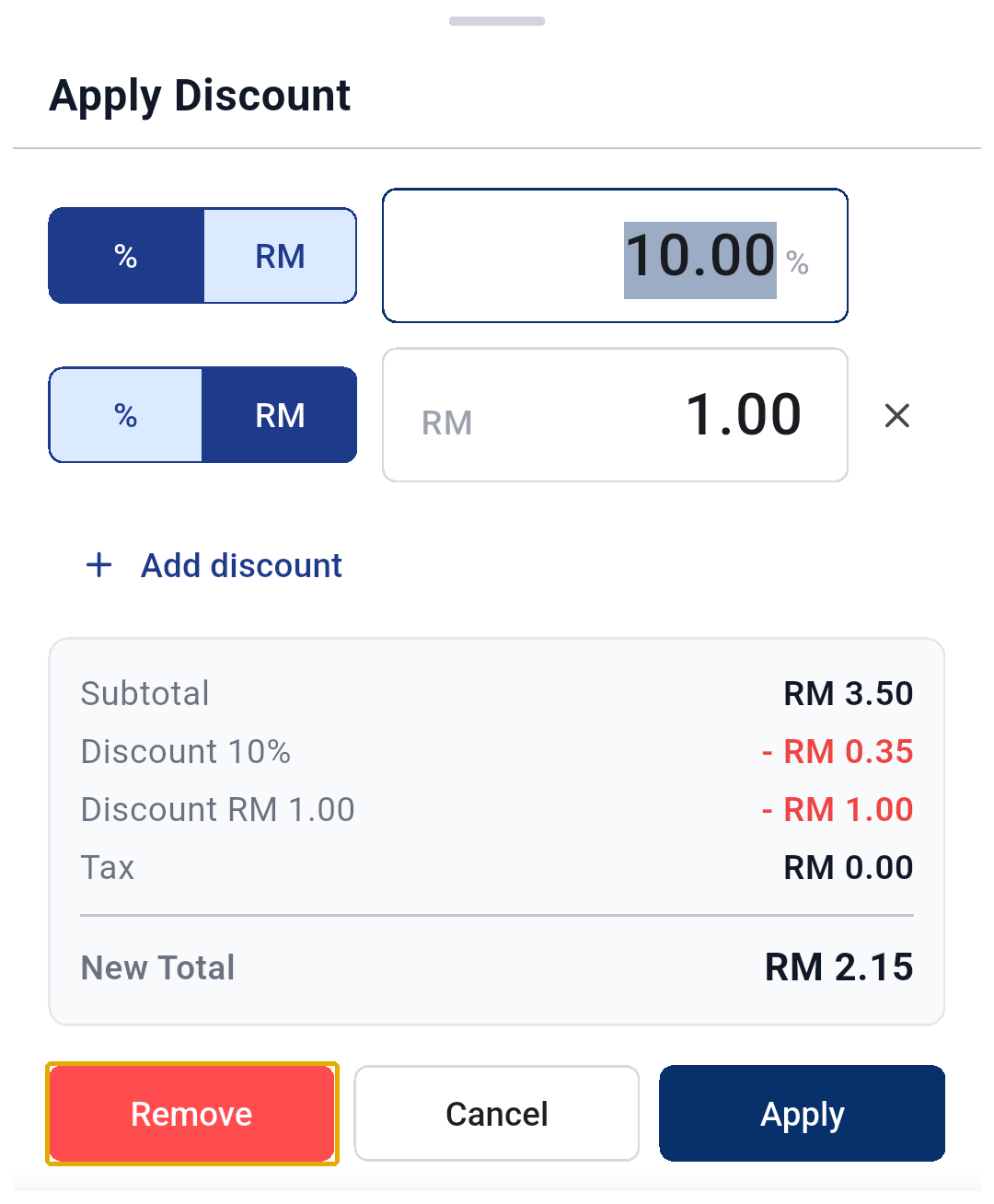
Tap % and key in the first discount, e.g. 10. Tap Add discount, tap RM and key in the amount, e.g. 1. The sheet shows Discount 10% - RM 0.67, Discount RM 1.00 - RM 1.00 and the New Total, e.g. RM 5.05. Tap Apply.
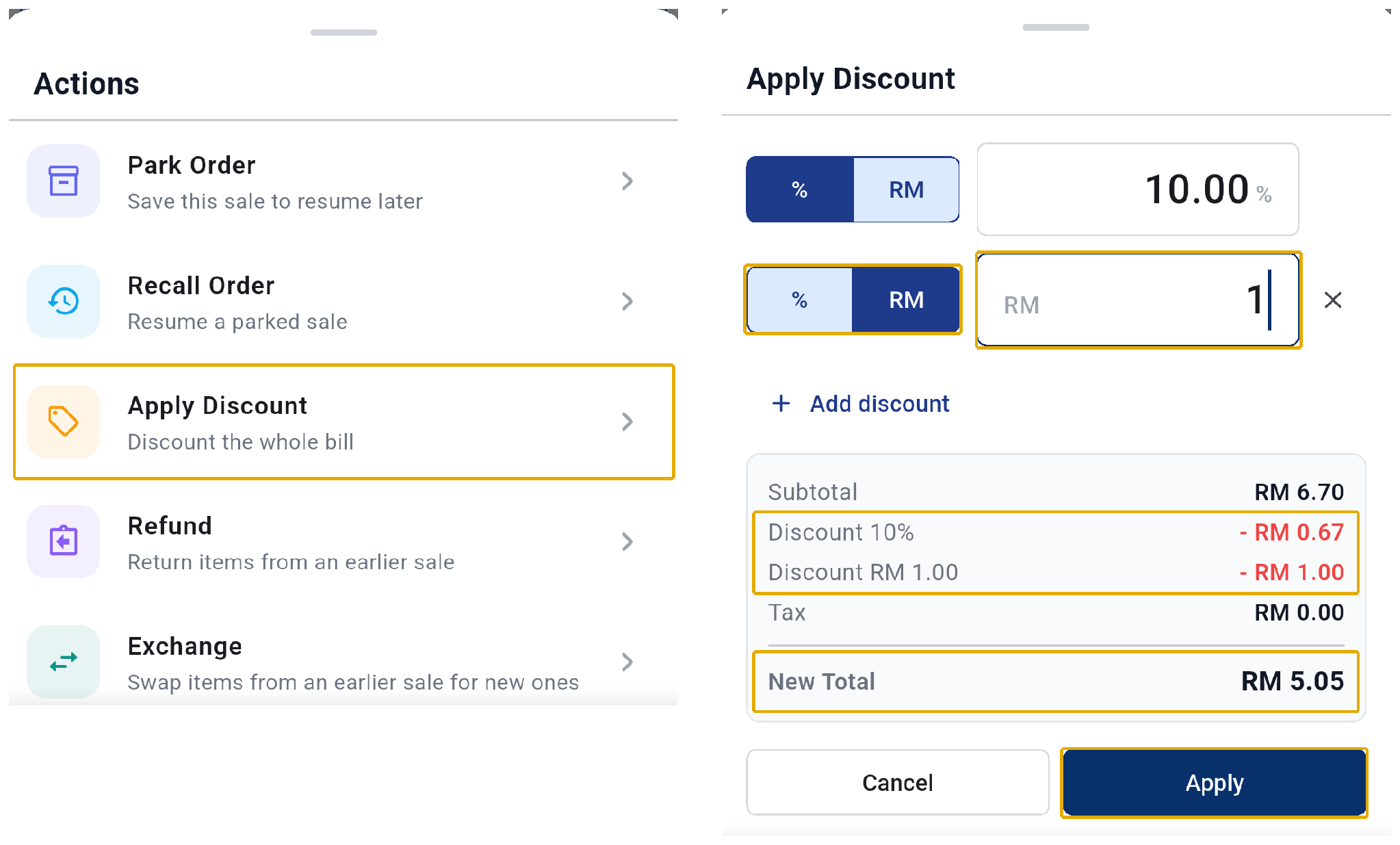
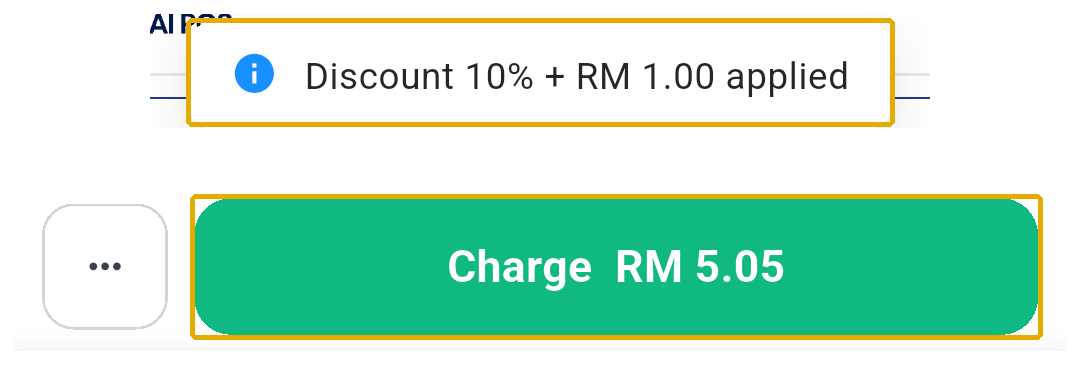
Result: Discount 10% + RM 1.00 applied appears, and Charge shows RM 5.05.
Remove the Global Discounts
Open Apply Discount again and click or tap Remove. All the discounts on the bill are taken off and the total goes back to the subtotal.
Note: Remove the discount before you clear the cart. On Android, removing the items one by one keeps the bill discount for the next items added.
What's Next :
To turn stacking off again, turn off Multiple Discount in Sales Setting. The cashier then gives one global discount per bill. To discount one item instead of the bill, see How to Apply an Item Discount in N3 AI POS.
** Learn more about Azure Cloud
** Learn more about QNE Hybrid Cloud Software
Was this article helpful?
That’s Great!
Thank you for your feedback
Sorry! We couldn't be helpful
Thank you for your feedback
Feedback sent
We appreciate your effort and will try to fix the article
