Overview :
A Price Group Fallback Discount gives a price group a discount % on a whole Stock Category, Stock Group or Stock Class, so you don't have to set a special price on every stock item. At the cash register, when the customer carries the price group, an item with no special price of its own gets the discount of its category, group or class, off the unit price.
At the end of this article, you will be able to:
Choose the fallback level: Stock Category, Stock Group or Stock Class
Set the fallback discount of a price group on a stock category
Know where to set it on a stock group or stock class
Check the fallback discounts of a price group
Sell at the fallback discount in the Win App
Before you start, turn on Price Group, create the price group and link it to the customer, as in How to Set Up Price Group in N3 AI POS.
Scenario :
The wholesale customer Lim Brothers Wholesale (CUST005) carries the price group WHOLESALE. The store gives WHOLESALE 10% off all Beverages (BEVER), e.g. Sprite 325ml at RM 3.20 sells at RM 2.88. Pepsi 325ml keeps its own special price of RM 3.00. The cashier at SK Counter01 (Win App) sells them, in the POS Sdn. Bhd. Live database.
Solution :
Choose the Fallback Level in Sales Setting
Navigate to Company > Maintenance > Settings and click Sales Setting.
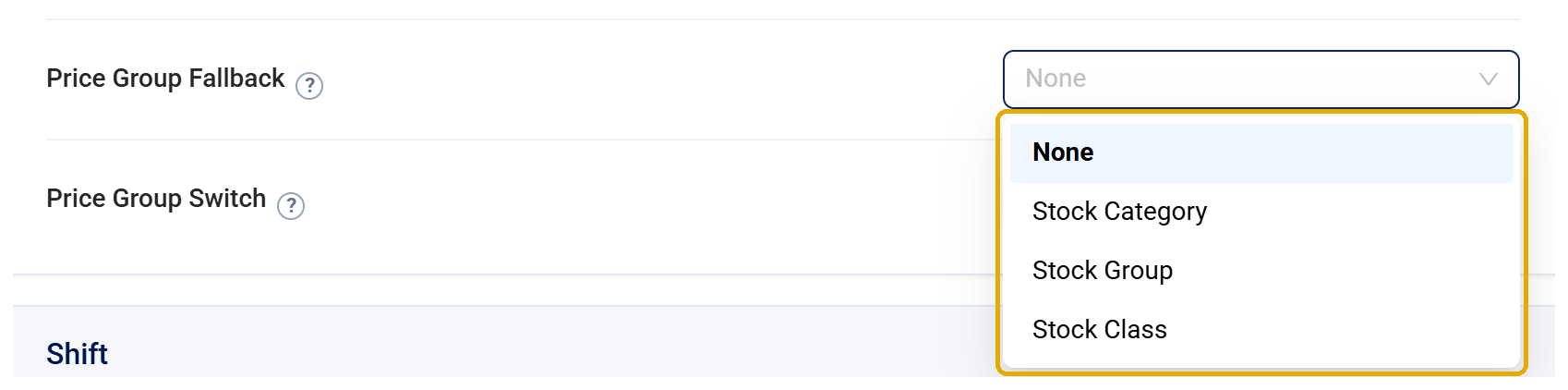
In Price Group Fallback, choose where the fallback discounts are set:
None – No fallback. An item with no special price sells at its unit price.
Stock Category – The discount set on the item's stock category, e.g. Stock Category.
Stock Group – The discount set on the item's stock group.
Stock Class – The discount set on the item's stock class.
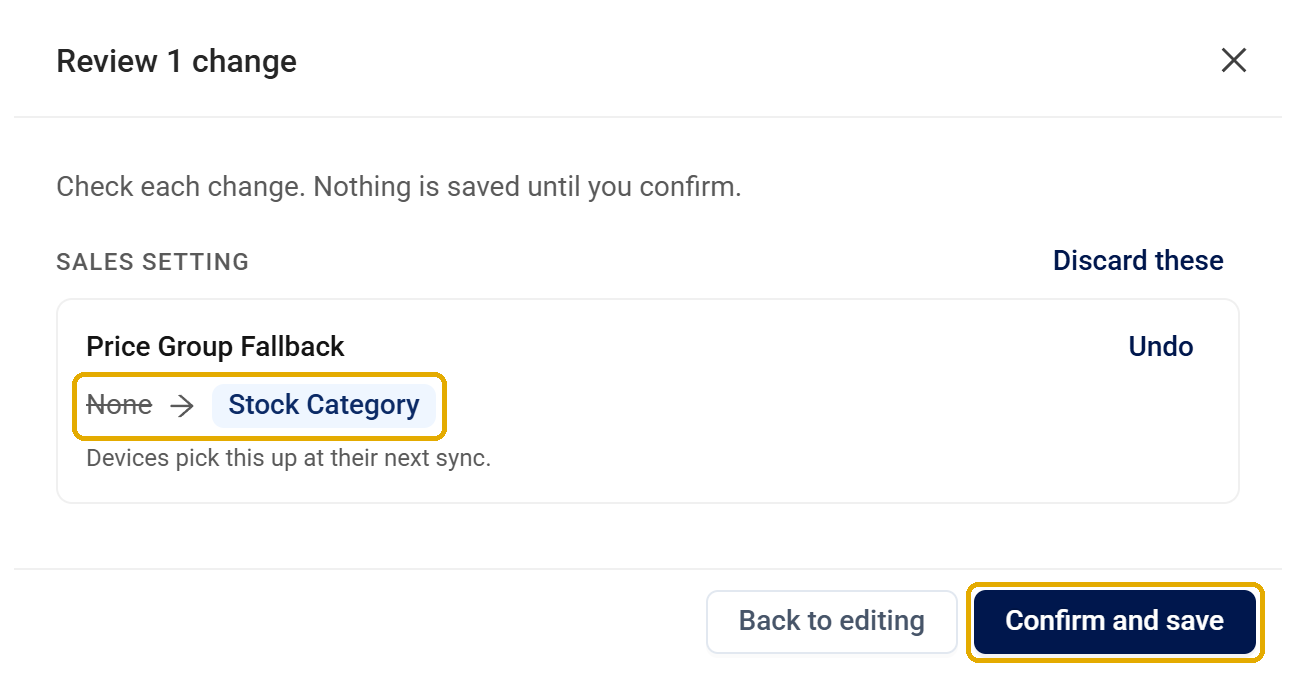
Click Review and save.

Check the change, e.g. Price Group Fallback None → Stock Category, and click Confirm and save. The cash registers pick this up at their next sync.
Set the Fallback Discount on a Stock Category
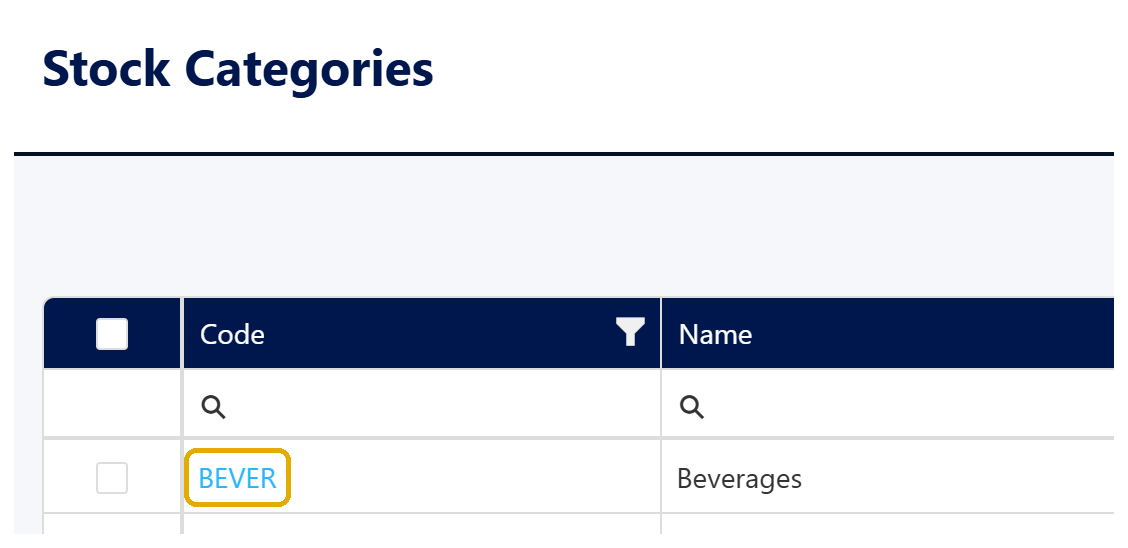
Navigate to Stock > Categories and click the category Code, e.g. BEVER.
In Price Group Fallback Discount, click Add Discount and fill in:
Price Group – e.g. WHOLESALE · Wholesale Price.
Discount % – The discount off the unit price, e.g. 10.
Click Save.
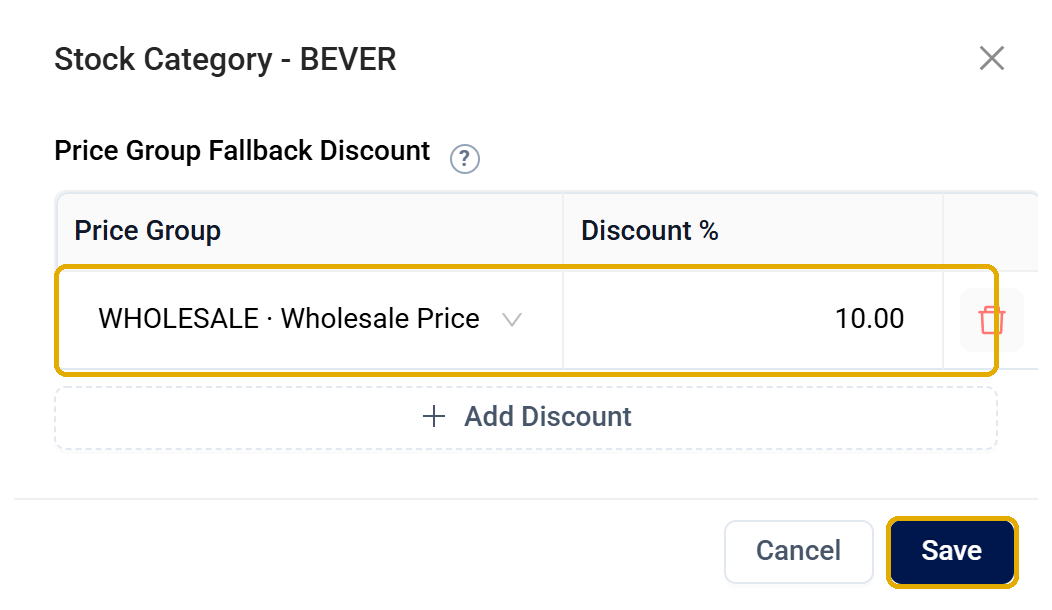
Result: The discount is saved. Open the category again to see the WHOLESALE line at 10.00. Each price group can have its own discount on the same category.
Set It on a Stock Group or Stock Class Instead
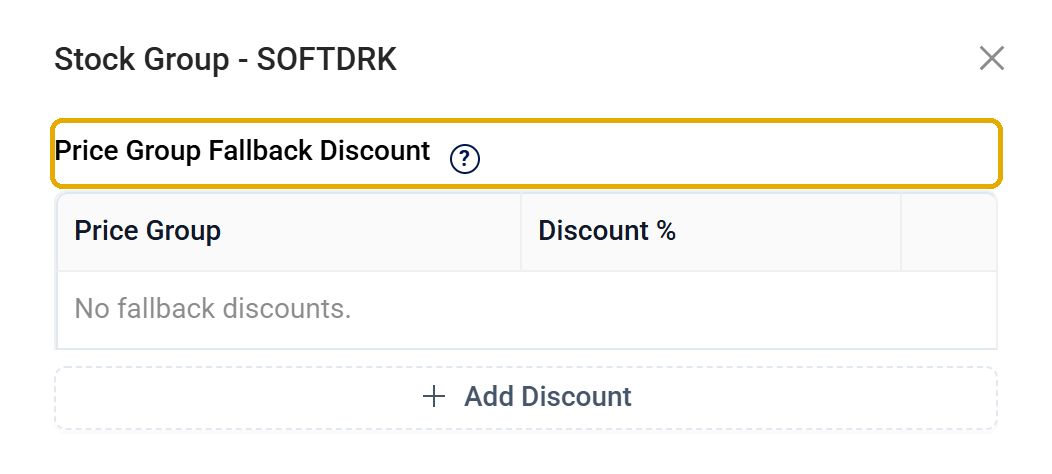
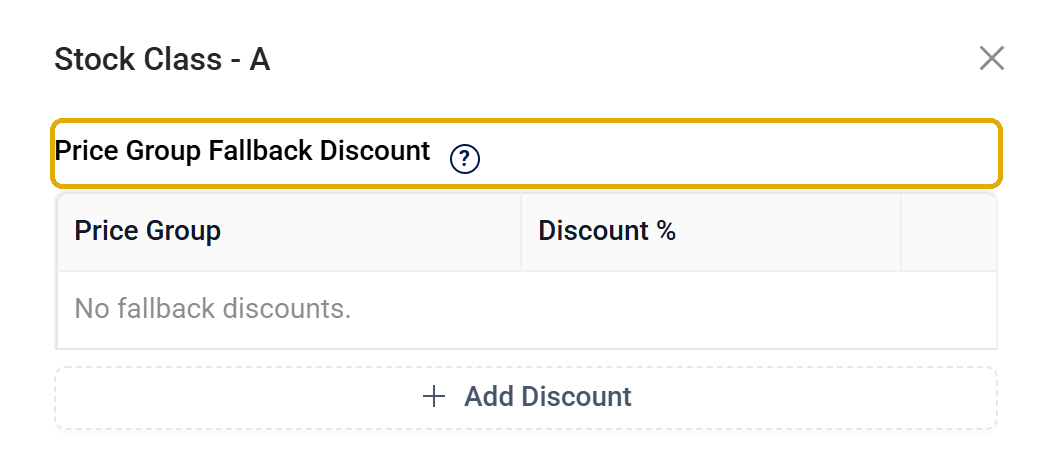
With Price Group Fallback set to Stock Group or Stock Class, the Price Group Fallback Discount table is on that popup instead. Navigate to Stock > Groups or Stock > Classes, click the Code, e.g. SOFTDRK or A, and add the discount in the same way.
Note: Only the level chosen in Price Group Fallback is used. Discounts set on the other levels are kept, and apply again if you switch back.
Check the Fallback Discounts of the Price Group
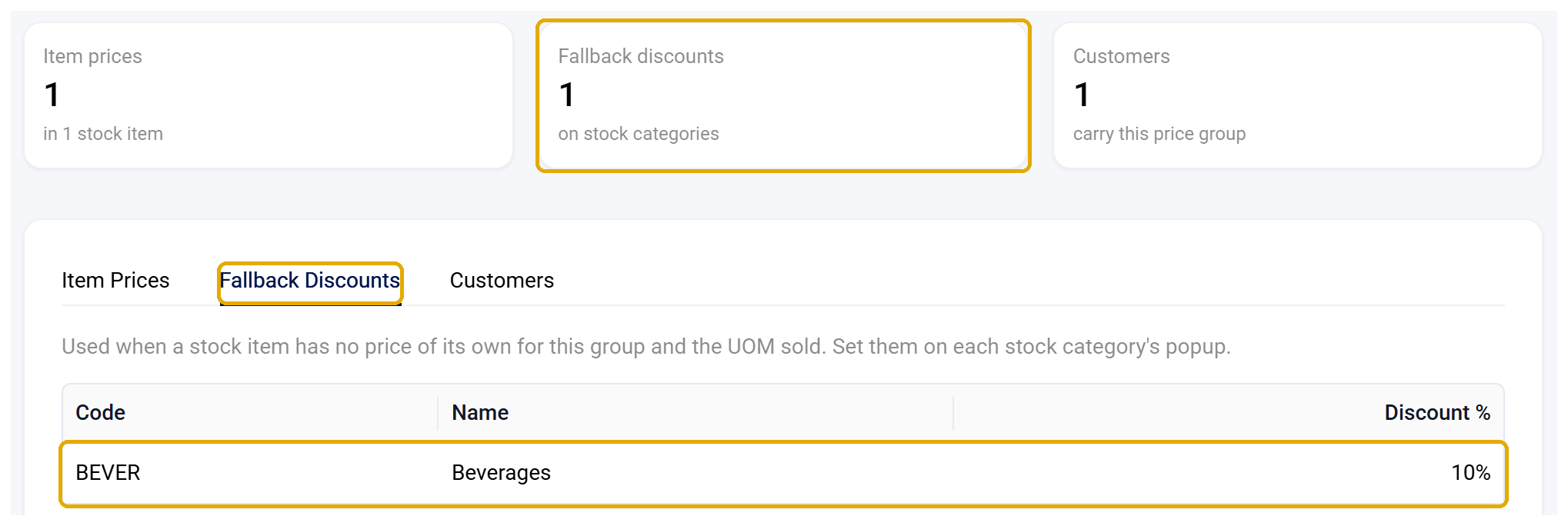
Navigate to Company > Maintenance > Price Groups and click the price group, e.g. WHOLESALE. Fallback discounts shows how many discounts it has, e.g. 1 on stock categories. Click the Fallback Discounts tab to see each one, e.g. BEVER Beverages 10%.
Sell at the Fallback Discount in the Win App
In the Win App, click the cloud icon on the left and click Quick Sync All, so the cash register gets the setting and the discounts.
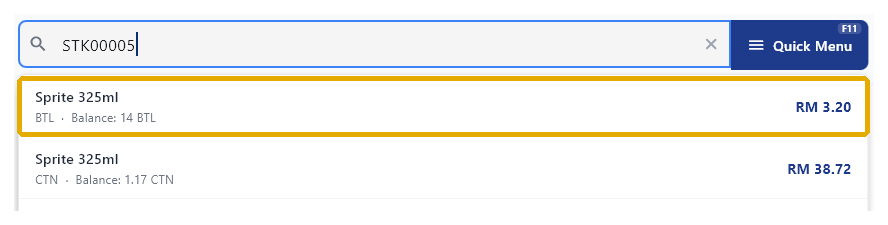
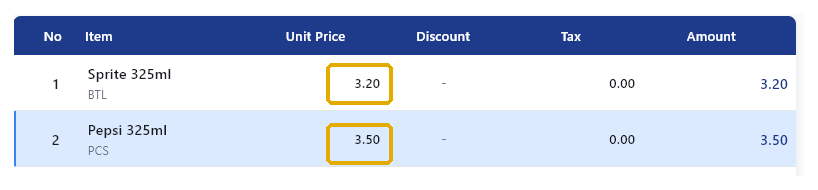
Search for the item, e.g. STK00005. With no customer, Sprite 325ml BTL shows its unit price RM 3.20. Click it to add it to the cart. Add another item if needed, e.g. Pepsi 325ml at RM 3.50.
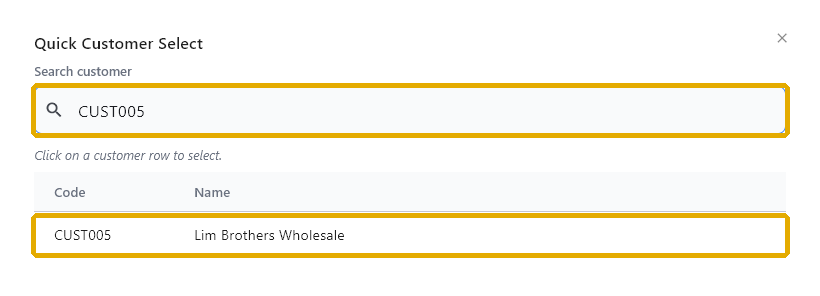
Click Customer, search for the customer, e.g. CUST005, and click Lim Brothers Wholesale.
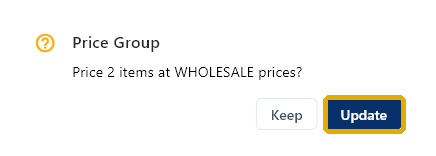
Price Group asks Price 2 items at WHOLESALE prices? Click Update.
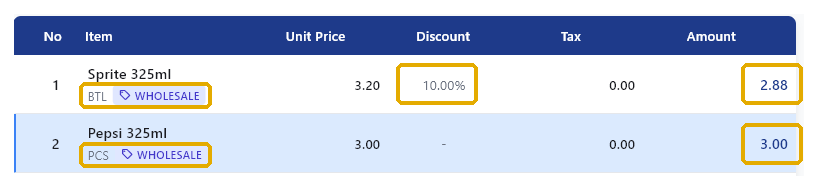
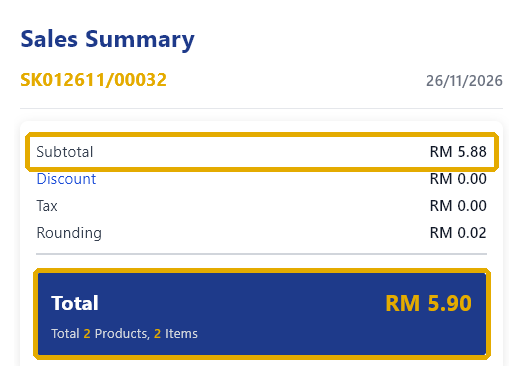
Result: Both lines are tagged WHOLESALE:
Sprite 325ml – No special price, so it gets the BEVER fallback discount: Discount 10.00%, Amount 2.88.
Pepsi 325ml – Its own special price 3.00 wins over the fallback discount.
What's Next :
To change or remove a fallback discount, open the stock category, group or class, change the Discount % or click the delete icon on its line, and click Save. The cash registers use the new discount after their next sync.
** Learn more about Azure Cloud
** Learn more about QNE Hybrid Cloud Software
Was this article helpful?
That’s Great!
Thank you for your feedback
Sorry! We couldn't be helpful
Thank you for your feedback
Feedback sent
We appreciate your effort and will try to fix the article
