Overview :
A Price Group is a set of special prices, such as wholesale or member prices. You create the price group in the N3 AI POS Portal, give its special price to each stock item, and link the price group to a customer. At the cash register (Win App or Android), when the cashier picks that customer, the items are priced from the price group.
At the end of this article, you will be able to:
Turn on Price Group in Sales Setting
Create a price group
Set the special price of a stock item for the price group
Link the price group to a customer
Sell at the price group price in the Win App and on Android
Scenario :
The store sells Pepsi 325ml at RM 3.50 a can. Its wholesale customer Lim Brothers Wholesale (CUST005) buys it at RM 3.00. The store manager sets this up in the Portal, and the cashiers at SK Counter01 (Win App) and KL02 (Android) sell it, in the POS Sdn. Bhd. Live database.
Solution :
Turn On Price Group in Sales Setting
Navigate to Company > Maintenance > Settings and click Sales Setting.
In Price Group, choose who carries the price group:
Off – Customers don't carry price groups. They pay the unit price unless the cashier picks a price group for the bill.
Customer – Each customer can have a price group, set on the customer, e.g. Customer.
Customer Category – Each customer category can have a price group, set on the category. Its customers are priced from it.
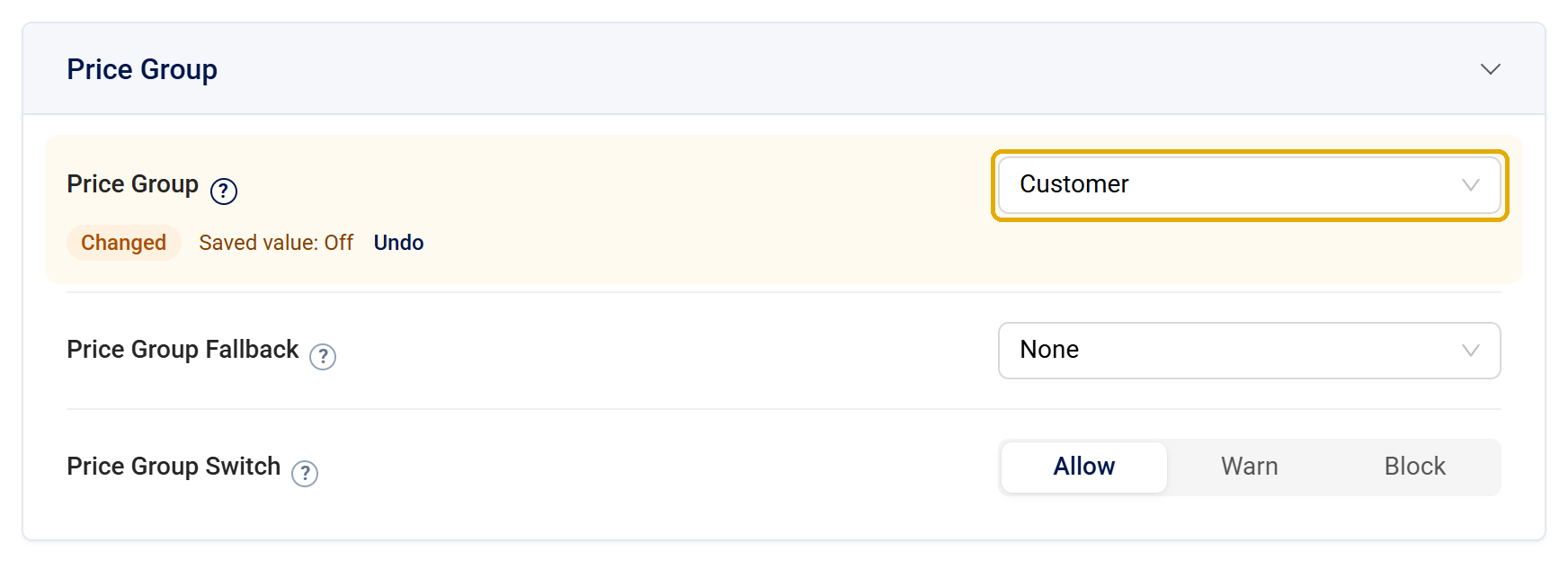
Note: Price Group Fallback – For an item with no special price in the price group, use the group's discount % set on its Stock Category, Stock Group or Stock Class. None sells it at its unit price. Price Group Switch – Whether the cashier can pick another price group for the bill at the till: Allow, Warn (after confirming) or Block (needs a supervisor PIN).
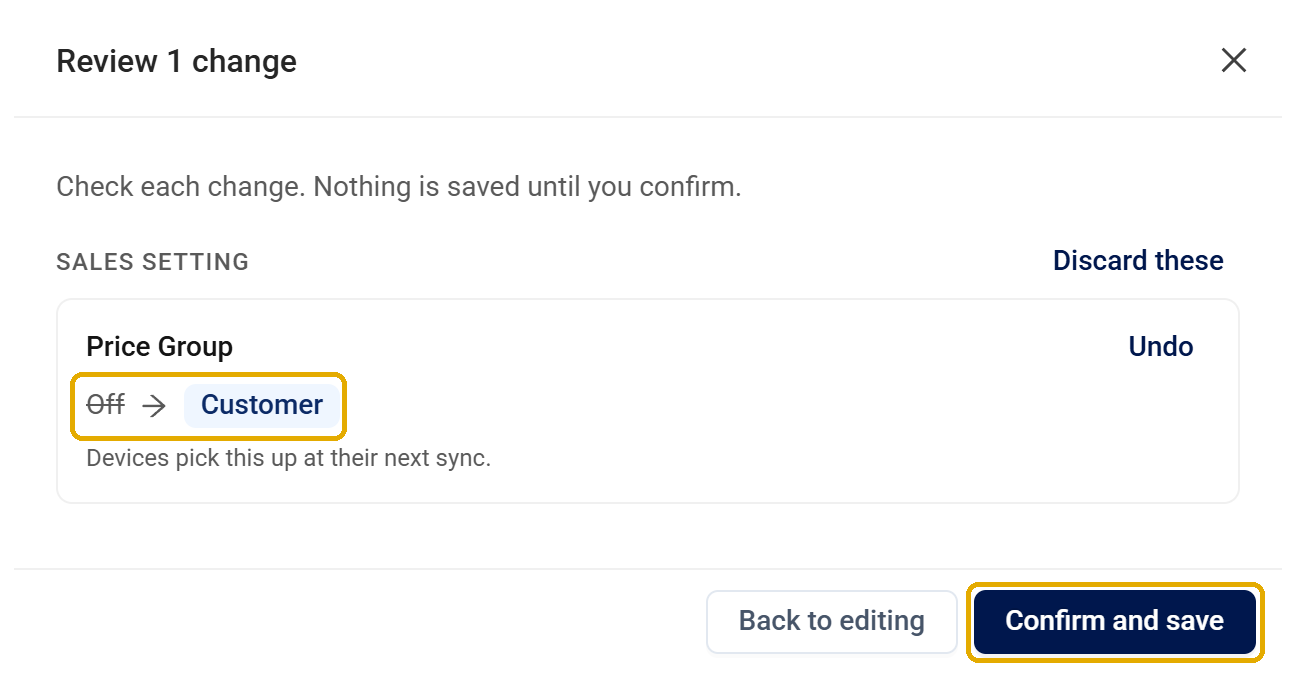
Click Review and save.

Check the change, e.g. Price Group Off → Customer, and click Confirm and save. The cash registers pick this up at their next sync.
Create a Price Group
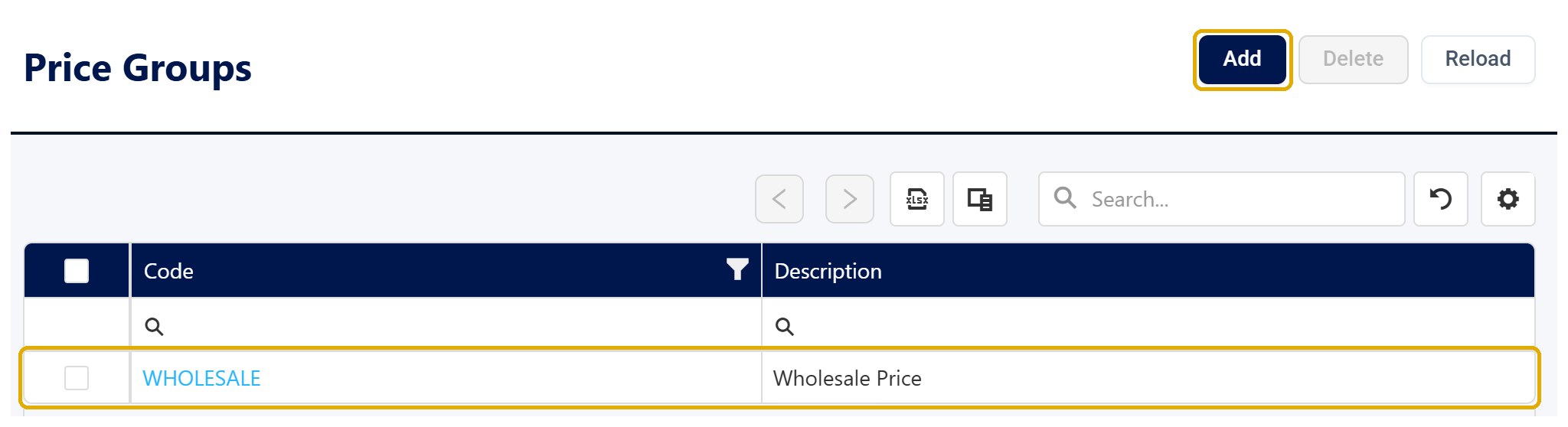
Navigate to Company > Maintenance > Price Groups and click Add.
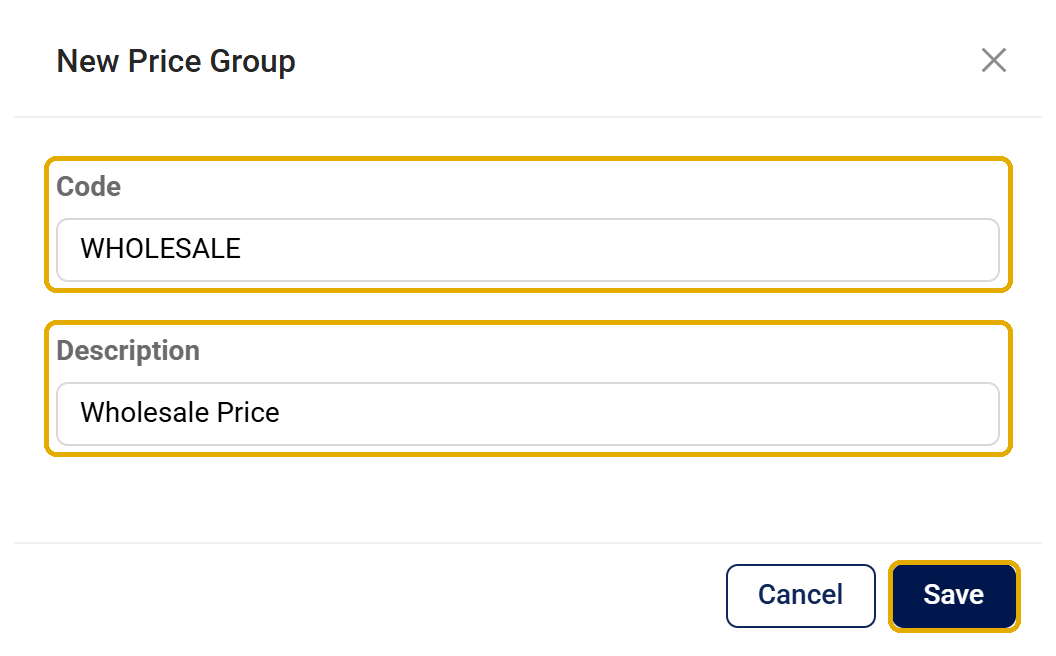
Fill in the Code, e.g. WHOLESALE, and the Description, e.g. Wholesale Price. Click Save.
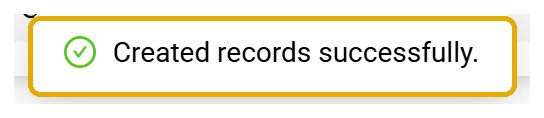
Result: Created records successfully. appears, and the price group is listed in Price Groups.
Set the Special Price of a Stock Item
Navigate to Stock > Stock Items, search for the item, e.g. STK00002, and click its Code. Click Edit.

Click the Price groups tab and click Add Special Price. Fill in:
Price Group – e.g. WHOLESALE · Wholesale Price.
Outlet – All Outlets, or one outlet for a price at that outlet only.
Type – Fixed Price replaces the unit price. Discount % gives a discount off the unit price.
UOM – e.g. PCS.
Fixed Price – e.g. 3.00.
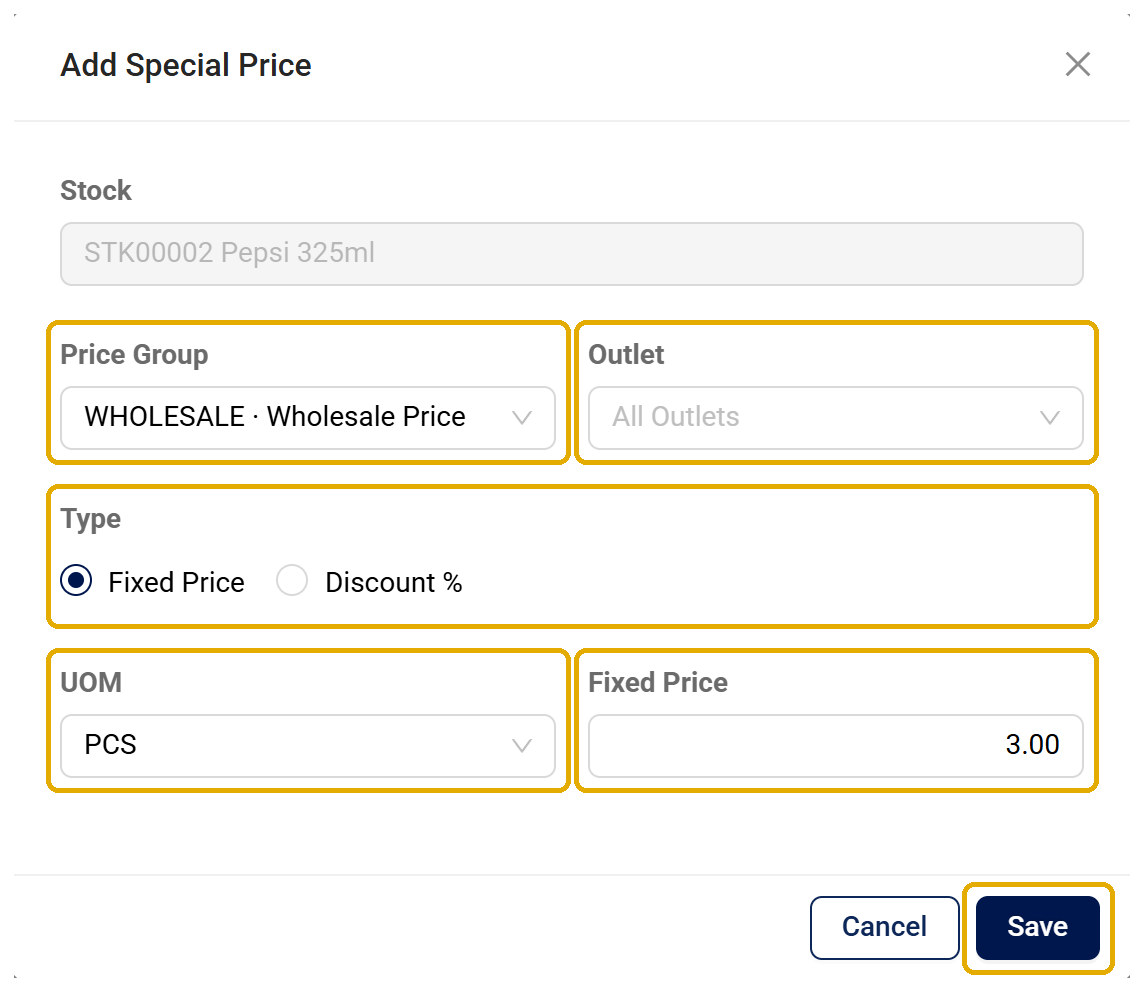
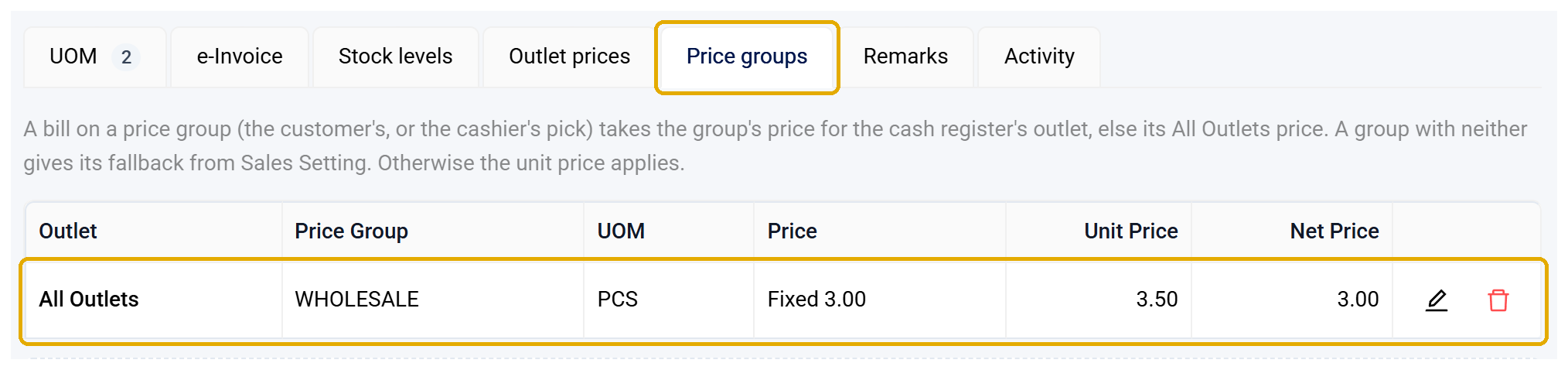
Click Save to add the line. The Price groups tab shows All Outlets, WHOLESALE, PCS, Fixed 3.00, the Unit Price 3.50 and the Net Price 3.00.
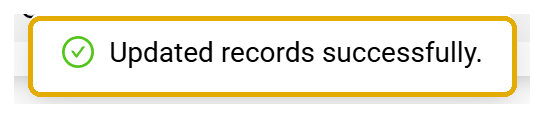
Click Save on the stock item.
Result: Updated records successfully. appears.
Link the Price Group to a Customer
Navigate to Customers > Customers, click the customer, e.g. CUST005 Lim Brothers Wholesale, and click Edit.
In Price Group, choose the price group, e.g. WHOLESALE.

Note: The customer must have a billing Address (lines 1 and 2), Country, State and City before it can be saved. Fill them in on the Billing tab if they are empty.
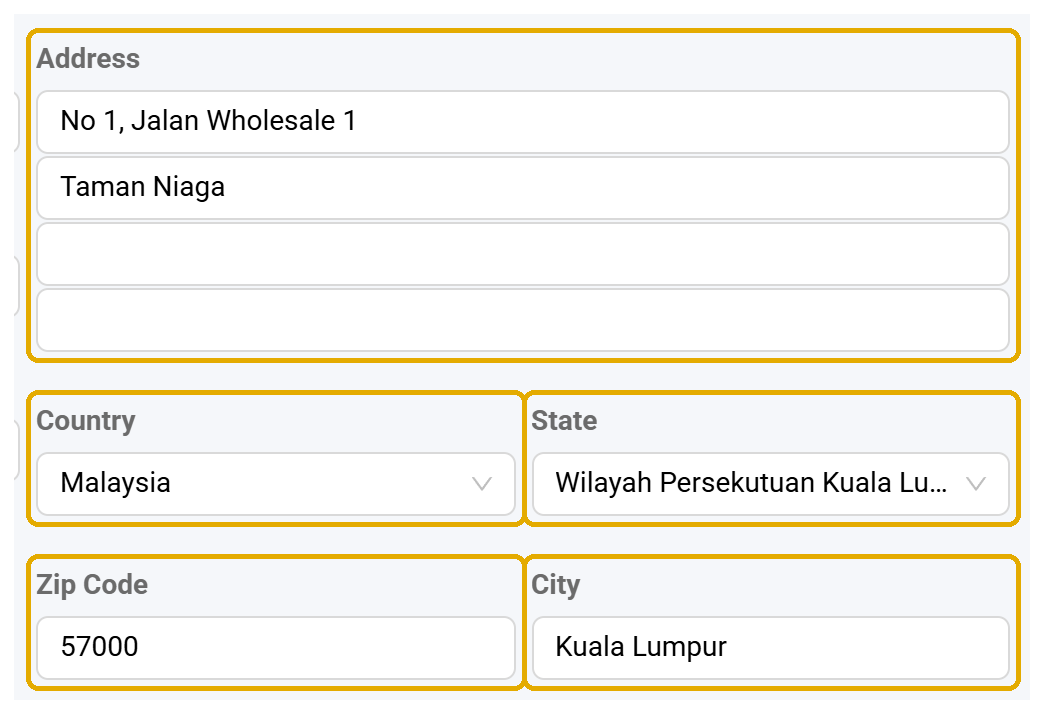
Click Save.
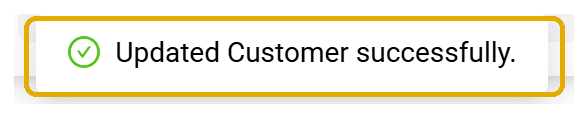
Result: Updated Customer successfully. appears.
Check the Price Group
Navigate to Company > Maintenance > Price Groups and click the price group, e.g. WHOLESALE. Item prices shows the number of special prices, e.g. 1, and Customers shows how many customers carry it, e.g. 1. The Item Prices tab lists each special price.
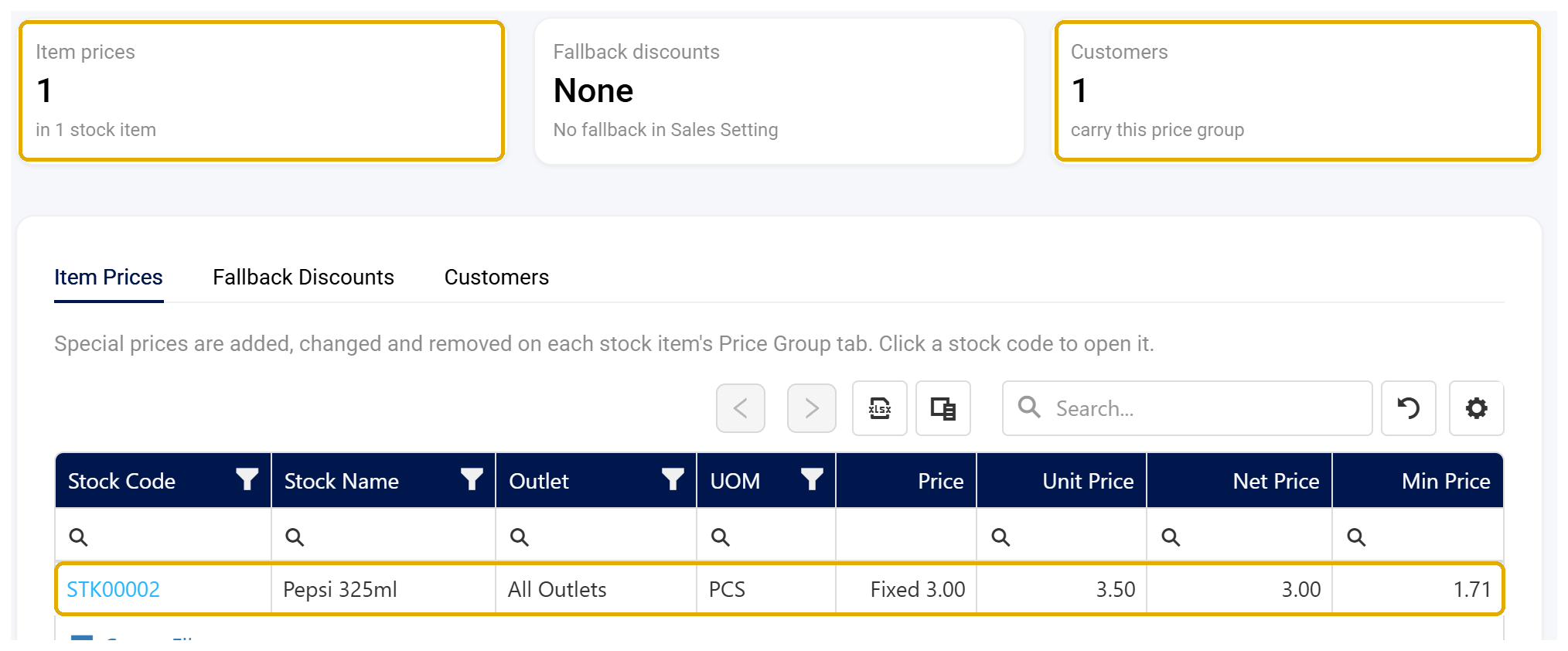
Click the Customers tab to see the customers, e.g. CUST005 Lim Brothers Wholesale.

Sell at the Price Group Price in the Win App
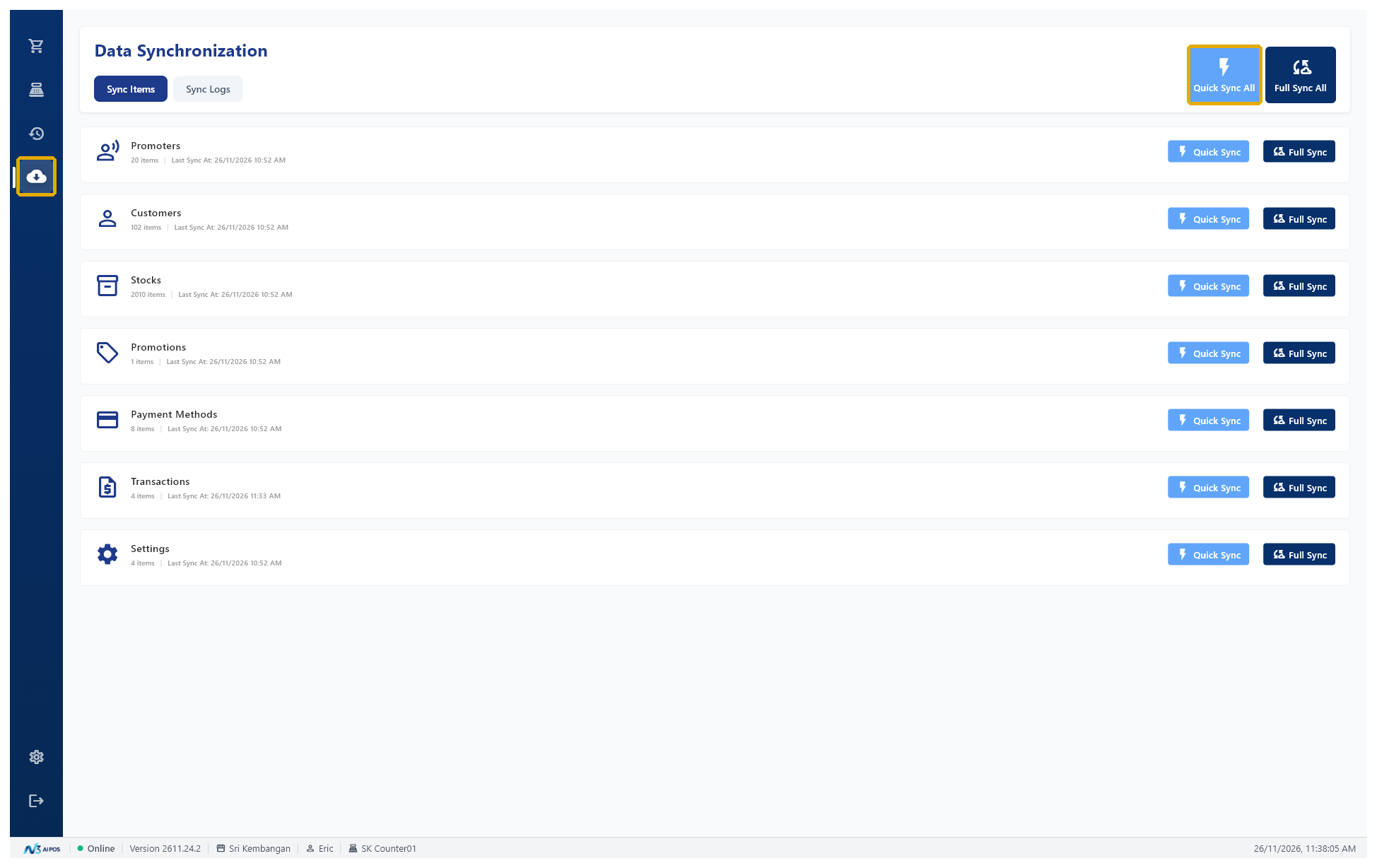
In the Win App, click the cloud icon on the left and click Quick Sync All, so the cash register gets the setting, the price group, the special price and the customer.
Search for the item, e.g. STK00002. With no customer, Pepsi 325ml PCS shows the unit price RM 3.50.
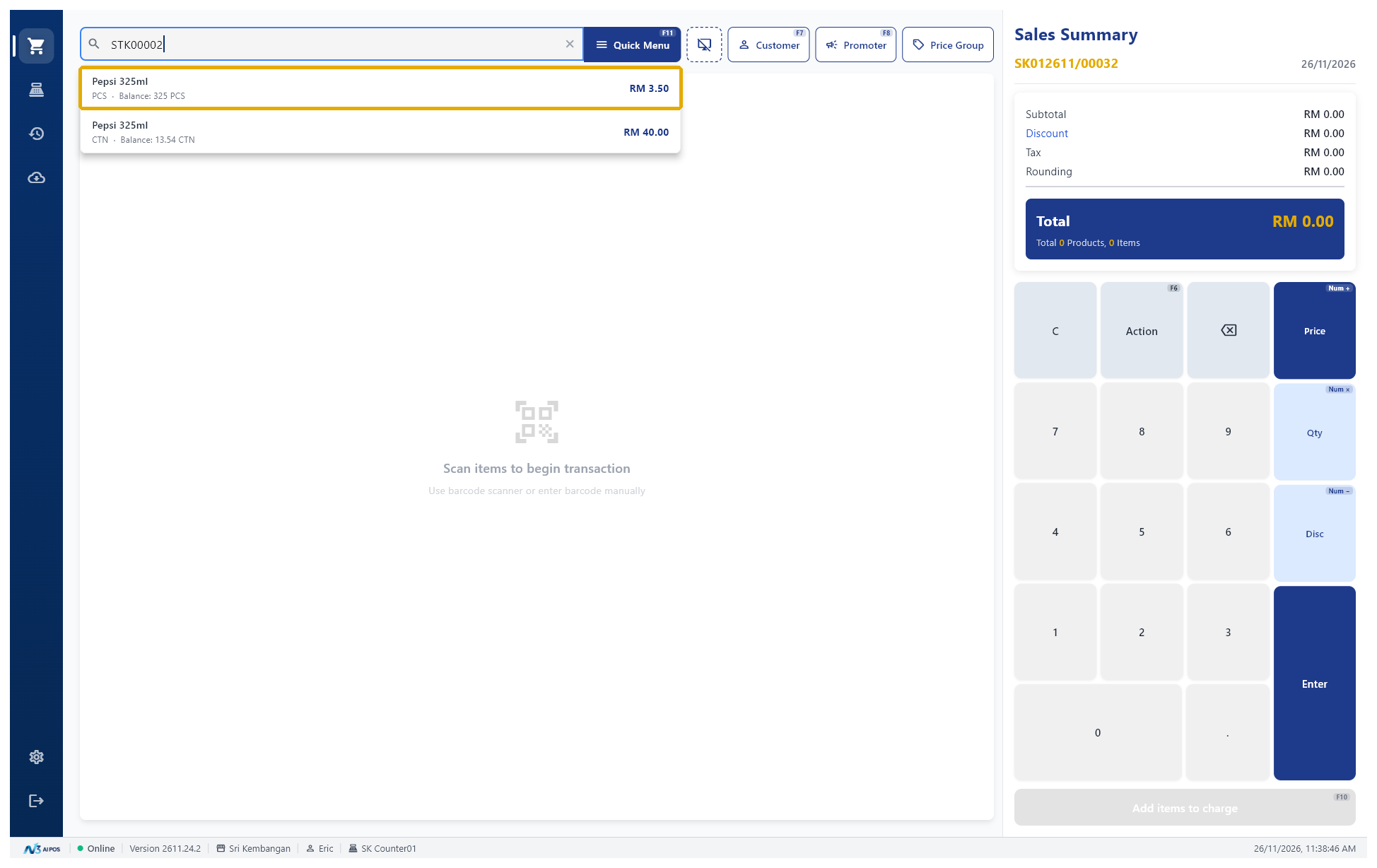
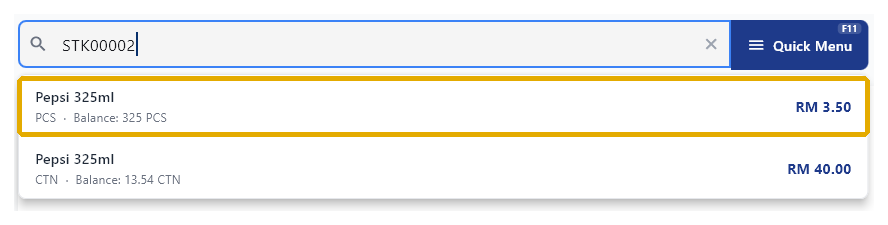
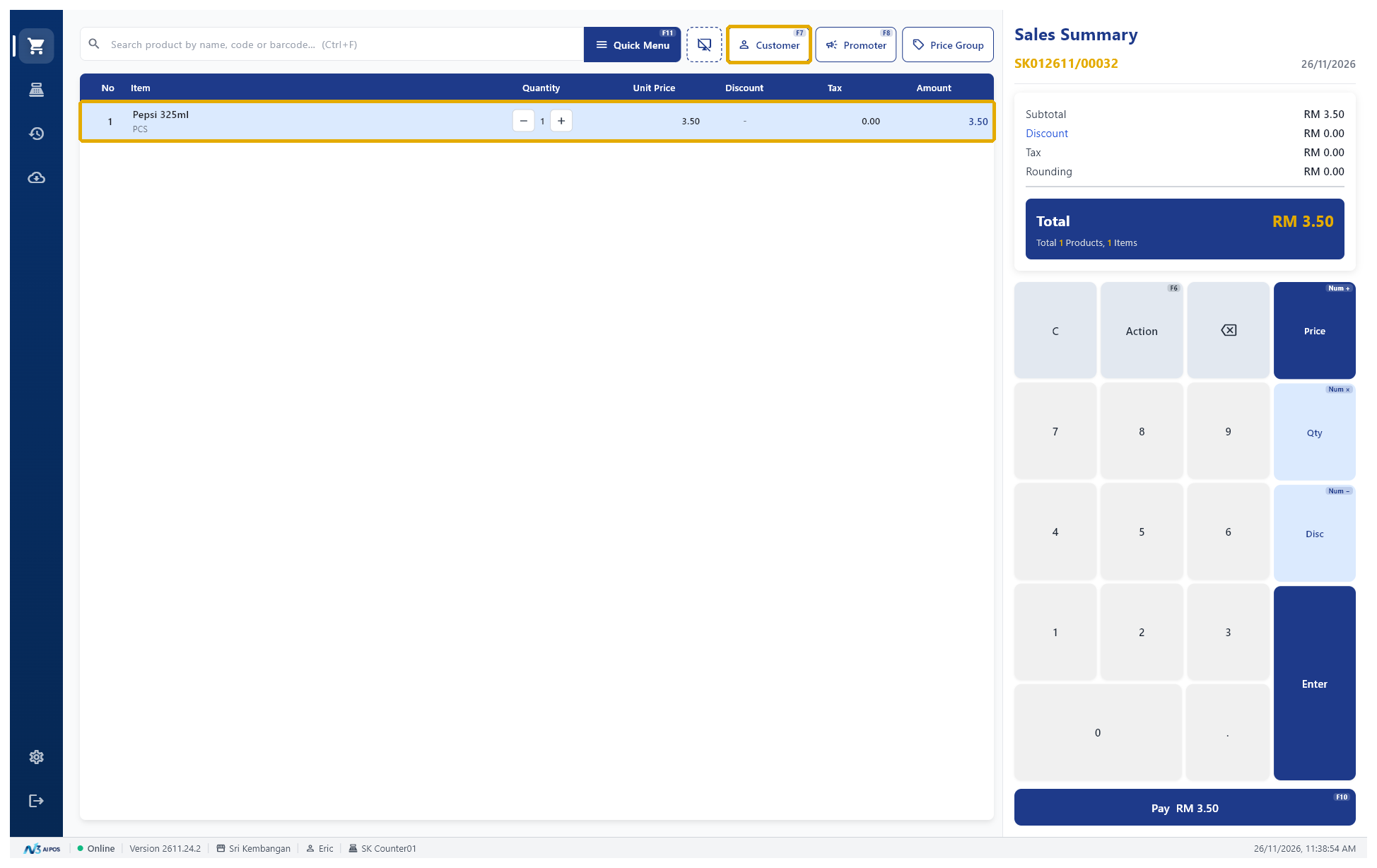
Click the item to add it to the cart. The Unit Price is 3.50. Click Customer.

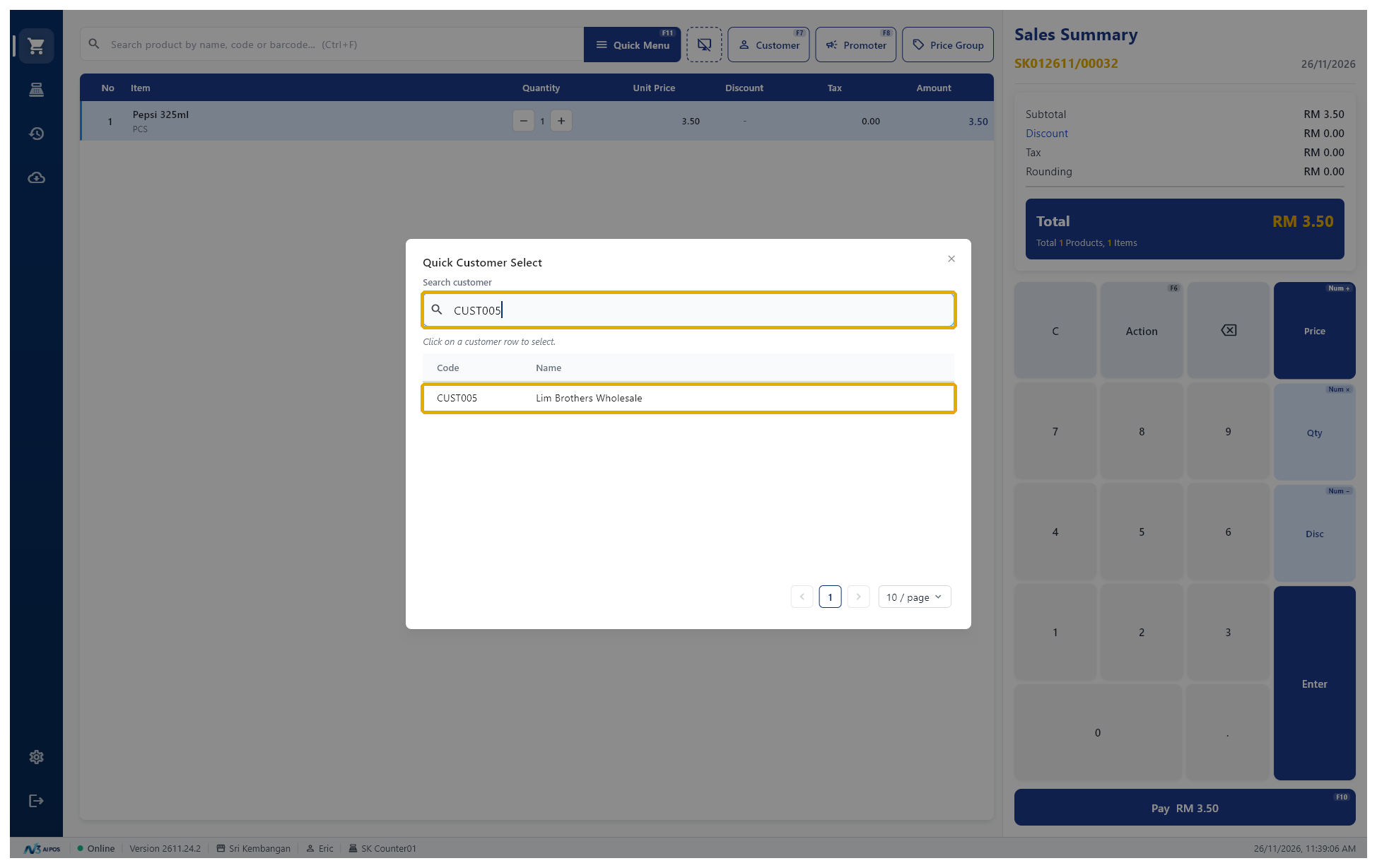
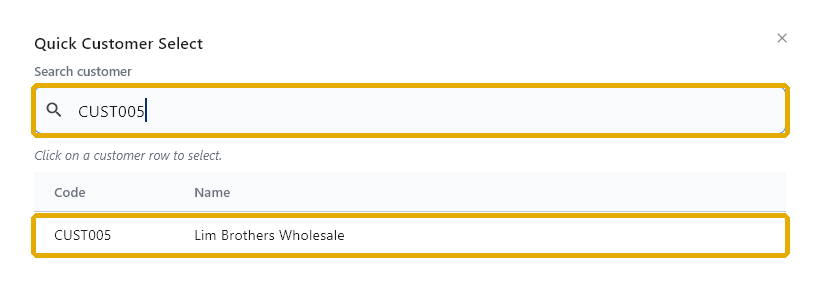
In Quick Customer Select, search for the customer, e.g. CUST005, and click Lim Brothers Wholesale.
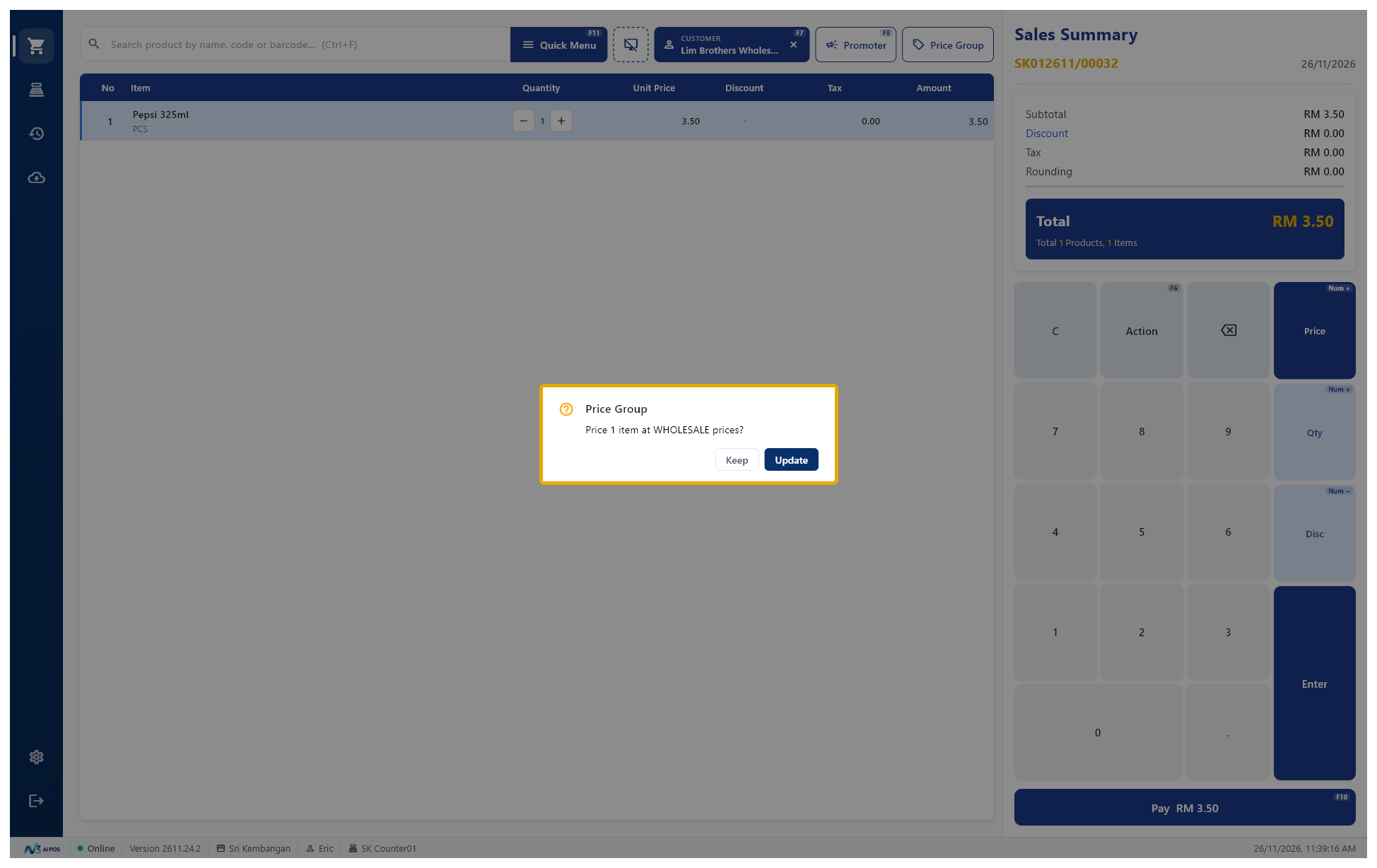
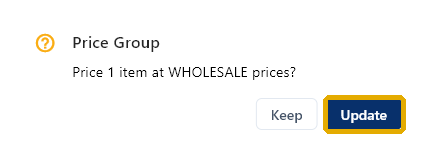
Price Group asks Price 1 item at WHOLESALE prices? Click Update. Click Keep to leave the items at their current prices.
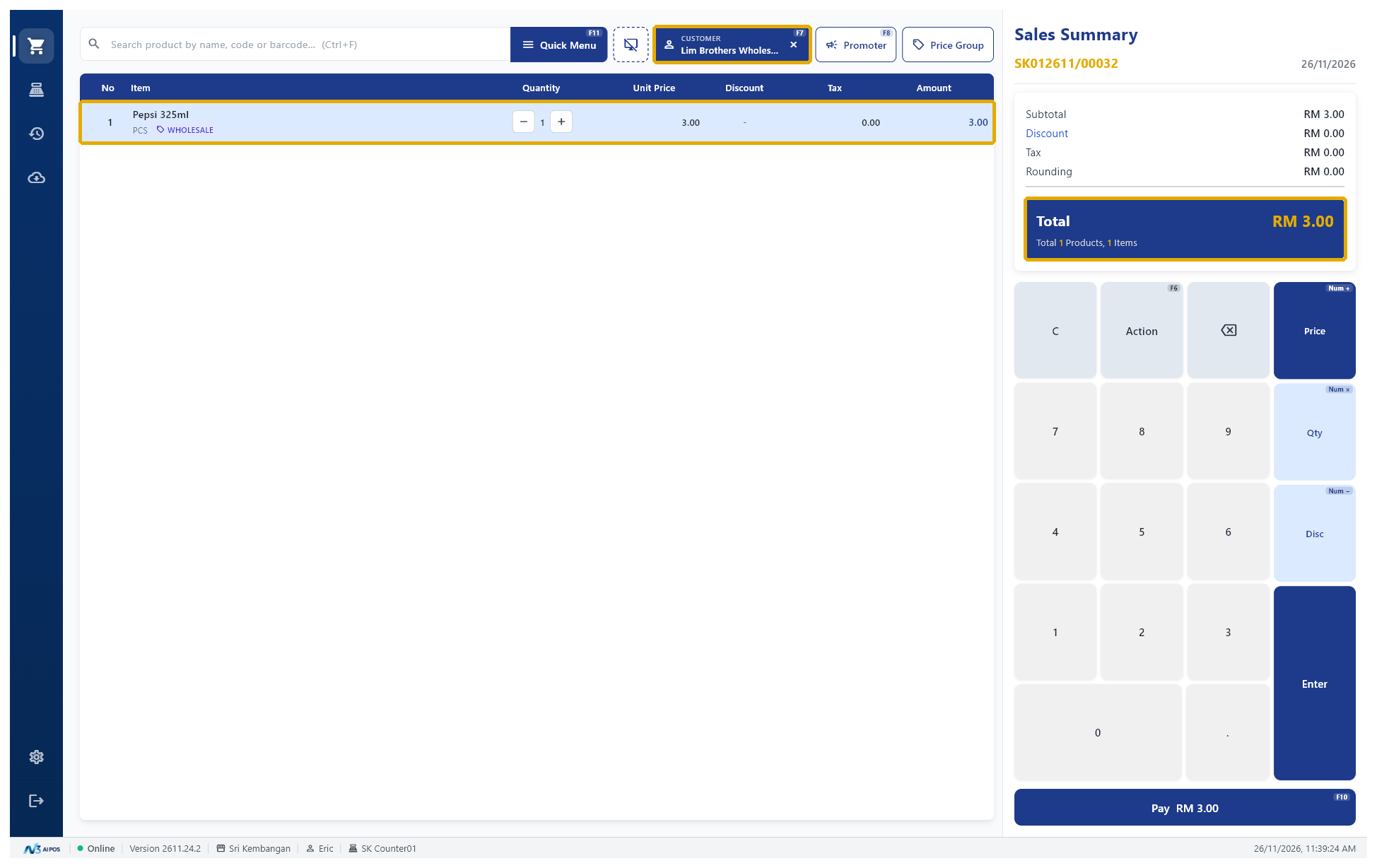
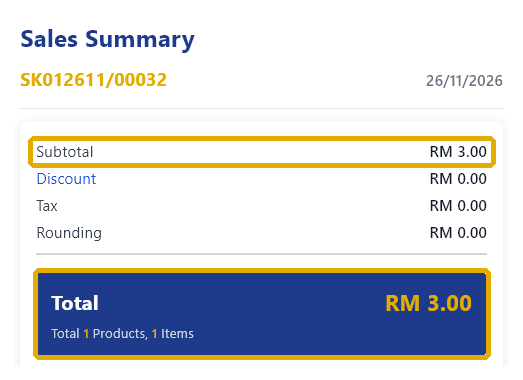
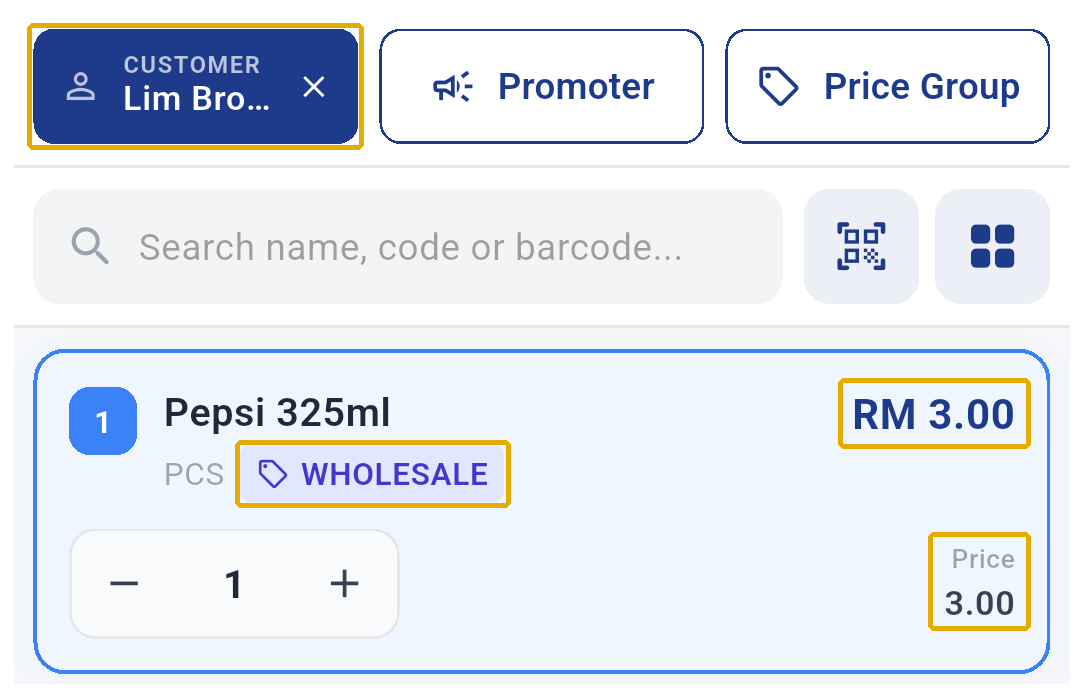
Result: The customer shows at the top, e.g. Lim Brothers Wholes…. The line is tagged WHOLESALE, the Unit Price is 3.00, and the Subtotal and Total are RM 3.00.


Sell at the Price Group Price on Android
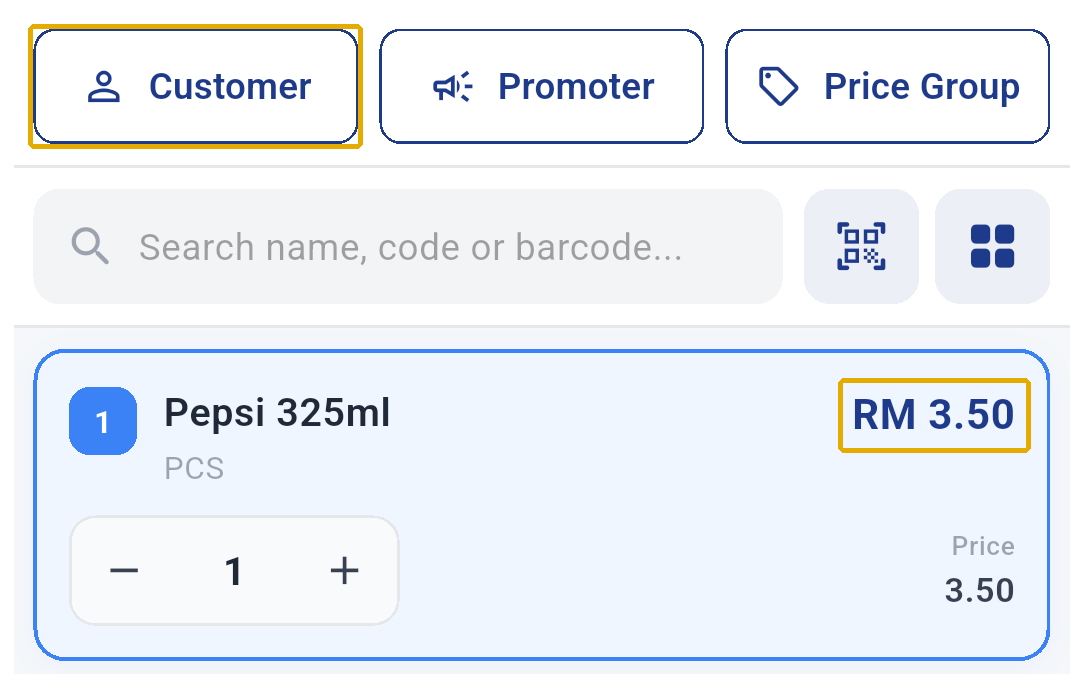
On the Android cash register, e.g. KL02, tap Sync and tap Quick Sync All. Tap POS, search for the item, e.g. STK00002, and tap Pepsi 325ml PCS. With no customer, the price is RM 3.50. Tap Customer.
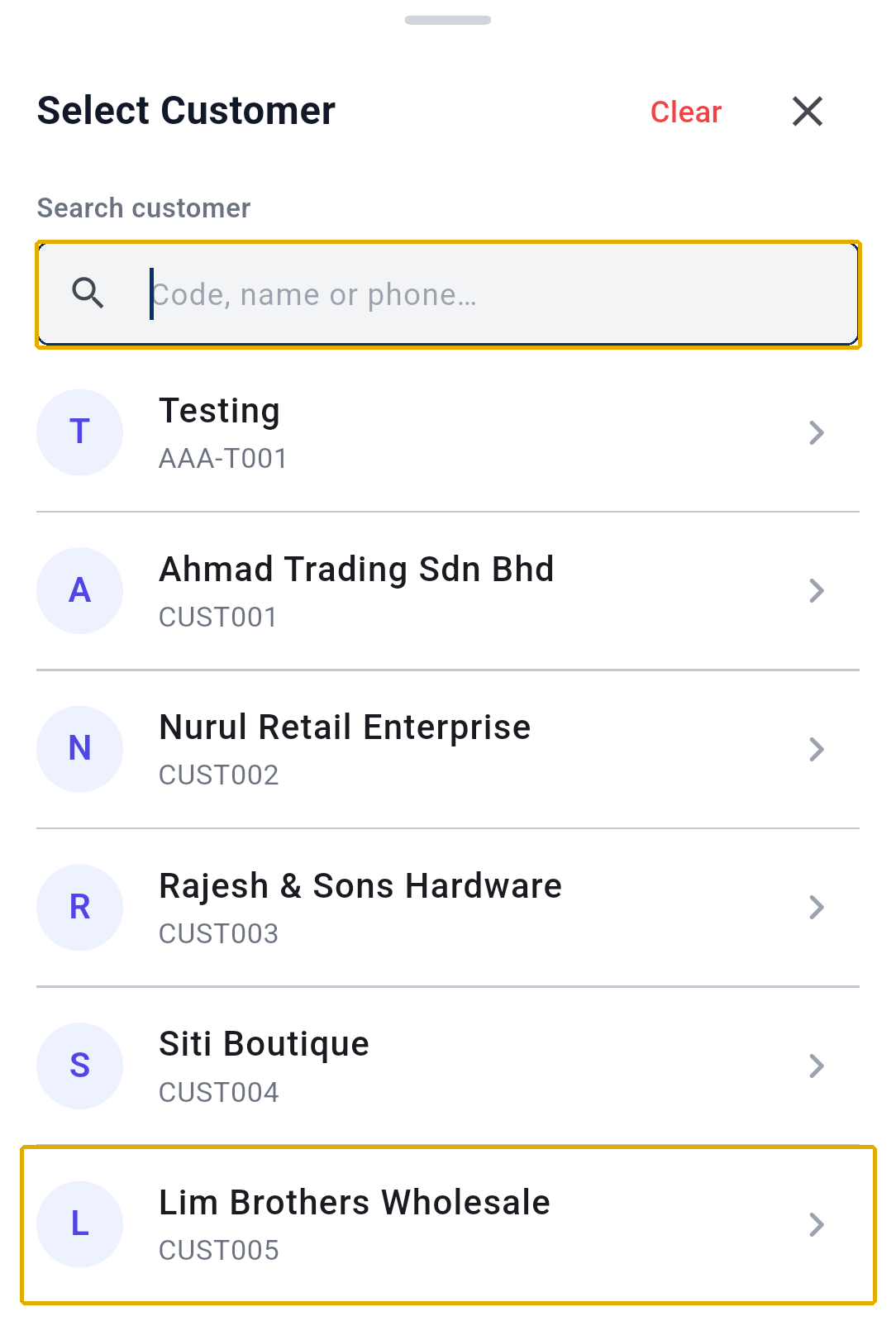
In Select Customer, search for or tap the customer, e.g. Lim Brothers Wholesale.
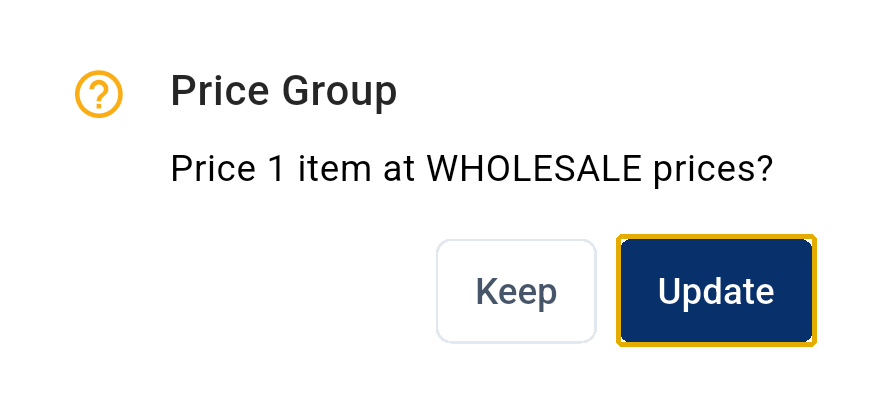
Price Group asks Price 1 item at WHOLESALE prices? Tap Update.
Result: The customer shows at the top, the line is tagged WHOLESALE, and the price is RM 3.00.
What's Next :
To let the cashier price a bill from a price group without picking a customer, tap or click Price Group at the till. Whether this is allowed is set by Price Group Switch in Sales Setting.
** Learn more about Azure Cloud
** Learn more about QNE Hybrid Cloud Software
Was this article helpful?
That’s Great!
Thank you for your feedback
Sorry! We couldn't be helpful
Thank you for your feedback
Feedback sent
We appreciate your effort and will try to fix the article
