An invalid e-invoice submission occurs when an invoice sent from QNE AI Cloud to LHDN MyInvois is rejected or blocked due to data validation failures, date controls, missing information, or system/network errors. Prompt, consistent handling reduces compliance risk, prevents reporting gaps, and shortens resolution time.
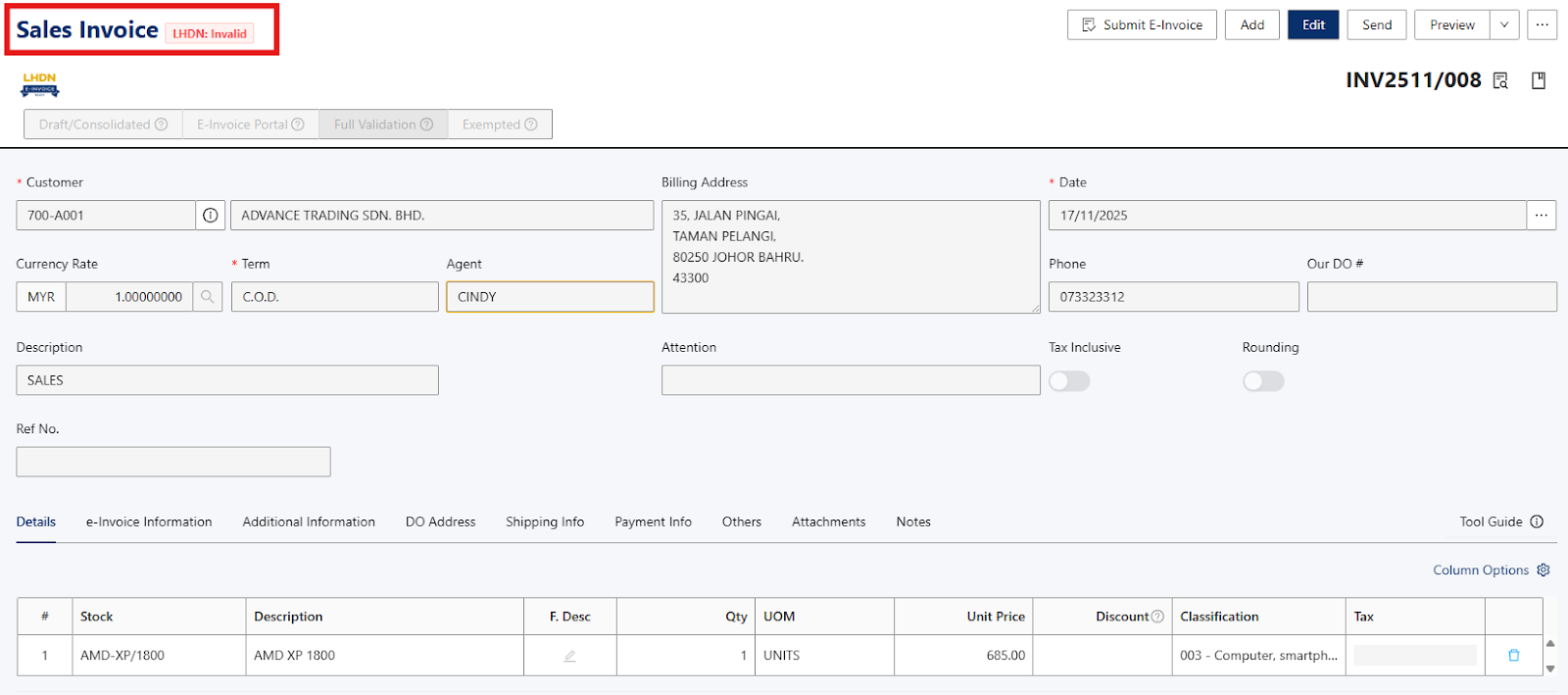
This article guides administrators and users through diagnosing, correcting, and resubmitting invalid e-invoices while preserving auditability.
Scenario:
You attempted to submit an invoice to MyInvois and received a rejection or the system blocked the submission. This article focuses on how to identify the root cause and recover in a way that’s compliant and auditable.
Solution:
Note: These steps assume you are already in your company’s QNE AI Cloud environment and on the e-Invoice admin pages. This procedure omits login/dashboard steps and focuses only on the relevant e-Invoice controls.
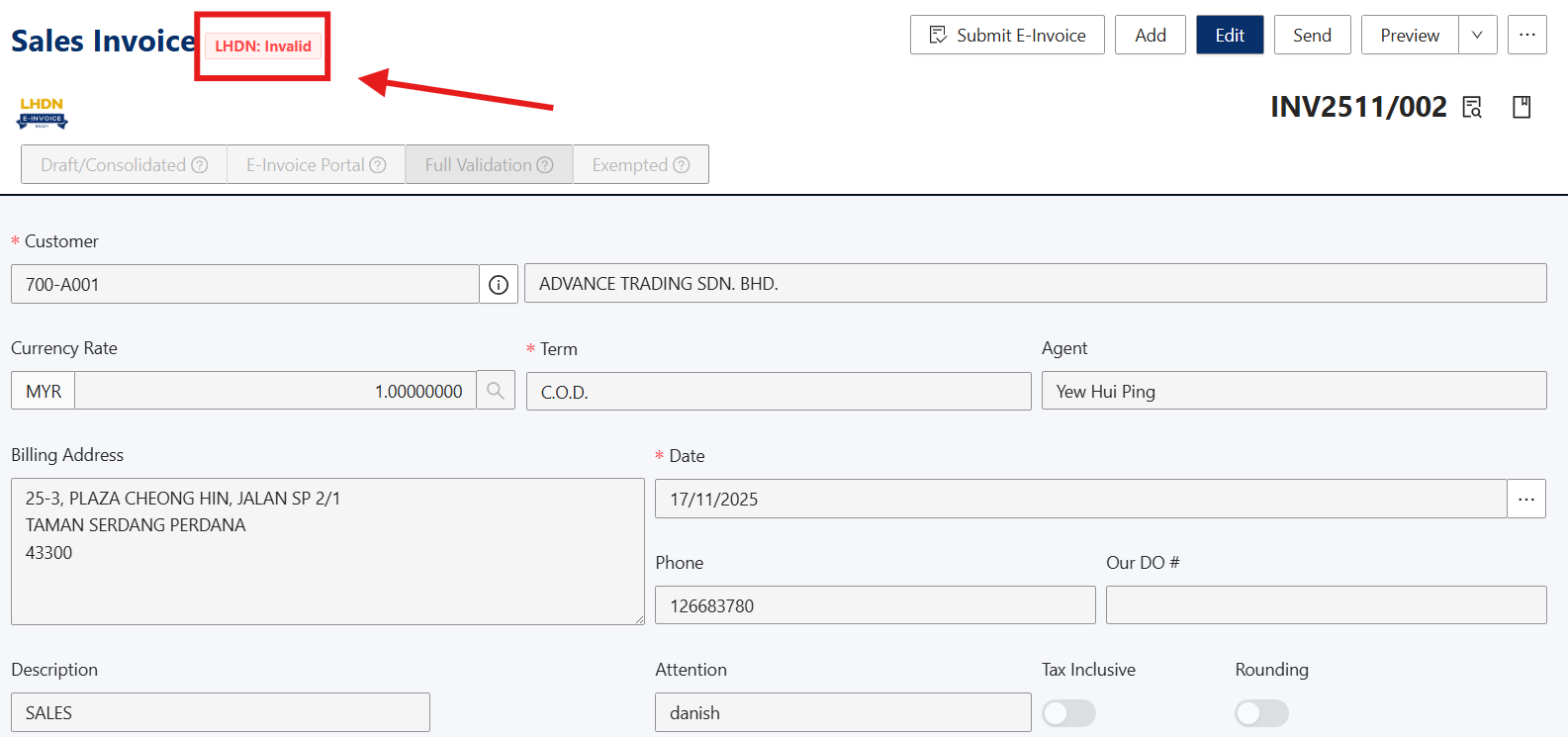
1. Assume you have encountered the Invalid result. To check the status, click the highlighted item.
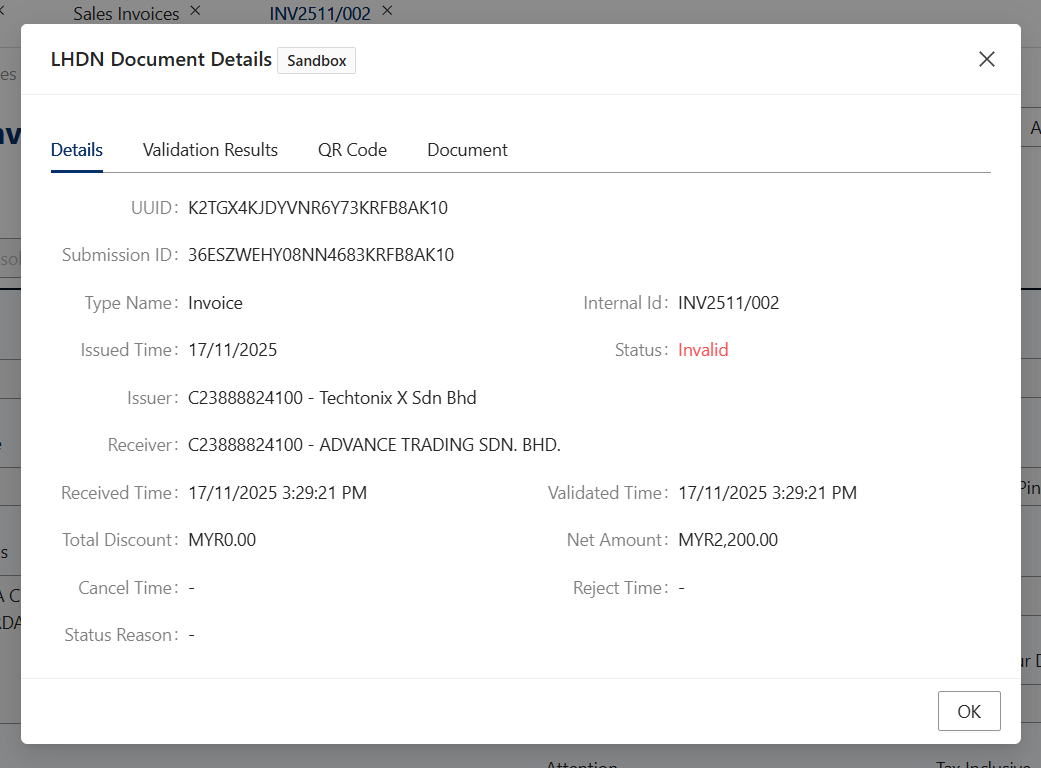
2. You should be prompted with a pop up for LHDN Document Details. You can clearly see that the status is Invalid with a UUID and Submission ID attached. This means that the document has gone through LHDNM MyInvois portal checking, but not yet validated.
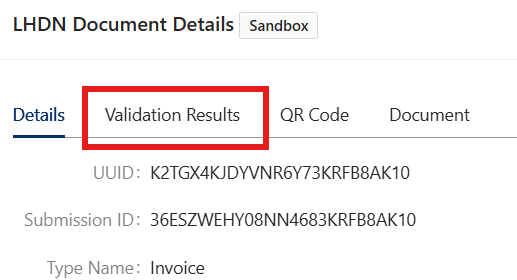
3. Click Validation Results.
4. You will see the reason why the document produces an invalid result.
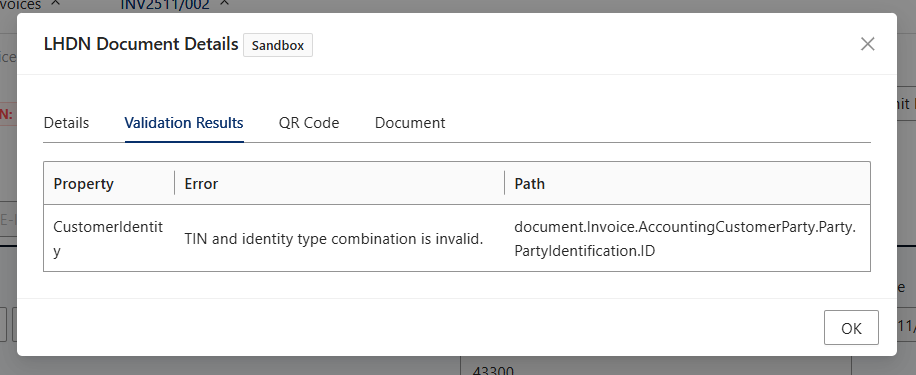
NOTE: If the Validation Results are empty, this means that your document has become a validated E-Invoice document
5. In this case, it is noted that the Customer’s TIN and Identity Type combination is invalid. To correct this, you need to check and edit the information that is invalid.
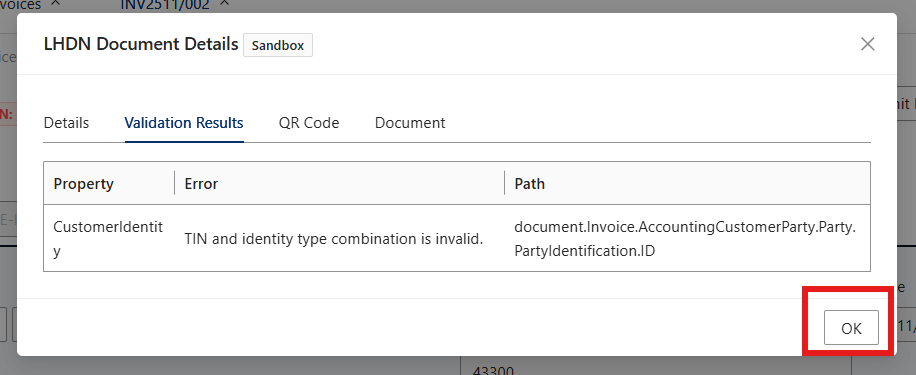
6. Click OK.
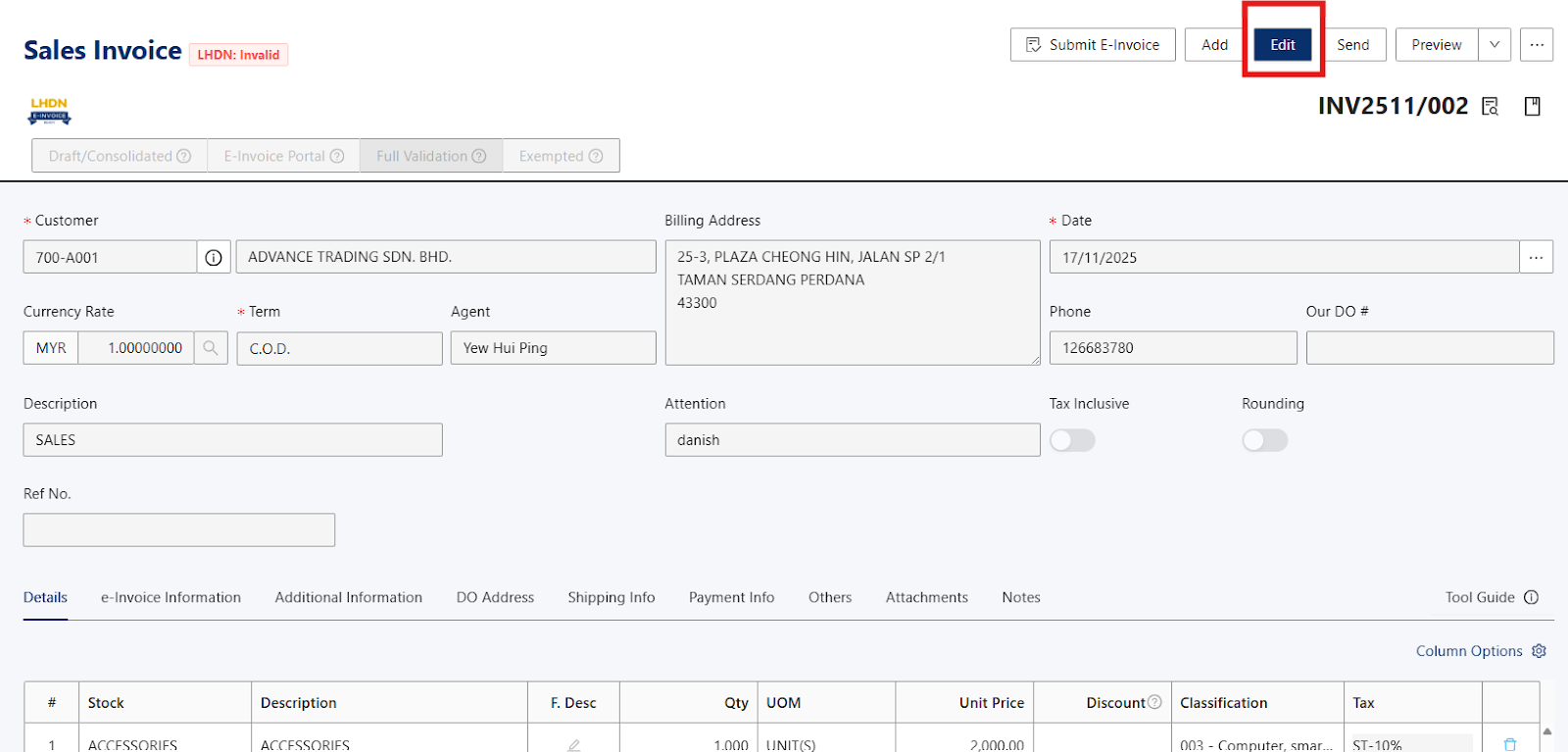
7. Click Edit.
8. Click (i) symbol.

9. Make adjustments towards the invalid information.
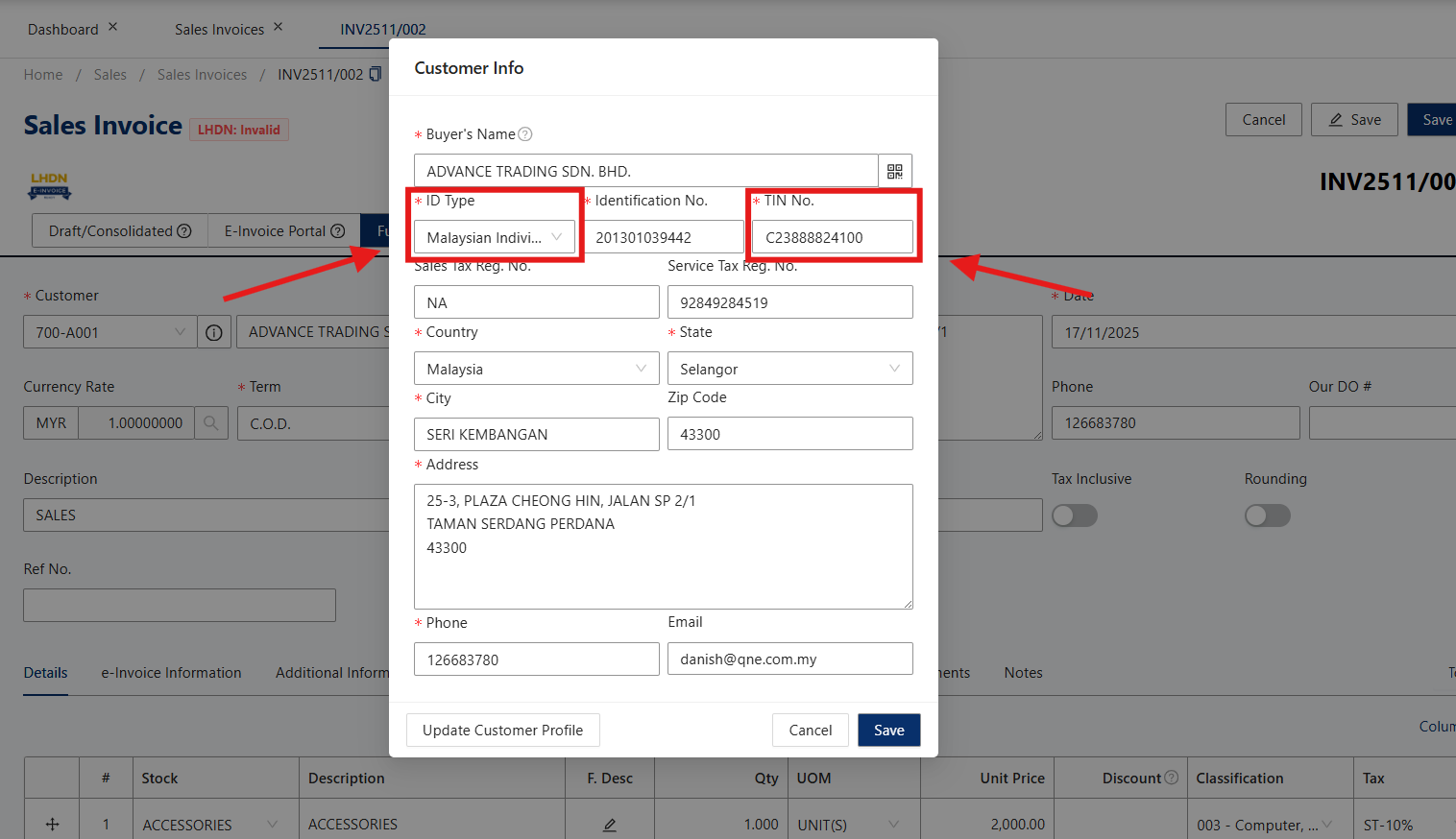
It is noted that this two information produces the invalid result, because the ID Type selected is Malaysian Individual but the TIN No. is for Malaysian Company.
10. To adjust this, change the ID Type from Malaysian Individual to Malaysian Company.
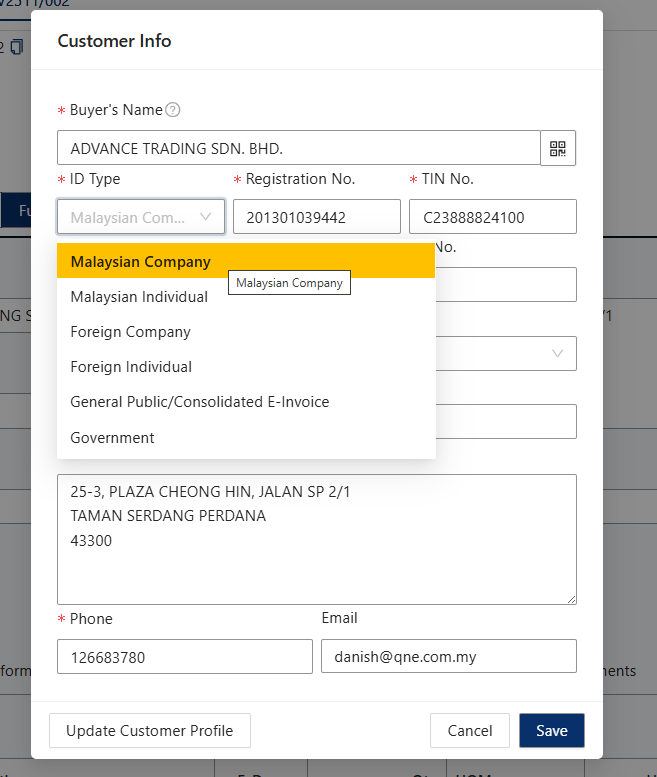
11. Click Save.
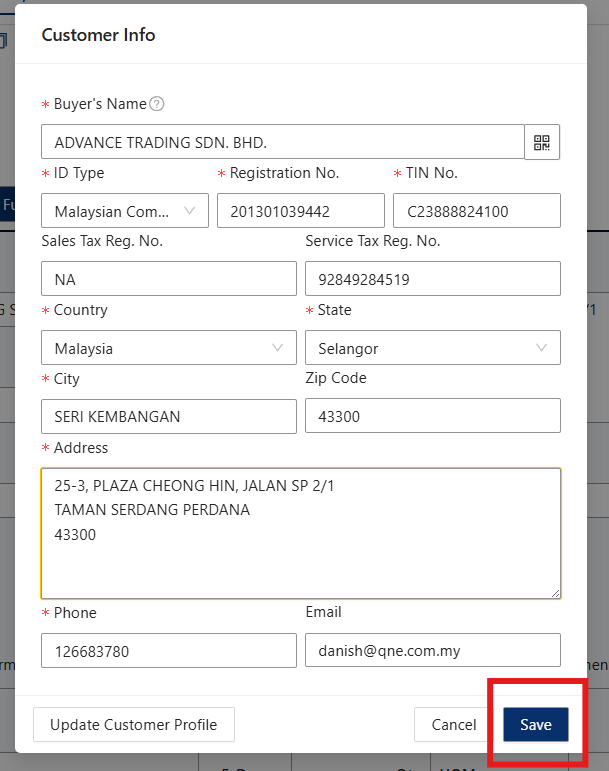
12. From the menu, click Save.

13. Click Submit E-Invoice to resubmit the same document.
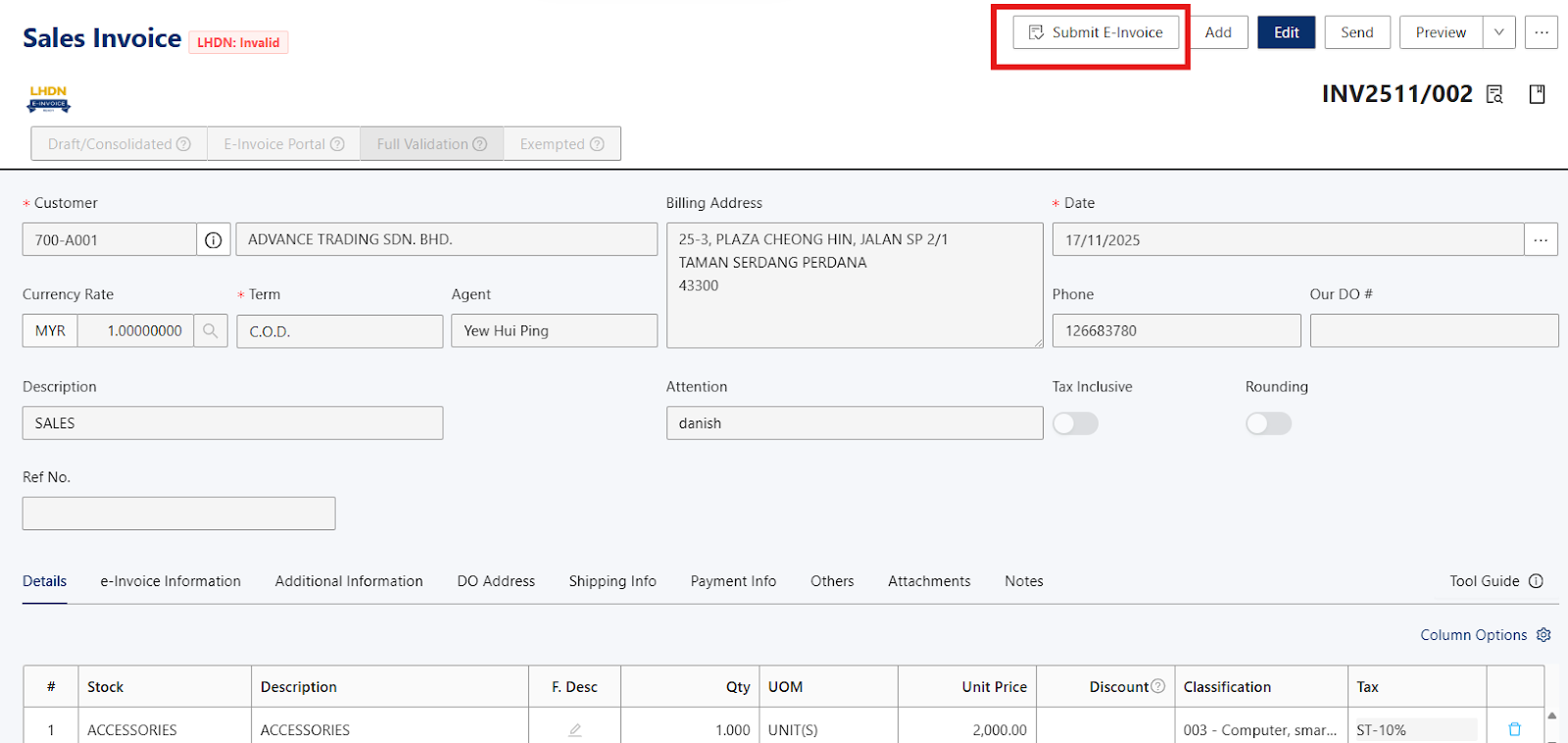

14. Check the e-Invoice status to confirm whether the document has been validated or produces Invalid results again.

15. If the result produces an Invalid response, redo from step #3.
Based on the example above, the result for the Invalid response was due to wrong data being key-in. This article helps users to navigate the sources of the error accordingly.
Should user encounter different kinds of Validation Results, you may:
Screenshot the error and share the error to our support team for assistance
OR
Identify the error and make the adjustments based on your knowledge
You may now know how to navigate an Invalid response for a submitted e-Invoice!
Was this article helpful?
That’s Great!
Thank you for your feedback
Sorry! We couldn't be helpful
Thank you for your feedback
Feedback sent
We appreciate your effort and will try to fix the article
