Overview :
The Reorder Level and Reorder Quantity of a stock item tell N3 AI POS when to buy more and how much. When the quantity on hand falls to or below the reorder level, the item appears in the low stock pop-up and the notification bell, and you can create a Purchase Order for it in one click, with the reorder quantity filled in.
At the end of this article, you will be able to:
Set the Reorder Level and Reorder Quantity of a stock item
Turn on the Low Stock Pop-up
Create a purchase order from the items below their reorder level
Check the Stock Reorder Listing report
Scenario :
The store reorders 96 7UP 325ml when its stock falls to 48, and 500 Coca-Cola 325ml when it falls to 6,000. Both are bought from Lim Kee Wholesale Sdn Bhd. The purchaser creates one purchase order for both, in the POS Sdn. Bhd. Live database.
Solution :
Set the Reorder Level and Reorder Quantity
Navigate to Stock > Stock Items, search for the item, e.g. STK00007, and click its Code. Click Edit.
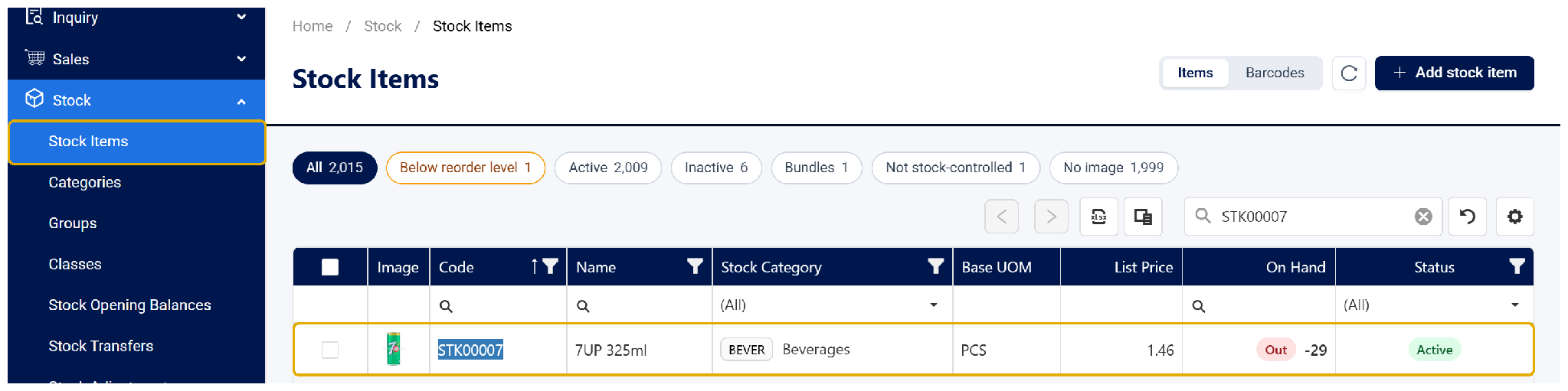
Click the Stock levels tab and fill in:
Reorder Level – When the quantity on hand falls to this level, the item is low on stock, e.g. 48.
Reorder Quantity – The quantity to order, e.g. 96. It fills the Qty of the purchase order.

Click Save. Repeat for other items, e.g. Coca-Cola 325ml: 6,000 and 500.
Turn On the Low Stock Pop-up
Navigate to Company > Maintenance > Settings and click Notification Setting.
In Low Stock Pop-up, turn on Stock Below Reorder Level and choose Show the Pop-up:
Every sign-in – Shows once each time a user signs in.
Once a day – Shows the first time each user opens the Portal on a day.
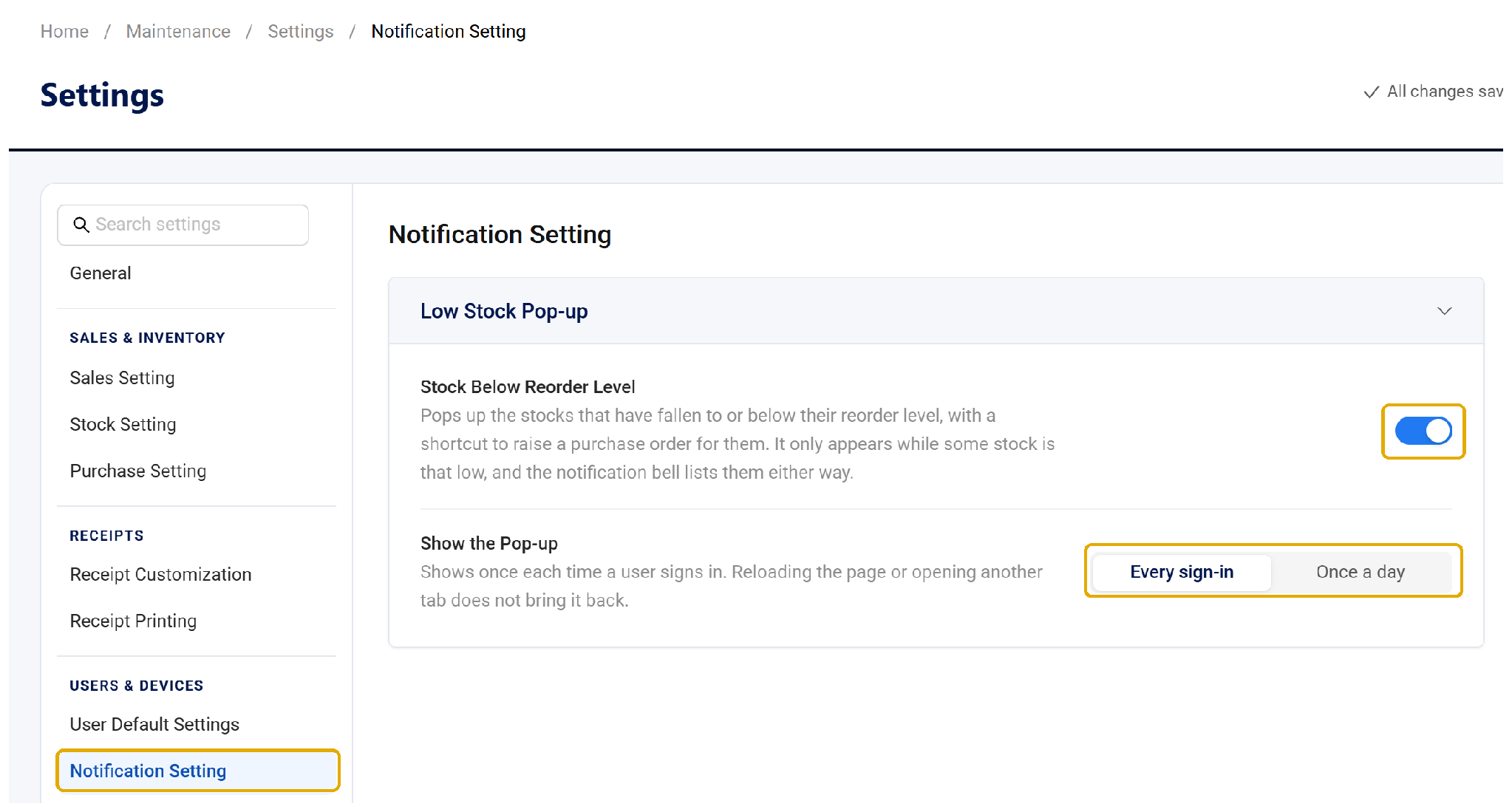
Click Review and save, then Confirm and save.
Create a Purchase Order from Low Stock
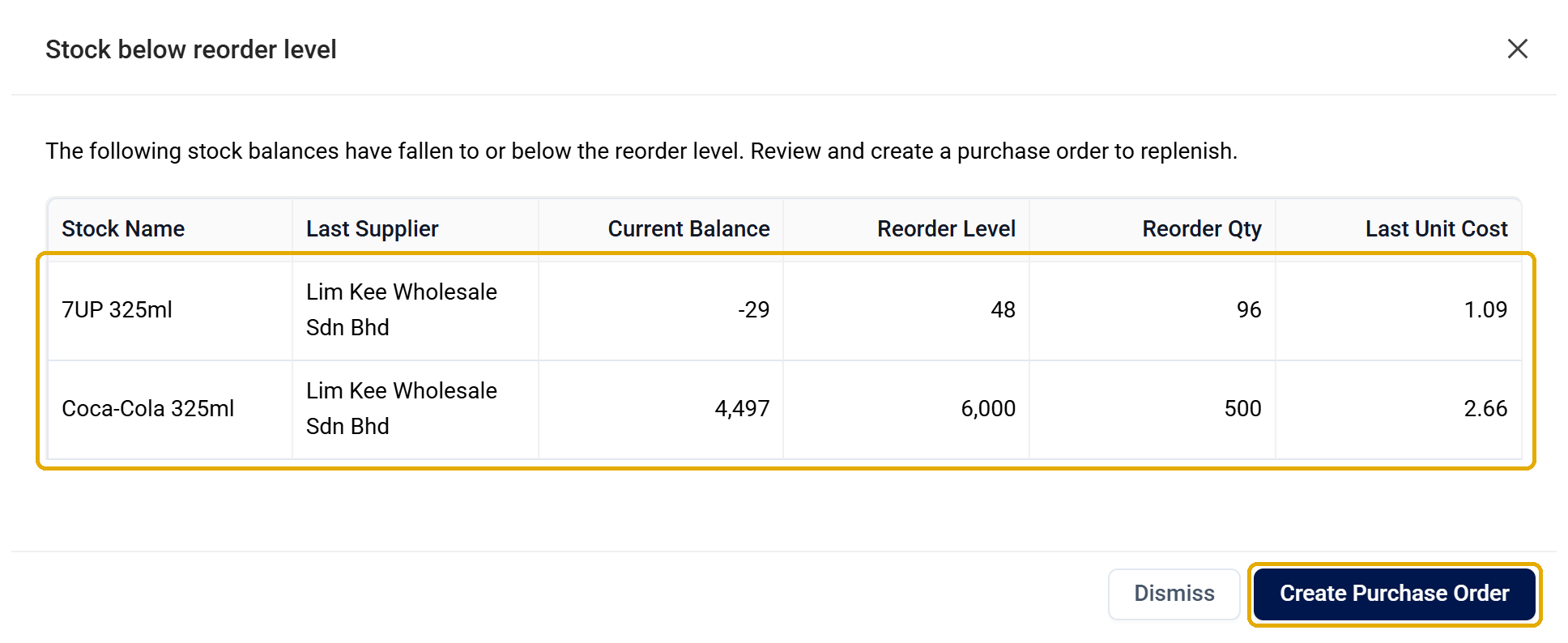
When you sign in, Stock below reorder level pops up with each item: Current Balance, Reorder Level, Reorder Qty and Last Unit Cost, e.g. 7UP 325ml: -29, 48, 96. Click Create Purchase Order.
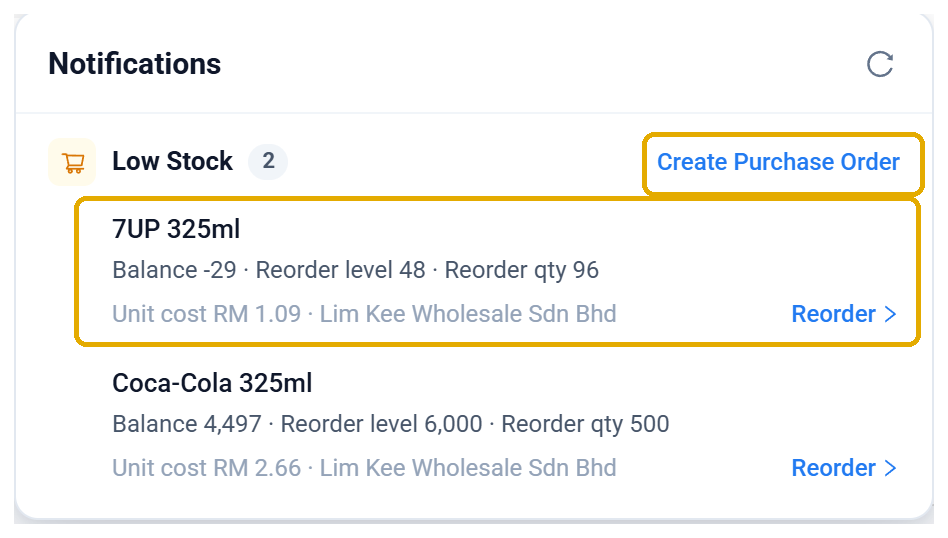
Tip: The notification bell lists the same items under Low Stock. Click Create Purchase Order for all of them, or Reorder for one item.
A new purchase order opens. The Supplier is the last supplier of the items, e.g. SUP002 Lim Kee Wholesale Sdn Bhd.
Each item is a line with its Reorder Quantity as the Qty, e.g. 96 7UP 325ml and 500 Coca-Cola 325ml, at its last unit cost. Change the quantities if needed.

Click Save.
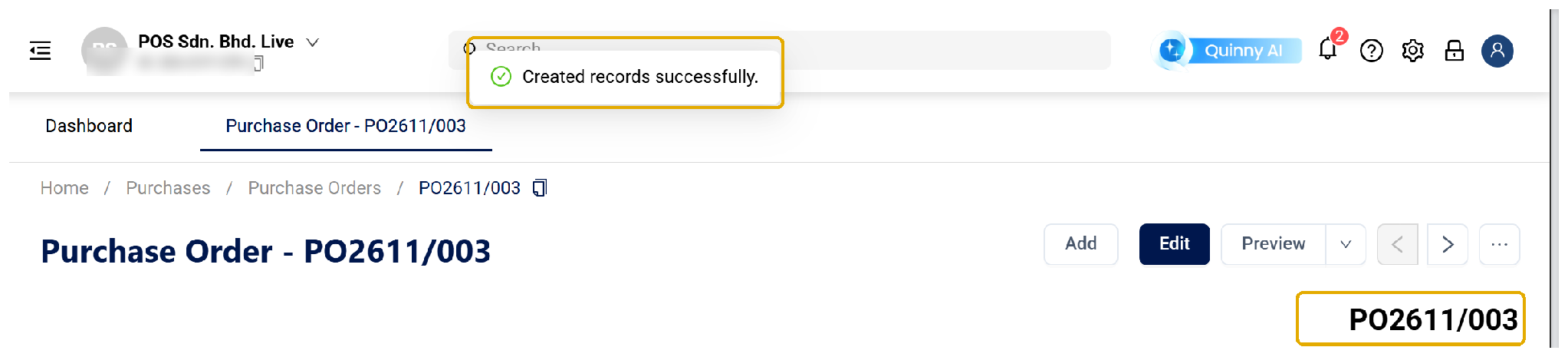
Result: Created records successfully. appears and the purchase order opens, e.g. PO2611/003. It is listed in Purchases > Purchase Orders.

Check the Stock Reorder Listing Report
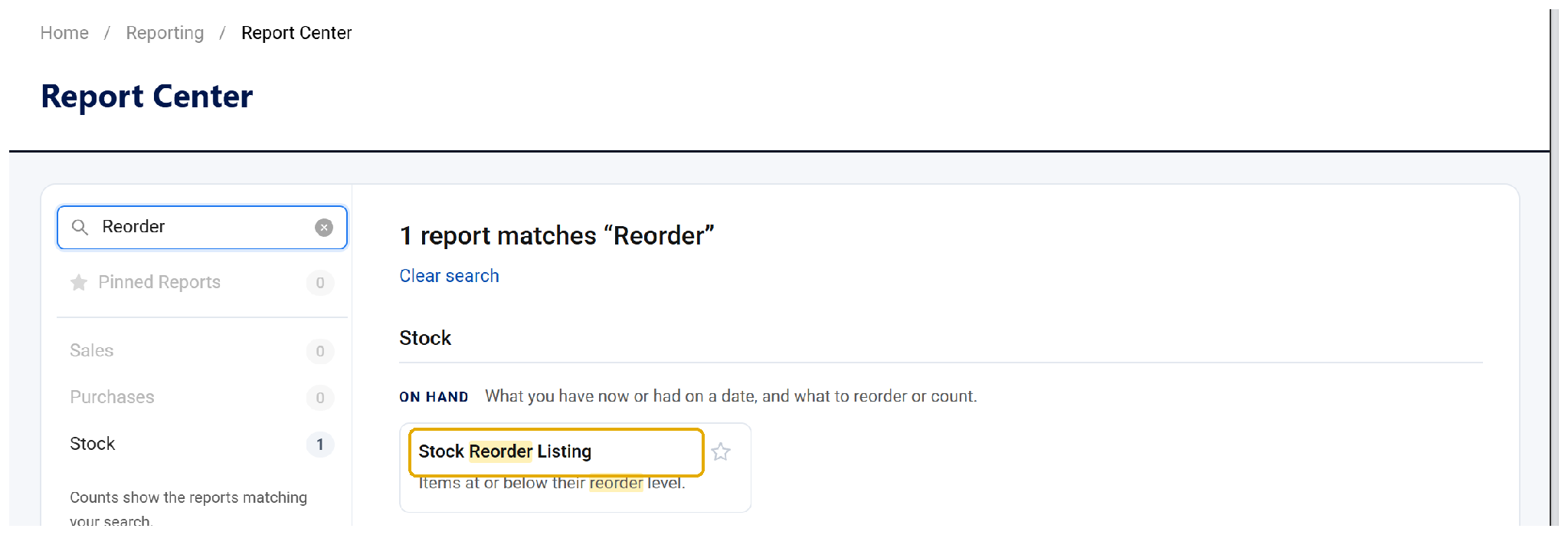
Navigate to Reporting > Report Center. Search for Reorder and click Stock Reorder Listing.
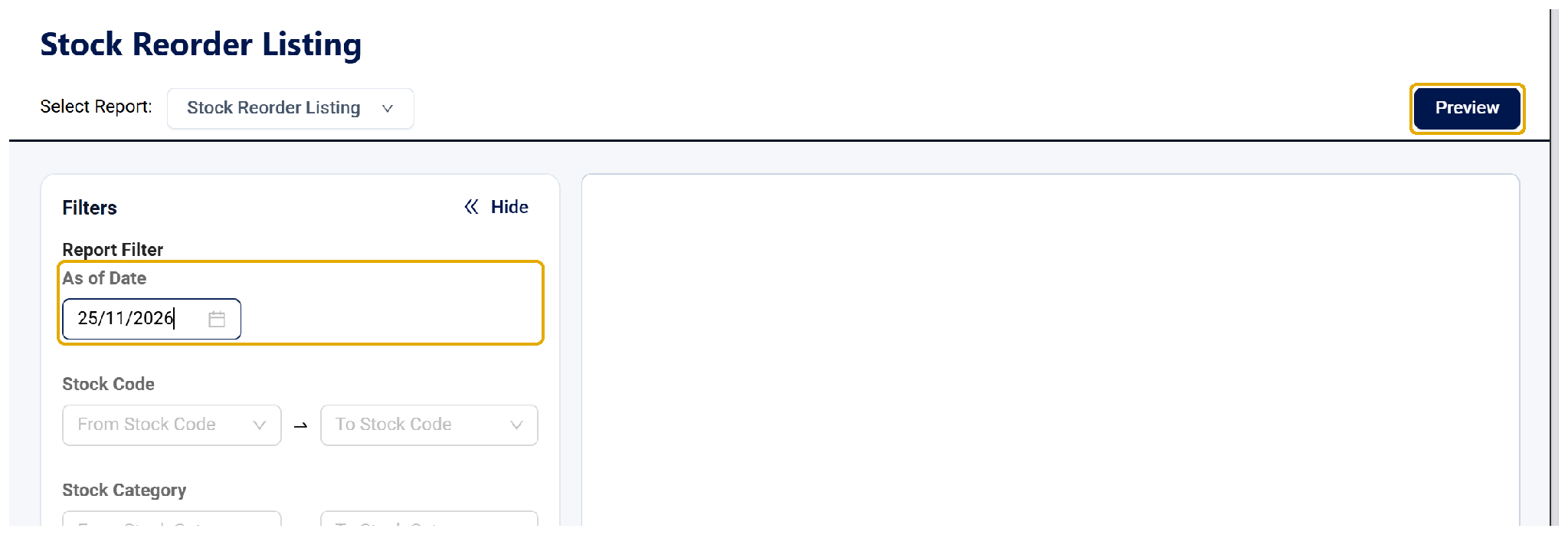
Choose the As of Date, e.g. today, and filter by Stock Code, Stock Category, Stock Group or Stock Class if needed. Click Preview.
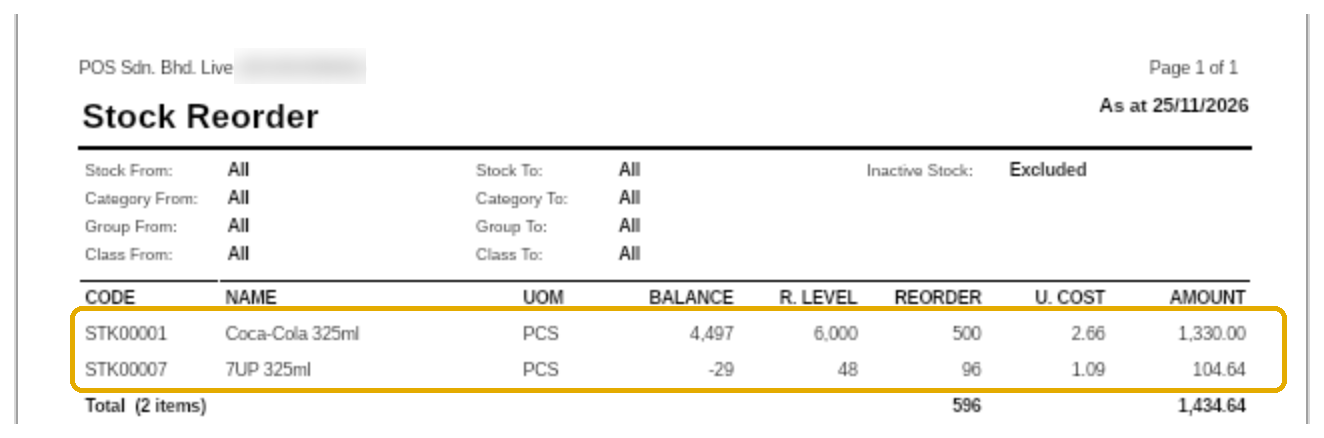
Result: The report lists the items at or below their reorder level with the Balance, R. Level (reorder level), Reorder (reorder quantity), U. Cost and Amount, e.g. 7UP 325ml: -29, 48, 96, 104.64. Use it to check what to reorder before you create the purchase order.
What's Next :
When the goods arrive, transfer the purchase order to a Goods Received Note.
** Learn more about Azure Cloud
** Learn more about QNE Hybrid Cloud Software
Was this article helpful?
That’s Great!
Thank you for your feedback
Sorry! We couldn't be helpful
Thank you for your feedback
Feedback sent
We appreciate your effort and will try to fix the article
