Overview :
At the cash register, the cashier can click Price Group to price the whole bill from a price group, in place of the customer's, e.g. for a wholesale buyer without a customer account. Price Group Switch in Sales Setting decides whether the cashier may do this freely (Allow), after confirming (Warn), or only with a supervisor's PIN (Block).
At the end of this article, you will be able to:
Set Price Group Switch to Allow, Warn or Block
Pick a price group for the bill at the cash register
Know what the cashier sees under Allow, Warn and Block
Before you start, set up the price group, e.g. WHOLESALE, as in How to Set Up Price Group in N3 AI POS.
Scenario :
A walk-in wholesale buyer with no customer account buys Pepsi 325ml, unit price RM 3.50. The cashier at SK Counter01 (Win App) prices the bill at WHOLESALE, where Pepsi is RM 3.00, in the POS Sdn. Bhd. Live database. The result is shown under each setting.
Solution :
Set Price Group Switch in Sales Setting
Navigate to Company > Maintenance > Settings and click Sales Setting.
In Price Group Switch, choose:
Allow – The cashier can pick a price group for the bill, in place of the customer's.

Warn – The cashier can pick a price group after confirming.

Block – A supervisor with Approve a Price Group Switch must enter their PIN.

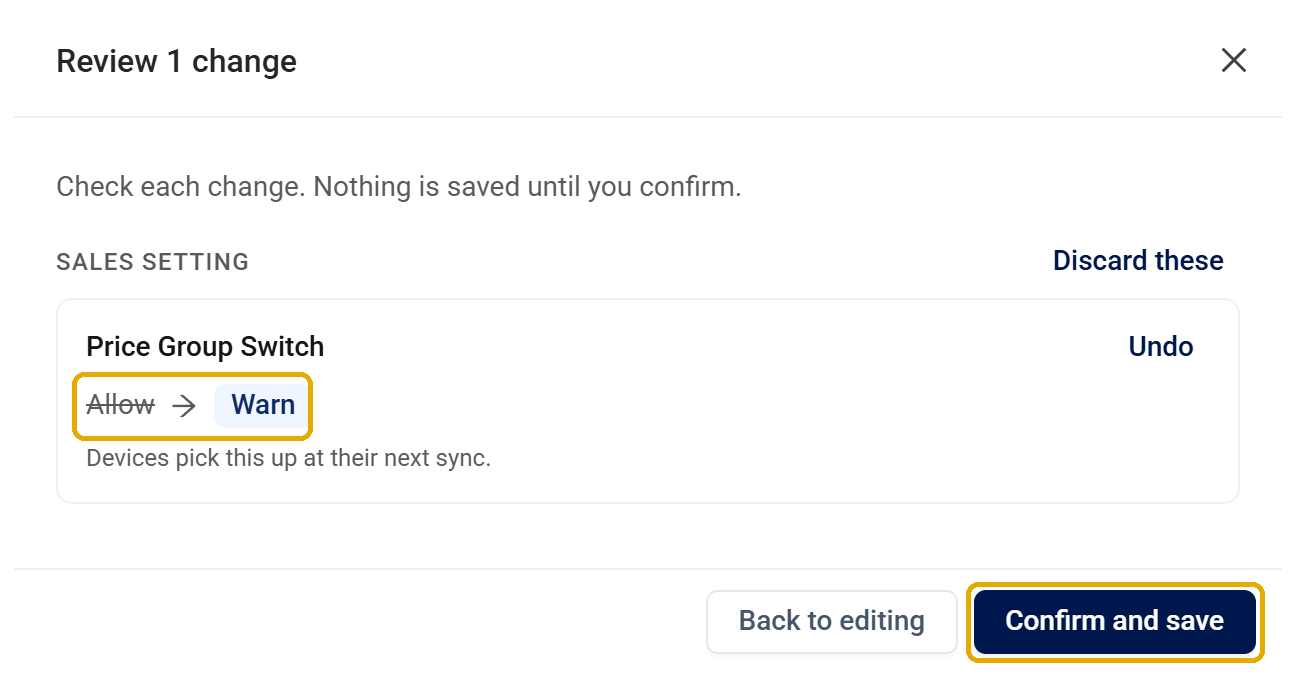
Click Review and save, check the change, e.g. Price Group Switch Allow → Warn, and click Confirm and save.
In the Win App, click the cloud icon and click Quick Sync on Settings, so the cash register gets the setting.
Pick a Price Group for the Bill
Add the items to the cart, e.g. Pepsi 325ml at 3.50. Click Price Group.

Click the price group, e.g. WHOLESALE. Customer's price group goes back to the customer's prices.
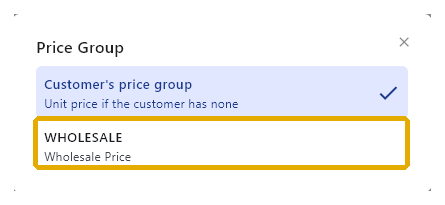
What happens next depends on Price Group Switch, as below.
Result: Allow
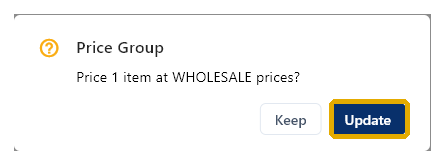
The bill switches at once. Price Group asks Price 1 item at WHOLESALE prices? Click Update. Click Keep to leave the items at their current prices.
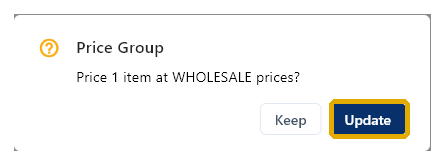
Result: The Price Group button shows WHOLESALE, the line is tagged WHOLESALE, and the Unit Price is 3.00.

Result: Warn
Price Group asks Price this bill at WHOLESALE prices instead of the customer's? Click Switch. Click Cancel to keep the bill as it is.
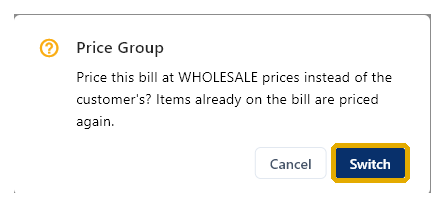
Result: The items are priced again at once, with no second question: the Unit Price is 3.00.

Result: Block
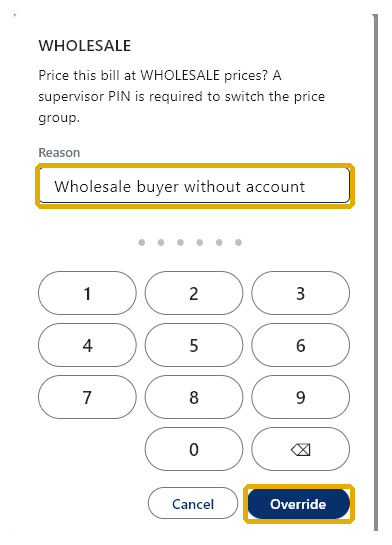
The supervisor PIN pad opens: Price this bill at WHOLESALE prices? A supervisor PIN is required to switch the price group. Fill in the Reason if needed, e.g. Wholesale buyer without account. The supervisor, e.g. a cashier in the Supervisor role, enters their PIN and clicks Override. Click Cancel to keep the bill as it is.
Note: Approve a Price Group Switch is turned on for a role in Point of Sale > Cashier Roles, e.g. Supervisor. If no role has it, Block shows a message instead of the PIN pad.
Price Group asks Price 1 item at WHOLESALE prices? Click Update.
Result: The Price Group button shows WHOLESALE, and the Unit Price is 3.00.

What's Next :
To go back to the customer's prices, click the x on the Price Group button, or pick Customer's price group, and click Update on Return 1 item to the unit price?. Going back is never asked about under Warn or Block. Price Group Switch does not apply when the price group comes from the customer chosen for the bill.
** Learn more about Azure Cloud
** Learn more about QNE Hybrid Cloud Software
Was this article helpful?
That’s Great!
Thank you for your feedback
Sorry! We couldn't be helpful
Thank you for your feedback
Feedback sent
We appreciate your effort and will try to fix the article
